Providing feedback on Red Hat documentation
We appreciate your feedback on our documentation. Let us know how we can improve it.
Use the Create Issue form in Red Hat Jira to provide your feedback. The Jira issue is created in the Red Hat Satellite Jira project, where you can track its progress.
-
Log in to Atlassian Jira.
-
Click the following link: Create Issue.
-
Complete the Summary, Description, and Reporter fields. In the Description field, include the documentation URL, chapter or section number, and a detailed description of the issue. Do not modify any other fields in the form.
-
Click Create.
1. Introduction to content management
You can manage the software lifecycle for your Red Hat Enterprise Linux hosts by organizing various types of content from various sources. Manage subscription information, base operating systems, middleware services, and end-user applications to maintain reliable and up-to-date host environments.
1.1. Content management capabilities in Red Hat Satellite
Understand how Red Hat Satellite groups subscription-related work and repository content so you can plan imports, lifecycle environments, and host access.
Red Hat Satellite provides the following management capabilities:
- Subscription management
-
This provides organizations with a method to manage their Red Hat subscription information.
- Content management
-
This provides organizations with a method to store Red Hat content and organize it in various ways. In the context of Satellite, content is defined as the software installed on hosts.
1.2. Content types in Red Hat Satellite
You can import and manage various content types, such as packages and ISO images, in Red Hat Satellite. Organize both Red Hat and custom content into products to streamline your software distribution.
For example, Satellite supports the following content types:
- RPM packages
-
Import RPM packages from repositories related to your Red Hat subscriptions. Satellite Server downloads the RPM packages from the Red Hat Content Delivery Network and stores them locally. You can use these repositories and their RPM packages in content views.
- Kickstart trees
-
Import the Kickstart trees to provision a host. New systems access these Kickstart trees over a network to use as base content for their installation. Red Hat Satellite contains predefined Kickstart templates. You can also create your own Kickstart templates.
- ISO and KVM images
-
Download and manage media for installation and provisioning. For example, Satellite downloads, stores, and manages ISO images and guest images for specific Red Hat Enterprise Linux and non-Red Hat operating systems.
- Custom file type
-
Manage custom content for any type of file you require, such as SSL certificates, ISO images, and OVAL files.
2. Managing Red Hat subscriptions
You can import content from the Red Hat Content Delivery Network (CDN) into Red Hat Satellite by using a Red Hat subscription manifest. Manage your subscription allocations to ensure each organization can access and download Red Hat repositories.
A Red Hat subscription manifest contains the information about the subscriptions purchased from Red Hat. Satellite uses the information in the manifest to access the Red Hat CDN and find what repositories are available for the associated subscription.
You must have a Red Hat subscription manifest containing a subscription allocation for each organization in Satellite. All subscription information is available on the Red Hat Hybrid Cloud Console.
- Subscription allocations and organizations
-
You can manage more than one organization if you have more than one subscription allocation. Satellite requires a single allocation for each organization configured in Satellite Server. The advantage of this is that each organization maintains separate subscriptions so that you can support multiple organizations, each with their own Red Hat accounts.
- Future-dated subscriptions
-
You can use future-dated subscriptions in a subscription manifest. When you add future-dated subscriptions to your manifest before the expiry date of the existing subscriptions, you can have uninterrupted access to repositories.
- Subscriptions service
-
The Subscriptions service on the Red Hat Hybrid Cloud Console helps you track and manage Red Hat subscription usage across connected and disconnected systems. It collects usage data, displays trends in a centralized dashboard, and supports historical analysis for planning and compliance.
2.1. Tracking subscription usage by using the Subscriptions service
You can configure your Satellite Server to report usage data to the Red Hat Hybrid Cloud Console. Track and manage your subscription usage to analyze historical trends for planning and compliance.
- Connected Satellite
-
In the Satellite web UI, navigate to Red Hat Lightspeed > Inventory Upload to configure the
foreman_rh_cloudplugin and share inventory information with the Red Hat Hybrid Cloud Console. Ensure that the Automatic Inventory Upload setting is enabled. The plugin enables the subscriptions service to track usage information across connected systems.You can configure the plugin to omit data that is not needed for subscription tracking, such as host names and IP addresses.
- Disconnected Satellite
-
Export usage data in one of the following ways:
-
Use the
foreman_rh_cloudplugin to generate a report locally. You can download the report from the Satellite web UI. The report is in JSON format and is easily integrated for automated scripts or machine processing. You can generate this report by using CLI:# foreman-rake rh_cloud_inventory:report:generate
-
View product usage by running the Host - Installed Products report.
Navigate to Monitor > Reports > Report Templates. You can select the format that you want for the report. YAML, JSON, HTML, and CSV formats are supported.
-
2.2. Importing Red Hat subscription manifests into Satellite
You can import a Red Hat subscription manifest into Satellite to provide subscription allocation to your organization in Satellite.
|
Note
|
Simple Content Access (SCA) is set on the organization, not the manifest. Importing a manifest does not change your organization’s Simple Content Access status. |
Simple Content Access simplifies the subscription experience for administrators.
2.2.1. Obtaining a Red Hat subscription manifest
You can create and export a Red Hat subscription manifest to prepare subscriptions for import into Satellite.
-
If your Satellite is connected, use the Red Hat Hybrid Cloud Console to create and export the manifest. For more information, see Creating and managing manifests for a connected Satellite Server in Subscription Central.
This manifest does not yet contain any subscriptions. After you import the manifest into Satellite, add subscriptions to the manifest in Satellite.
-
If your Satellite is disconnected, use the Red Hat Customer Portal to create and export the manifest. For more information, see Creating and managing manifests for a disconnected Satellite Server in Subscription Central.
This manifest already contains subscriptions.
2.2.2. Importing a Red Hat subscription manifest by using Satellite web UI
You can import a Red Hat subscription manifest into Satellite Server by using Satellite web UI. Import the manifest so that you can enable and synchronize Red Hat repositories in your organization.
-
You have a Red Hat subscription manifest file. For more information, see Obtaining a Red Hat subscription manifest.
-
In the Satellite web UI, ensure the context is set to the organization you want to use.
-
Navigate to Content > Subscriptions.
-
Click Manage Manifest.
-
In the Manage Manifest window, click Choose File.
-
Navigate to the location that contains the Red Hat subscription manifest file, then click Open.
-
If you use the manifest from the Red Hat Hybrid Cloud Console, add subscriptions to the manifest. For more information, see Adding Red Hat subscriptions to subscription manifests.
2.2.3. Importing a Red Hat subscription manifest by using Hammer CLI
You can import a Red Hat subscription manifest into Satellite Server by using Hammer CLI. Import the manifest so that you can enable and synchronize Red Hat repositories in your organization.
-
You have a Red Hat subscription manifest file. For more information, see Obtaining a Red Hat subscription manifest.
-
Copy the Red Hat subscription manifest file from your local machine to Satellite Server:
$ scp ~/manifest_file.zip root@satellite.example.com:~/.
-
Log in to Satellite Server over SSH as the
rootuser. -
Import the Red Hat subscription manifest file:
$ hammer subscription upload \
--file ~/manifest_file.zip \
--organization "My_Organization"
-
If you use the manifest from the Red Hat Hybrid Cloud Console, add subscriptions to the manifest. For more information, see Adding Red Hat subscriptions to subscription manifests.
2.3. Locating a Red Hat subscription
You can locate specific Red Hat subscriptions in your Satellite by filtering the results on the Subscriptions page to navigate a high volume of subscriptions.
-
A Red Hat subscription manifest is imported to Satellite. For more information, see Importing Red Hat subscription manifests into Satellite.
-
In the Satellite web UI, ensure the context is set to the organization you want to use.
-
In the Satellite web UI, navigate to Content > Subscriptions.
-
In the Subscriptions window, click the Search field to view the list of search criteria for building your search query.
-
Select search criteria to display further options.
-
When you have built your search query, click the search icon.
2.4. Adding Red Hat subscriptions to subscription manifests
You can add Red Hat subscriptions to your subscription manifest in Satellite to allocate entitlements to Red Hat content in your organization.
If you have exported a new subscription manifest from the Red Hat Hybrid Cloud Console, you have to populate the manifest with subscriptions. Such a manifest does not initially contain any subscriptions.
-
A Red Hat subscription manifest is imported to Satellite. For more information, see Importing Red Hat subscription manifests into Satellite.
-
In the Satellite web UI, ensure the context is set to the organization you want to use.
-
Navigate to Content > Subscriptions.
-
On the Subscriptions page, click Add Subscriptions.
-
On the row of each subscription you want to add, enter the quantity in the Quantity to Allocate column.
-
Click Submit.
2.5. Removing Red Hat subscriptions from subscription manifests
You can remove Red Hat subscriptions from manifests to adjust entitlement allocations or decommission Red Hat products from your organization.
|
Warning
|
Manifests must not be deleted. If you delete the manifest from the Red Hat Customer Portal or in the Satellite web UI, all of the entitlements for all of your hosts will be removed. |
-
A Red Hat subscription manifest is imported to Satellite. For more information, see Importing Red Hat subscription manifests into Satellite.
-
In the Satellite web UI, ensure the context is set to the organization you want to use.
-
Navigate to Content > Subscriptions.
-
On the row of each subscription you want to remove, select the corresponding checkbox.
-
Click Delete, and then confirm deletion.
2.6. Updating and refreshing Red Hat subscription manifests
You can refresh your Red Hat subscription manifests to keep your subscription allocations up to date. Refresh your manifests after renewing, adjusting, or purchasing subscriptions to ensure accurate entitlements in your Satellite.
Every time you change a subscription allocation, you must refresh the manifest to reflect these changes. For example, you must refresh the manifest if you take any of the following actions:
-
Renewing a subscription
-
Adjusting subscription quantities
-
Purchasing additional subscriptions
You can refresh the manifest directly in the Satellite web UI. Alternatively, you can import an updated manifest that contains the changes.
The Satellite web UI provides a notification before the subscription manifest expires.
-
A Red Hat subscription manifest is imported to Satellite. For more information, see Importing Red Hat subscription manifests into Satellite.
-
In the Satellite web UI, ensure the context is set to the organization you want to use.
-
Navigate to Content > Subscriptions.
-
On the Subscriptions page, click Manage Manifest.
-
In the Manage Manifest window, click Refresh.
2.7. Red Hat CDN structure
The Red Hat Content Delivery Network (CDN) is a geographically distributed series of static web servers providing Red Hat software. You can access this content directly through Subscription Manager or Satellite Server.
The Red Hat CDN is located at cdn.redhat.com.
Satellite and Subscription Manager configure which content is accessible to your hosts based on your subscription entitlements.
Satellite must authenticate to the Red Hat CDN by using X.509 certificate authentication.
The certificate is part of a subscription manifest.
$ tree -d -L 11
└── content
    ├── beta
    │   └── rhel
    │       └── server
    │           └── 7
    │               └── x86_64
    │                   └── sat-tools
    └── dist
        └── rhel
            └── server
                └── 7
                ├── 7.2
                │   └── x86_64
                │       └── kickstart
                └── 7Server
                    └── x86_64
                        └── os
-
content– Root directory for the content. -
beta– Directory responsible for the lifecycle of the content. Common directories includebeta(for Beta code),dist(for Production) andeus(For Extended Update Support) directories. -
rhel– Directory responsible for the product name. Usuallyrhelfor Red Hat Enterprise Linux. -
server– Directory responsible for the type of the product. For Red Hat Enterprise Linux this might includeserver,workstation, andcomputenodedirectories. -
7– Directory responsible for the release version, such as7,7.2or7Server. -
x86_64– Directory responsible for the base architecture, such asi386orx86_64. -
sat-tools– Directory responsible for the repository name, such assat-tools,kickstart,rhscl.
Some components have additional subdirectories which might vary.
This directory structure is also used in Red Hat subscription manifests.
3. Adding content to Satellite
Start adding content to Satellite by organizing products and repositories, securing upstream connections, and synchronizing or uploading packages for your hosts.
3.1. Products and repositories in Satellite
Products group related repositories in Satellite. Each repository stores packages or other content that you synchronize from upstream or upload directly.
Both Red Hat content and custom content in Satellite have similarities:
-
The relationship between a product and its repositories is the same and the repositories still require synchronization.
-
Custom products require a subscription for hosts to access, similar to subscriptions to Red Hat products. Satellite creates a subscription for each custom product you create.
Red Hat content is already organized into products. For example, Red Hat Enterprise Linux Server is a product in Satellite. The repositories for that product consist of different versions, architectures, and add-ons. For Red Hat repositories, products are created automatically after enabling the repository.
Other content can be organized into custom products however you want. For example, you might create an EPEL (Extra Packages for Enterprise Linux) Product and add an "EPEL 7 x86_64" repository to it.
For more information about creating and packaging RPMs, see the Red Hat Enterprise Linux 7 RPM Packaging Guide.
3.2. Best practices for products and repositories
Follow these recommendations when you organize products and repositories in Satellite to simplify content views and avoid synchronization issues.
-
Use one content type per product and content view, for example, yum content only.
-
Make file repositories available over HTTP. If you set Protected to true, you can only download content using a global debugging certificate.
-
Automate the creation of multiple products and repositories by using a Hammer script or an Ansible Playbook.
-
For Red Hat content, import your Red Hat manifest into Satellite. For more information, see Managing Red Hat subscriptions.
-
Avoid uploading content to repositories with an Upstream URL. Instead, create a repository to synchronize content and upload content to without setting an Upstream URL.
If you upload content to a repository that already synchronizes another repository, the content might be overwritten, depending on the mirroring policy and content type.
3.3. Enabling Red Hat repositories by using Satellite web UI
Enable the Red Hat repositories that match the release and architecture of your hosts so Satellite can synchronize the content from the Red Hat CDN.
To select the repositories to synchronize, you must first identify the product that contains the repository, and then enable that repository based on the relevant release version and base architecture.
-
If outside network access requires usage of an HTTP proxy, a default HTTP proxy for your Satellite Server is configured. For more information, see Adding a default HTTP proxy to Satellite.
-
Your Red Hat subscription manifest is imported to your organization and contains subscriptions. For more information, see Importing Red Hat subscription manifests into Satellite.
-
In the Satellite web UI, navigate to Content > Red Hat Repositories.
-
From the package type list, select the required package types, such as RPM or Kickstart.
-
To find repositories, either enter the repository name, or toggle the Recommended Repositories button to the on position to view a list of repositories that you require.
-
In the Available Repositories pane, click a repository to expand the repository set.
-
Click the Enable icon next to the base architecture and release version that you want.
3.4. Enabling Red Hat repositories by using Hammer CLI
Enable the Red Hat repositories that match the release and architecture of your hosts so Satellite can synchronize the content from the Red Hat CDN.
To select the repositories to synchronize, you must first identify the product that contains the repository, and then enable that repository based on the relevant release version and base architecture.
-
If outside network access requires usage of an HTTP proxy, a default HTTP proxy for your Satellite Server is configured. For more information, see Adding a default HTTP proxy to Satellite.
-
Your Red Hat subscription manifest is imported to your organization and contains subscriptions. For more information, see Importing Red Hat subscription manifests into Satellite.
-
Search for your product:
$ hammer product list --organization "My_Organization"
-
List the repository set for the product:
$ hammer repository-set list \
--product "Red Hat Enterprise Linux Server" \
--organization "My_Organization"
-
Enable the repository using either the name or ID number. Include the release version, such as
7Server, and base architecture, such asx86_64.$ hammer repository-set enable \ --name "Red Hat Enterprise Linux 7 Server (RPMs)" \ --releasever "7Server" \ --basearch "x86_64" \ --product "Red Hat Enterprise Linux Server" \ --organization "My_Organization"
3.5. Authenticating and securing content with content credentials
Upstream content often uses HTTPS and signed metadata or packages. Import SSL certificates when upstream servers use custom or private certificate authorities so Satellite can connect securely. Import GPG keys so registered hosts can verify signatures on Yum content when they consume content from Satellite.
3.5.1. Importing custom SSL certificates by using Satellite web UI
Import SSL certificates and keys into content credentials before synchronizing custom content from upstream servers that use HTTPS or client authentication. This might include client certificates and keys or CA certificates.
-
In the Satellite web UI, navigate to Content > Content Credentials. In the Content Credentials window, click Create Content Credential.
-
In the Name field, enter a name for your SSL certificate.
-
From the Type list, select SSL Certificate.
-
In the Content Credentials Content field, paste your SSL certificate, or click Browse to upload your SSL certificate.
-
Click Save.
3.5.2. Importing custom SSL certificates by using Hammer CLI
Import SSL certificates and keys into content credentials before synchronizing custom content from upstream servers that use HTTPS or client authentication. This might include client certificates and keys or CA certificates.
-
Copy the SSL certificate to your Satellite Server:
$ scp My_SSL_Certificate root@satellite.example.com:~/.
Or download the SSL certificate to your Satellite Server from an online source:
$ wget -P ~ http://upstream-satellite.example.com/pub/katello-server-ca.crt
-
Upload the SSL Certificate to Satellite:
$ hammer content-credential create \
--content-type cert \
--name "My_SSL_Certificate" \
--organization "My_Organization" \
--path ~/My_SSL_Certificate
3.5.3. Extracting GPG keys from RPM packages
Extract GPG public keys from vendor RPM packages without installing them when upstream repositories ship keys inside a release package.
-
You know the download URL for the RPM that ships the vendor GPG keys.
-
Download the RPM to your local machine:
$ wget http://www.example.com/9.5/example-9.5-2.noarch.rpm
-
Extract the RPM file without installing it:
$ rpm2cpio example-9.5-2.noarch.rpm | cpio -idmv
-
Locate the GPG public key files under the extracted
etc/pki/rpm-gpg/directory, for exampleetc/pki/rpm-gpg/RPM-GPG-KEY-EXAMPLE-95.
-
Use the extracted key file when you import a custom GPG key into Satellite. For more information, see Importing a custom GPG key by using Satellite web UI.
3.5.4. Importing a custom GPG key by using Satellite web UI
Import a vendor GPG key into Satellite so hosts validate signatures when they install signed custom content from authorized sources.
Red Hat content is already configured with the appropriate GPG key and thus GPG Key management of Red Hat repositories is not supported.
-
You have a copy of the GPG key used to sign the RPM content that you want to use and manage in Satellite. Most RPM distribution vendors provide their GPG Key on their website. You can also extract GPG key files from an RPM package. For more information, see Extracting GPG keys from RPM packages.
-
In the Satellite web UI, navigate to Content > Content Credentials.
-
Click Create Content Credential.
-
Enter the name of your repository and select GPG Key from the Type list.
-
Either paste the GPG key into the Content Credential Contents field, or click Browse and select the GPG key file that you want to import.
If your custom repository contains content signed by multiple GPG keys, you must enter all required GPG keys in the Content Credential Contents field with new lines between each key, for example:
-----BEGIN PGP PUBLIC KEY BLOCK-----

mQINBFy/HE4BEADttv2TCPzVrre+aJ9f5QsR6oWZMm7N5Lwxjm5x5zA9BLiPPGFN
4aTUR/g+K1S0aqCU+ZS3Rnxb+6fnBxD+COH9kMqXHi3M5UNzbp5WhCdUpISXjjpU
XIFFWBPuBfyr/FKRknFH15P+9kLZLxCpVZZLsweLWCuw+JKCMmnA
=F6VG
-----END PGP PUBLIC KEY BLOCK-----

-----BEGIN PGP PUBLIC KEY BLOCK-----

mQINBFw467UBEACmREzDeK/kuScCmfJfHJa0Wgh/2fbJLLt3KSvsgDhORIptf+PP
OTFDlKuLkJx99ZYG5xMnBG47C7ByoMec1j94YeXczuBbynOyyPlvduma/zf8oB9e
Wl5GnzcLGAnUSRamfqGUWcyMMinHHIKIc1X1P4I=
=WPpI
-----END PGP PUBLIC KEY BLOCK-----
-
Click Save.
3.5.5. Importing a custom GPG key by using Hammer CLI
Import a vendor GPG key into Satellite so hosts validate signatures when they install signed custom content from authorized sources.
Red Hat content is already configured with the appropriate GPG key and thus GPG Key management of Red Hat repositories is not supported.
-
You have a copy of the GPG key used to sign the RPM content that you want to use and manage in Satellite. Most RPM distribution vendors provide their GPG Key on their website. You can also extract GPG key files from an RPM package. For more information, see Extracting GPG keys from RPM packages.
-
Copy the GPG key to your Satellite Server:
$ scp ~/etc/pki/rpm-gpg/RPM-GPG-KEY-EXAMPLE-95 root@satellite.example.com:~/.
-
Upload the GPG key to Satellite:
$ hammer content-credentials create \
--content-type gpg_key \
--name "My_GPG_Key" \
--organization "My_Organization" \
--path ~/RPM-GPG-KEY-EXAMPLE-95
3.6. Creating custom products
A product in Satellite groups related repositories. Create a custom product before you add custom repositories.
3.6.1. Creating a custom product by using Satellite web UI
Create a custom product to group repositories you add manually before you define custom repositories or upload packages.
-
In the Satellite web UI, navigate to Content > Products, click Create Product.
-
In the Name field, enter a name for the product. Satellite automatically completes the Label field based on what you have entered for Name.
-
Optional: From the GPG Key list, select the GPG key for the product.
-
Optional: From the SSL CA Cert list, select the SSL CA certificate for the product.
-
Optional: From the SSL Client Cert list, select the SSL client certificate for the product.
-
Optional: From the SSL Client Key list, select the SSL client key for the product.
-
Optional: From the Sync Plan list, select an existing sync plan or click Create Sync Plan and create a sync plan for your product requirements.
-
In the Description field, enter a description of the product.
-
Click Save.
3.7. Creating custom repositories
Repositories hold synchronized or uploaded content for a product. Add repository definitions for custom Yum content, then synchronize or upload packages as required.
3.7.1. Adding custom RPM repositories by using Satellite web UI
Add custom RPM repositories from an upstream URL to distribute Yum content to your hosts. Use Repo Discovery to import multiple repositories from one source.
|
Note
|
Red Hat does not support the upstream RPMs directly from third-party sites. These RPMs are used to demonstrate the synchronization process. For any issues with these RPMs, contact the third-party developers. |
The Products window in the Satellite web UI also provides a Repo Discovery function that finds all repositories from a URL and you can select which ones to add to your custom product.
For example, you can use the Repo Discovery to search https://download.postgresql.org/pub/repos/yum/16/redhat/ and list all repositories for different Red Hat Enterprise Linux versions and architectures.
This helps you save time importing multiple repositories from a single source.
-
You have imported the GPG key that you want to use to verify signatures of the RPM packages. For more information, see Importing a custom GPG key by using Satellite web UI.
-
In the Satellite web UI, navigate to Content > Products and select the product that you want to use, and then click New Repository.
-
In the Name field, enter a name for the repository. Satellite automatically completes the Label field based on what you have entered for Name.
-
Optional: In the Description field, enter a description for the repository.
-
From the Type list, select
yumas type of repository. -
Optional: From the Restrict to Architecture list, select an architecture. If you want to make the repository available to all hosts regardless of the architecture, ensure to select No restriction.
-
Optional: From the Restrict to OS Version list, select the operating system version. If you want to make the repository available to all hosts regardless of the operating system version, ensure to select No restriction.
-
Optional: In the Upstream URL field, enter the URL of the external repository to use as a source. Satellite supports three protocols:
http://,https://, andfile://. If you are using afile://repository, you have to place it under/var/lib/pulp/sync_imports/directory.If you do not enter an upstream URL, you can manually upload packages.
-
Optional: Check the Ignore SRPMs checkbox to exclude source RPM packages from being synchronized to Satellite.
-
Optional: Check the Ignore treeinfo checkbox if you receive the error
Treeinfo file should have INI format. All files related to Kickstart will be missing from the repository iftreeinfofiles are skipped. -
Select the Verify SSL checkbox if you want to verify that the upstream repository’s SSL certificates are signed by a trusted CA.
-
Optional: In the Upstream Username field, enter the user name for the upstream repository if required for authentication. Clear this field if the repository does not require authentication.
-
Optional: In the Upstream Password field, enter the corresponding password for the upstream repository. Clear this field if the repository does not require authentication.
-
Optional: In the Upstream Authentication Token field, provide the token of the upstream repository user for authentication. Leave this field empty if the repository does not require authentication.
-
From the Download Policy list, select the type of synchronization Satellite Server performs. For more information, see Download policies overview.
-
From the Mirroring Policy list, select the type of content synchronization Satellite Server performs. For more information, see Mirroring policies overview.
-
Optional: In the Retain package versions field, enter the number of versions you want to retain per package. This field is available only if you are using the additive download policy.
-
Optional: In the HTTP Proxy Policy field, select an HTTP proxy.
-
From the Checksum list, select the checksum type for the repository.
-
Optional: You can clear the Unprotected checkbox to require a subscription entitlement certificate for accessing this repository. By default, the repository is published through HTTP.
-
Optional: From the GPG Key list, select the GPG key for the product.
-
Optional: In the SSL CA Cert field, select the SSL CA Certificate for the repository.
-
Optional: In the SSL Client cert field, select the SSL Client Certificate for the repository.
-
Optional: In the SSL Client Key field, select the SSL Client Key for the repository.
-
Click Save to create the repository.
3.7.2. Adding custom RPM repositories by using Hammer CLI
Add custom RPM repositories from an upstream URL to distribute Yum content to your hosts.
|
Note
|
Red Hat does not support the upstream RPMs directly from third-party sites. These RPMs are used to demonstrate the synchronization process. For any issues with these RPMs, contact the third-party developers. |
-
You have imported the GPG key that you want to use to verify signatures of the RPM packages. For more information, see Importing a custom GPG key by using Hammer CLI.
-
Create a Yum repository:
$ hammer repository create \
--arch "My_Architecture" \
--content-type "yum" \
--gpg-key-id My_GPG_Key_ID \
--name "My_Repository" \
--organization "My_Organization" \
--os-version "My_Operating_System_Version" \
--product "My_Product" \
--publish-via-http true \
--url My_Upstream_URL
3.8. Uploading content to custom repositories
You can upload content to custom repositories to distribute content that you cannot synchronize from an upstream URL.
3.8.1. Uploading content to custom RPM repositories by using Satellite web UI
You can upload individual RPM packages to a custom RPM repository to distribute Yum content that you cannot synchronize.
You must use Hammer CLI to upload source RPM packages. For more information, see Uploading content to custom RPM repositories by using Hammer CLI.
-
In the Satellite web UI, navigate to Content > Products.
-
Click the name of the custom product.
-
In the Repositories tab, click the name of the custom RPM repository.
-
Under Upload Package, click Browse… and select the RPM you want to upload.
-
Click Upload.
-
To view all RPMs in this repository, click the number next to Packages under Content Counts.
-
If the upload times out when uploading very large files on a slow network, raise the Sync task timeout setting value. In the Satellite web UI, navigate to Administer > Settings. The Sync task timeout setting is located on the Tasks tab.
-
Add your custom RPM repository to a content view. For more information, see Creating a content view by using Satellite web UI.
-
If your custom RPM is unprotected, hosts can consume its content by using the Published At URL.
In the Default Organization View content view, the URL consists of your Capsule FQDN,
/pulp/content/, your organization label,/Library/custom/, your product label,/, your repository label, and a trailing/, for example,https://foreman.example.com/pulp/content/Example/Library/custom/my-software/my-app/.
3.8.2. Uploading content to custom RPM repositories by using Hammer CLI
You can upload individual RPM packages to a custom RPM repository to distribute Yum content that you cannot synchronize. Use Hammer CLI to upload source RPM packages.
-
Upload an RPM package:
$ hammer repository upload-content \
--id My_Repository_ID \
--path /path/to/example-package.rpm
-
Upload a source RPM package:
$ hammer repository upload-content \
--content-type srpm \
--id My_Repository_ID \
--path /path/to/example-package.src.rpm
-
After the upload is complete, you can view information about a source RPM by using the commands
hammer srpm listandhammer srpm info --id srpm_ID.
-
If the upload times out when uploading very large files on a slow network, raise the Sync task timeout setting value:
$ hammer settings set --name foreman_tasks_sync_task_timeout --value seconds
-
Add your custom RPM repository to a content view. For more information, see Creating a content view by using Hammer CLI.
-
If your custom RPM is unprotected, hosts can consume its content by using the Published At URL.
In the Default Organization View content view, the URL consists of your Capsule FQDN,
/pulp/content/, your organization label,/Library/custom/, your product label,/, your repository label, and a trailing/, for example,https://foreman.example.com/pulp/content/Example/Library/custom/my-software/my-app/.
4. Synchronizing content to Satellite
Synchronize added repositories to download content into Satellite, then keep it current with ad hoc runs or recurring sync plans. Configure network access and HTTP proxies for restricted environments, and use advanced synchronization to troubleshoot issues.
4.1. Configuring network for content synchronization
Content synchronization requires outbound access to upstream URLs. Adjust SELinux, HTTP proxies, and per-product or per-repository HTTP proxy policies if your environment restricts or inspects that traffic.
4.1.1. Configuring SELinux to permit content synchronization on custom ports
Add a TCP port to the SELinux http_port_t type when upstream content servers use a port that Satellite cannot reach by default for synchronization.
By default, connecting to web servers running on the following ports is permitted: 80, 81, 443, 488, 8008, 8009, 8443, and 9000.
-
On Satellite Server, verify the ports that are permitted by SELinux for content synchronization:
# semanage port -l | grep ^http_port_t
http_port_t     tcp      80, 81, 443, 488, 8008, 8009, 8443, 9000
-
Configure SELinux to permit a custom port for content synchronization, for example 10011:
# semanage port -a -t http_port_t -p tcp 10011
4.1.2. Adding an HTTP proxy by using Satellite web UI
You can add HTTP proxies to Satellite. You can then specify which HTTP proxy to use for products, repositories, and supported compute resources.
-
Your HTTP proxy must allow access to the following hosts:
Host name Port Protocol subscription.rhsm.redhat.com
443
HTTPS
cdn.redhat.com
443
HTTPS
cert.console.redhat.com (if using Red Hat Lightspeed)
443
HTTPS
api.access.redhat.com (if using Red Hat Lightspeed)
443
HTTPS
cert-api.access.redhat.com (if using Red Hat Lightspeed)
443
HTTPS
console.redhat.com (if using Red Hat Lightspeed)
443
HTTPS
connect.cloud.redhat.com (if using Red Hat Lightspeed)
443
HTTPS
*.akamaiedge.net (if using Red Hat Lightspeed in Satellite)
443
HTTPS
-
If Satellite Server uses an HTTP proxy to communicate with
subscription.rhsm.redhat.comandcdn.redhat.com, then your HTTP proxy must not perform SSL inspection on these communications.
-
In the Satellite web UI, navigate to Infrastructure > HTTP Proxies.
-
Select New HTTP Proxy.
-
In the Name field, enter a name for the HTTP proxy.
-
In the URL field, enter the URL for the HTTP proxy, including the port number.
-
If your HTTP proxy requires authentication, enter a Username and Password.
-
In the Cacert field, enter the SSL CA certificate if your HTTP proxy requires authentication.
-
Optional: In the Test URL field, enter a URL, then click Test Connection to ensure that Satellite Server can connect to the URL through your HTTP proxy.
-
Optional: Select the Default content HTTP proxy option to set your HTTP proxy as default to synchronize content.
-
Click the Locations tab and add a location.
-
Click the Organization tab and add an organization.
-
Click Submit.
4.1.3. Adding an HTTP proxy by using Hammer CLI
You can add HTTP proxies to Satellite. You can then specify which HTTP proxy to use for products, repositories, and supported compute resources.
-
Your HTTP proxy must allow access to the following hosts:
Host name Port Protocol subscription.rhsm.redhat.com
443
HTTPS
cdn.redhat.com
443
HTTPS
cert.console.redhat.com (if using Red Hat Lightspeed)
443
HTTPS
api.access.redhat.com (if using Red Hat Lightspeed)
443
HTTPS
cert-api.access.redhat.com (if using Red Hat Lightspeed)
443
HTTPS
console.redhat.com (if using Red Hat Lightspeed)
443
HTTPS
connect.cloud.redhat.com (if using Red Hat Lightspeed)
443
HTTPS
*.akamaiedge.net (if using Red Hat Lightspeed in Satellite)
443
HTTPS
-
If Satellite Server uses an HTTP proxy to communicate with
subscription.rhsm.redhat.comandcdn.redhat.com, then your HTTP proxy must not perform SSL inspection on these communications.
-
Add your HTTP proxy to Satellite:
$ hammer http-proxy create \
--name My_HTTP_Proxy \
--url http-proxy.example.com:8080
Optional: To set the HTTP proxy as default for content synchronization, add the
--content-default-http-proxy trueoption.If your HTTP proxy requires authentication, add the
--username My_User_Nameand--password My_Passwordoptions.
4.1.4. Changing the HTTP proxy policy for a product
For granular control over network traffic, you can set an HTTP proxy policy for each product. An HTTP proxy policy of a product applies to all repositories in the product, unless you set a different policy for individual repositories.
To set an HTTP proxy policy for individual repositories, see Changing the HTTP proxy policy for a repository by using Satellite web UI.
-
In the Satellite web UI, navigate to Content > Products and select the products that you want to change.
-
From the Select Action list, select Manage HTTP Proxy.
-
Select an HTTP Proxy Policy from the list:
-
Global Default: Use the global default proxy setting.
-
No HTTP Proxy: Do not use an HTTP proxy, even if a global default proxy is configured.
-
Use specific HTTP Proxy: Select an HTTP Proxy from the list. You must add HTTP proxies to Satellite before you can select a proxy from this list. For more information, see Adding an HTTP proxy by using Satellite web UI.
-
-
Click Update.
4.1.5. Changing the HTTP proxy policy for a repository by using Satellite web UI
You can set an HTTP proxy policy to synchronize repositories to Satellite Server. Use an HTTP proxy for repository synchronization if your network restricts access to the internet.
To set the same HTTP proxy policy for all repositories in a product, see Changing the HTTP proxy policy for a product.
-
In the Satellite web UI, navigate to Content > Products and click the name of the product that contains the repository.
-
In the Repositories tab, click the name of the repository.
-
Locate the HTTP Proxy field and click the edit icon.
-
Select an HTTP Proxy Policy from the list:
-
Global Default: Use the global default HTTP proxy setting.
-
No HTTP Proxy: Do not use an HTTP proxy, even if a global default HTTP proxy is configured.
-
Use specific HTTP Proxy: Select an HTTP Proxy from the list. You must add HTTP proxies to Satellite before you can select a proxy from this list. For more information, see Adding an HTTP proxy by using Satellite web UI.
-
-
Click Save.
4.1.6. Changing the HTTP proxy policy for a repository by using Hammer CLI
You can set an HTTP proxy policy to synchronize repositories to Satellite Server. Use an HTTP proxy for repository synchronization if your network restricts access to the internet.
To set the same HTTP proxy policy for all repositories in a product, see Changing the HTTP proxy policy for a product.
-
Specify the HTTP proxy policy you want to use:
$ hammer repository update \
--http-proxy-policy My_HTTP_Proxy_Policy \
--id My_Repository_ID
Specify one of the following options for
--http-proxy-policy:-
none: Do not use an HTTP proxy, even if a global default HTTP proxy is configured. -
global_default_http_proxy: Use the global default HTTP proxy setting. -
use_selected_http_proxy: Specify an HTTP proxy using either--http-proxy My_HTTP_Proxy_Nameor--http-proxy-id My_HTTP_Proxy_ID. To add a new HTTP proxy to Satellite, see Adding an HTTP proxy by using Hammer CLI.
-
4.2. Synchronizing repositories ad hoc
You must synchronize repositories to download content into Satellite. Use ad hoc synchronization for the initial download or whenever you need to update repositories manually.
The synchronization duration depends on the size of each repository and the speed of your network connection. The following table provides estimates of how long it would take to synchronize content, depending on the available internet bandwidth:
| Single Package (10Mb) | Minor Release (750Mb) | Major Release (6Gb) | |
|---|---|---|---|
256 Kbps |
5 Mins 27 Secs |
6 Hrs 49 Mins 36 Secs |
2 Days 7 Hrs 55 Mins |
512 Kbps |
2 Mins 43.84 Secs |
3 Hrs 24 Mins 48 Secs |
1 Day 3 Hrs 57 Mins |
T1 (1.5 Mbps) |
54.33 Secs |
1 Hr 7 Mins 54.78 Secs |
9 Hrs 16 Mins 20.57 Secs |
10 Mbps |
8.39 Secs |
10 Mins 29.15 Secs |
1 Hr 25 Mins 53.96 Secs |
100 Mbps |
0.84 Secs |
1 Min 2.91 Secs |
8 Mins 35.4 Secs |
1000 Mbps |
0.08 Secs |
6.29 Secs |
51.54 Secs |
Schedule product synchronization by creating a sync plan to ensure updates on a regular basis.
4.2.1. Synchronizing repositories by using Satellite web UI
Run an ad hoc synchronization for selected repositories to download the latest upstream content into Satellite.
-
In the Satellite web UI, navigate to Content > Products.
-
Select the product that contains the repositories that you want to synchronize.
-
Select the repositories that you want to synchronize and click Sync Now.
-
In the Satellite web UI, navigate to Content > Sync Status.
-
Expand the corresponding product or repository tree.
-
Verify that the synchronization is complete.
4.2.2. Synchronizing repositories by using Hammer CLI
Run an ad hoc synchronization for a product or individual repository to download the latest upstream content into Satellite.
-
Synchronize an entire product:
$ hammer product synchronize \
--name "My_Product" \
--organization "My_Organization"
-
Synchronize an individual repository:
$ hammer repository synchronize \
--name "My_Repository" \
--organization "My_Organization" \
--product "My_Product"
4.2.3. Synchronizing all repositories in an organization
Run an asynchronous Hammer CLI script to synchronize every repository in an organization when you need to refresh all content at once.
-
Log in to your Satellite Server using SSH.
-
Run the following Bash script:
ORG="My_Organization"

for i in $(hammer --no-headers --csv repository list --organization $ORG --fields Id)
do
  hammer repository synchronize --id ${i} --organization $ORG --async
done
4.3. Scheduling product synchronization
Sync plans run repository synchronization on a schedule. Assign a sync plan to one or more products so updates are fetched automatically.
4.3.1. Best practices for sync plans
Apply sync plan scheduling and automation patterns that keep content current without overloading Satellite during large synchronizations.
-
Add sync plans to products and regularly synchronize content to keep the load on Satellite low during synchronization. Synchronize content rather more often than less often. For example, setup a sync plan to synchronize content every day rather than only once a month.
-
Automate the creation and update of sync plans by using a Hammer script or an Ansible Playbook.
-
Distribute synchronization tasks over several hours to reduce the task load by creating multiple sync plans with the Custom Cron option.
| Cron expression | Explanation |
|---|---|
|
every day at 22:00 from Monday to Friday |
|
at 03:30 every Saturday and Sunday |
|
at 02:30 every day between the 8th and the 14th days of the month |
4.3.2. Creating a sync plan by using Satellite web UI
A sync plan checks and updates the content at a scheduled date and time. In Satellite, you can create a sync plan and assign products to the plan.
-
In the Satellite web UI, navigate to Content > Sync Plans.
-
Click New Sync Plan.
-
In the Name field, enter a name for the plan.
-
Optional: In the Description field, enter a description of the plan.
-
From the Interval list, select the interval at which you want the plan to run.
-
From the Start Date and Start Time lists, select when to start running the sync plan.
-
Click Save.
4.3.3. Creating a sync plan by using Hammer CLI
A sync plan checks and updates the content at a scheduled date and time. In Satellite, you can create a sync plan and assign products to the plan.
-
Create a sync plan:
$ hammer sync-plan create \
--description "My_Description" \
--enabled true \
--interval daily \
--name "My_Products" \
--organization "My_Organization" \
--sync-date "2023-01-01 01:00:00"
-
View the available sync plans for an organization to verify that the sync plan has been created:
$ hammer sync-plan list --organization "My_Organization"
4.3.4. Assigning a sync plan to a product by using Satellite web UI
A sync plan checks and updates the content at a scheduled date and time. In Satellite, you can assign a sync plan to products to update content regularly.
-
In the Satellite web UI, navigate to Content > Products.
-
Select a product.
-
On the Details tab, select a Sync Plan from the drop down menu.
4.3.5. Assigning a sync plan to a product by using Hammer CLI
A sync plan checks and updates the content at a scheduled date and time. In Satellite, you can assign a sync plan to products to update content regularly.
-
Assign a sync plan to a product:
$ hammer product set-sync-plan \
--name "My_Product_Name" \
--organization "My_Organization" \
--sync-plan "My_Sync_Plan_Name"
4.3.6. Assigning a sync plan to multiple products
Assign one sync plan to every product in an organization that has been synchronized at least once and has repositories by using a Hammer script.
-
Run the following Bash script:
ORG="My_Organization" SYNC_PLAN="daily_sync_at_3_a.m" hammer sync-plan create --name $SYNC_PLAN --interval daily --sync-date "2023-04-5 03:00:00" --enabled true --organization $ORG for i in $(hammer --no-headers --csv --csv-separator="|" product list --organization $ORG --per-page 999 | grep -vi not_synced | awk -F'|' '$5 != "0" { print $1}') do hammer product set-sync-plan --sync-plan $SYNC_PLAN --organization $ORG --id $i done -
After executing the script, view the products assigned to the sync plan:
$ hammer product list --organization $ORG --sync-plan $SYNC_PLAN
4.4. Refreshing content counts on Capsule
Refresh content counts on your Capsule that mirrors content so you can verify which content views and repositories are available to hosts.
-
In the Satellite web UI, navigate to Infrastructure > Capsules, and select the Capsule where you want to see the synchronized content.
-
Select the Overview tab.
-
Under Content Sync, toggle the Synchronize button to do an Optimized Sync or a Complete Sync to synchronize the Capsule which refreshes the content counts.
-
Select the Content tab.
-
Choose an Environment to view content views available to those Capsules by clicking >.
-
Expand the content view by clicking > to view repositories available to the content view and the specific version for the environment.
-
View the number of content counts under Packages specific to yum repositories.
-
View the number of errata, package groups, files, container tags, container manifests, and Ansible collections under Additional content.
-
Click the options icon in the column to the right next to the environment and click Refresh counts to refresh the content counts synchronized on the Capsule under Packages.
4.5. Advanced synchronization options
Use advanced synchronization when standard synchronization leaves packages missing or corrupted on Satellite Server.
Advanced synchronization has the following options:
- Optimized Sync
-
Synchronizes the repository bypassing packages that have no detected differences from the upstream packages.
- Complete Sync
-
Synchronizes all packages regardless of detected changes. Use this option if specific packages could not be downloaded to the local repository even though they exist in the upstream repository.
- Verify Content Checksum
-
Synchronizes all packages and then verifies the checksum of all packages locally. If the checksum of an RPM differs from the upstream, it re-downloads the RPM. This option is relevant only for Yum content. Use this option if you have one of the following errors:
-
Specific packages cause a
404error while synchronizing withyum. -
Package does not match intended downloaderror, which means that specific packages are corrupted.
-
5. Managing alternate content sources
You can accelerate content synchronization for your Satellite Server and Capsule Servers by creating alternate content sources. Use an alternate content source on your local filesystem or nearby network to download content faster while still receiving metadata from the upstream source.
An alternate content source (ACS) defines an alternate path to download content during synchronization. The content itself is downloaded from the ACS, while the metadata is downloaded from the Satellite Server or the upstream URL, depending on the configuration. You can use ACS to accelerate synchronization if the content is located on the local filesystem or on a nearby network. You can set up ACS for Satellite Server and Capsule Servers.
You must refresh the alternate content source after creation or after making any changes. A weekly cron job refreshes all alternate content sources. You can also refresh the alternate content sources manually by using the Satellite web UI or Hammer CLI. Alternate content sources associated with your Satellite Server, or Capsule Servers attached to multiple organizations, affect all organizations.
There are three types of alternate content sources:
- Custom
-
Custom alternate content sources download the content from any upstream repository on the network or filesystem.
- Simplified
-
Simplified alternate content sources copy the upstream repository information from your Satellite Server for the selected products. Simplified alternate content sources are ideal for situations where the connection from your Capsule Server to the upstream repository is faster than to your Satellite Server. Selecting the Red Hat products when creating a simplified alternate content source will download the content to the Capsule Servers from the Red Hat CDN.
- RHUI
-
RHUI alternate content sources download content from a Red Hat Update Infrastructure (RHUI) server. Satellite web UI provides examples to help you find the network paths and to import authentication credentials. The RHUI alternate content source must be RHUI version 4 or greater and use the default installation configuration. For example, AWS RHUI is unsupported because it uses an installation scenario with unique authentication requirements.
5.1. Creating a custom alternate content source by using Satellite web UI
You can create a custom alternate content source (ACS) to accelerate content synchronization by downloading from your local network or filesystem instead of remote upstream servers.
-
If the repository requires SSL authentication, the SSL certificate and key must be imported into Satellite. For more information, see Importing custom SSL certificates by using Satellite web UI in Managing content.
-
You have the base URL and subpaths of your alternate content source. For example, if your base URL is
https://server.example.comand your subpaths arerhel10/andrhel9/, then Satellite searcheshttps://server.example.com/rhel10/andhttps://server.example.com/rhel9/.
-
In the Satellite web UI, navigate to Content > Alternate Content Sources.
-
Click Add source.
-
Set the Source type to Custom.
-
Select the Content type from the drop-down list.
-
In the Name field, enter a name for your custom ACS.
-
Optional: In the Description field, provide a description for the ACS.
-
Select Capsules to which you want to synchronize content from your alternate content source.
-
If you require synchronizing content through the HTTP proxy of your Capsules, select Use HTTP proxies.
-
In the Base URL field, enter the base URL of the alternate content source.
-
In the Subpaths field, provide a comma-separated list of subpaths.
-
If your alternate content source requires authentication, select the Manual authentication or Content credentials.
-
If SSL verification is required, enable Verify SSL and select the SSL CA certificate.
-
Click Add.
-
Navigate to Content > Alternate Content Sources.
-
Open the options menu next to the newly created alternate content source and click Refresh.
-
In the Satellite web UI, navigate to Monitor > Satellite Tasks > Tasks.
-
Search for
Refresh Alternate Content Source. -
Verify that the task finished successfully.
5.2. Creating a custom alternate content source by using Hammer CLI
You can create a custom alternate content source (ACS) to accelerate content synchronization by downloading from your local network or filesystem instead of remote upstream servers.
-
If the repository requires SSL authentication, the SSL certificate and key must be imported into Satellite. For more information, see Importing custom SSL certificates by using Hammer CLI in Managing content.
-
You have the base URL and subpaths of your alternate content source. For example, if your base URL is
https://server.example.comand your subpaths arerhel10/andrhel9/, then Satellite searcheshttps://server.example.com/rhel10/andhttps://server.example.com/rhel9/.
-
Create a custom alternate content source:
$ hammer alternate-content-source create \
--alternate-content-source-type custom \
--base-url "https://local-repo.example.com:port" \
--name "My_ACS_Name" \
--smart-proxy-ids My_Capsule_ID_1,My_Capsule_ID_2 \
--verify-ssl true
-
Refresh your alternate content source:
$ hammer alternate-content-source refresh --name "My_ACS_Name"
-
Verify that the task ran successfully:
$ hammer task list --search "Refresh Alternate Content Source"
5.3. Creating a simplified alternate content source by using Satellite web UI
You can create a simplified alternate content source (ACS) when your Capsule Servers have faster connections to the upstream repository than to your Satellite Server. This accelerates synchronization by downloading content directly from the upstream source.
-
You have created the products that will use the alternate content source.
-
In the Satellite web UI, navigate to Content > Alternate Content Sources.
-
Click Add source.
-
Set the Source type to Simplified.
-
Select the Content type from the drop-down list.
-
In the Name field, enter a name for your simplified ACS.
-
Optional: In the Description field, provide a description for the ACS.
-
Select Capsules to which you want to synchronize content from your alternate content source.
-
If you require synchronizing content through the HTTP proxy of your Capsules, select Use HTTP proxies.
-
Select the products that should use the alternate content source.
-
Click Add.
-
Navigate to Content > Alternate Content Sources.
-
Open the options menu next to the newly created alternate content source and click Refresh.
-
In the Satellite web UI, navigate to Monitor > Satellite Tasks > Tasks.
-
Search for
Refresh Alternate Content Source. -
Verify that the task finished successfully.
5.4. Creating a simplified alternate content source by using Hammer CLI
You can create a simplified alternate content source (ACS) when your Capsule Servers have faster connections to the upstream repository than to your Satellite Server. This accelerates synchronization by downloading content directly from the upstream source.
-
You have created the products that will use the alternate content source.
-
Create a simplified alternate content source:
$ hammer alternate-content-source create \
--alternate-content-source-type simplified \
--name "My_ACS_Name" \
--product-ids My_Product_ID_1,My_Product_ID_2 \
--smart-proxy-ids My_Capsule_ID_1,My_Capsule_ID_2
-
Refresh your alternate content source:
$ hammer alternate-content-source refresh --name "My_ACS_Name"
-
Verify that the task ran successfully:
$ hammer task list --search "Refresh Alternate Content Source"
5.5. Synchronizing Capsule directly from Red Hat CDN by using Satellite web UI
You can configure your Capsule Servers to sync Red Hat content directly from the Red Hat CDN to reduce load on your Satellite Server and accelerate content synchronization.
-
The required Red Hat repositories are enabled in Satellite.
-
In the Satellite web UI, navigate to Content > Alternate Content Sources.
-
Click Add source.
-
Set the Source type as Simplified.
-
Set the Content type to Yum.
-
In the Name field, enter a name for the alternate content source.
-
Optional: In the Description field, provide a description for the alternate content source.
-
Select Capsules that you want to sync directly from Red Hat CDN.
-
If you require synchronizing content through the HTTP proxy of your Capsules, select Use HTTP proxies.
-
Select the Red Hat products that should be synced to the Capsule from Red Hat CDN.
-
Review details and click Add.
-
Navigate to Content > Alternate Content Sources, click the options icon next to the newly created alternate content source, and select Refresh.
5.6. Creating an RHUI alternate content source by using Satellite web UI
You can create an RHUI alternate content source (ACS) to synchronize content from your Red Hat Update Infrastructure (RHUI) server. Leverage your existing RHUI investment and accelerate content synchronization.
Satellite searches content paths that combine a base URL with subpaths.
For example, if your base URL is https://server.example.com and your subpaths are rhel10/ and rhel9/, then Satellite searches https://server.example.com/rhel10/ and https://server.example.com/rhel9/.
-
The client entitlement certificates for the required repositories are generated on the RHUA node. For more information, see Creating a client entitlement certificate with the Red Hat Update Infrastructure Management Tool in Configuring and Managing Red Hat Update Infrastructure 4.
-
The client entitlement certificates are imported into Satellite. For more information, see Importing custom SSL certificates by using Satellite web UI in Managing content.
-
You have the base URL of the Red Hat Update Infrastructure CDS node.
-
On your RHUA server, display details for the required repositories:
# rhui-manager repo info --repo_id My_Repo_ID
Record the relative paths from the command output to use as subpaths.
-
In the Satellite web UI, navigate to Content > Alternate Content Sources.
-
Click Add source.
-
Set the Source type to RHUI.
-
Generate RHUI certificates using the command provided in the Satellite web UI. Ensure that you pass the repo labels of the desired repositories.
-
In the Name field, enter a name for your RHUI ACS.
-
Optional: In the Description field, provide a description for the ACS.
-
Select Capsules to which you want to synchronize content from your alternate content source.
-
If you require synchronizing content through the HTTP proxy of your Capsules, select Use HTTP proxies.
-
In the Base URL field, enter the base URL of the Red Hat Update Infrastructure CDS node.
-
In the Subpaths field, provide a comma-separated list of subpaths.
-
If your alternate content source requires authentication, provide the SSL client certificate and SSL client key.
-
If SSL verification is required, enable Verify SSL and select the SSL CA certificate.
-
Click Add.
-
Navigate to Content > Alternate Content Sources.
-
Open the options menu next to the newly created alternate content source and click Refresh.
5.7. Creating an RHUI alternate content source by using Hammer CLI
You can create an RHUI alternate content source (ACS) to synchronize content from your Red Hat Update Infrastructure (RHUI) server. Leverage your existing RHUI investment and accelerate content synchronization.
Satellite searches content paths that combine a base URL with subpaths.
For example, if your base URL is https://server.example.com and your subpaths are rhel10/ and rhel9/, then Satellite searches https://server.example.com/rhel10/ and https://server.example.com/rhel9/.
-
The client entitlement certificates for the required repositories are generated on the RHUA node. For more information, see Creating a client entitlement certificate with the Red Hat Update Infrastructure Management Tool in Configuring and Managing Red Hat Update Infrastructure 4.
-
The client entitlement certificates are imported into Satellite. For more information, see Importing custom SSL certificates by using Satellite web UI in Managing content.
-
You have the base URL of the Red Hat Update Infrastructure CDS node.
-
On your RHUA server, display details for the required repositories:
# rhui-manager repo info --repo_id My_Repo_ID
Record the relative paths from the command output to use as subpaths.
-
Create a RHUI alternate content source:
$ hammer alternate-content-source create \
--alternate-content-source-type rhui \
--base-url "https://rhui-cds-node.example.com/pulp/content" \
--name "My_ACS_Name" \
--smart-proxy-ids My_Capsule_ID_1,My_Capsule_ID_2 \
--ssl-client-cert-id My_SSL_Client_Certificate_ID \
--ssl-client-key-id My_SSL_Client_Key_ID \
--subpaths path/to/repo/1/,path/to/repo/2/ \
--verify-ssl true
-
Refresh the alternate content source:
$ hammer alternate-content-source refresh --name "My_ACS_Name"
-
Verify that the task ran successfully:
$ hammer task list --search "Refresh Alternate Content Source"
5.8. Permissions required to manage alternate content sources
User accounts must have a role that grants the following permissions to view and manage alternate content sources in Red Hat Satellite.
- Permissions to view ACS
-
-
view_content_credentials -
view_organizations -
view_products -
view_smart_proxies
-
- Permissions to manage ACS
-
-
create_alternate_content_sources -
destroy_alternate_content_sources -
edit_alternate_content_sources -
view_alternate_content_sources
-
6. Optimizing content synchronization and storage
Use download and mirroring policies, sync concurrency limits, and package retention to balance local storage, bandwidth, and upstream alignment on Satellite Server and Capsule Servers. Configure defaults for new repositories or adjust individual repositories as needed.
6.1. Download policies overview
Download policies control when Satellite stores RPM packages during synchronization versus fetching them on request from Capsules or hosts.
Satellite Server has the following policies:
- Immediate
-
Satellite Server downloads all metadata and packages during synchronization.
- On Demand
-
Satellite Server downloads only the metadata during synchronization. Satellite Server only fetches and stores packages on the file system when Capsules or directly connected clients request them. This setting has no effect if you set a corresponding repository on a Capsule to Immediate because Satellite Server is forced to download all the packages.
The On Demand policy acts as a Lazy Synchronization feature because they save time synchronizing content. The lazy synchronization feature must be used only for Yum repositories. You can add the packages to content views and promote to lifecycle environments as normal.
Capsule Server has the following policies:
- Immediate
-
Capsule Server downloads all metadata and packages during synchronization. Do not use this setting if the corresponding repository on Satellite Server is set to On Demand as Satellite Server is forced to download all the packages.
- On Demand
-
Capsule Server only downloads the metadata during synchronization. Capsule Server fetches and stores packages only on the file system when directly connected clients request them. When you use an On Demand download policy, content is downloaded from Satellite Server if it is not available on Capsule Server.
- Inherit
-
Capsule Server inherits the download policy for the repository from the corresponding repository on Satellite Server.
- Streamed
-
Streamed download policy for Capsules permits Capsules to avoid caching any content. When content is requested from the Capsule, it functions as a proxy and requests the content directly from the Satellite.
You can configure the global default download policies in Content settings.
6.2. Updating the default download policy by using Satellite web UI
Set the default download policy so new repositories inherit immediate or on-demand behavior without updating existing repositories.
Depending on whether it is a Red Hat or non-Red Hat custom repository, Satellite uses separate settings. Changing the default value does not change the setting in existing repositories, but only the default setting for new repositories.
-
In the Satellite web UI, navigate to Administer > Settings.
-
Click the Content tab.
-
Change the default download policy depending on your requirements:
-
To change the default download policy for a Red Hat repository, change the value of the Default Red Hat Repository download policy setting.
-
To change the default download policy for a custom repository, change the value of the Default Custom Repository download policy setting.
-
6.3. Updating the default download policy by using Hammer CLI
Set the default download policy so new repositories inherit immediate or on-demand behavior without updating existing repositories.
Depending on whether it is a Red Hat or non-Red Hat custom repository, Satellite uses separate settings. Changing the default value does not change the setting in existing repositories, but only the default setting for new repositories.
-
To change the default download policy for Red Hat repositories to one of
immediateoron_demand, enter the following command:$ hammer settings set \ --name default_redhat_download_policy \ --value immediate
-
To change the default download policy for a non-Red Hat custom repository to one of
immediateoron_demand, enter the following command:$ hammer settings set \ --name default_download_policy \ --value immediate
6.4. Updating the download policy for a repository by using Satellite web UI
Change the download policy for an existing repository when you need immediate full downloads or on-demand storage.
-
In the Satellite web UI, navigate to Content > Products.
-
Select the required product name.
-
On the Repositories tab, click the required repository name, locate the Download Policy field, and click the edit icon.
-
From the list, select the required download policy and then click Save.
6.5. Updating the download policy for a repository by using Hammer CLI
Update the download policy for a specific repository when you need immediate full downloads or on-demand lazy synchronization for that repository.
-
List the repositories for an organization:
$ hammer repository list \
--organization-label My_Organization_Label
-
Change the download policy for a repository to
immediateoron_demand:$ hammer repository update \ --download-policy immediate \ --name "My_Repository" \ --organization-label My_Organization_Label \ --product "My_Product"
6.6. Mirroring policies overview
Mirroring policies control whether synchronized repositories add only new content, mirror repodata, or fully mirror upstream changes including deletions. Use them to match upstream behavior and storage needs for each repository.
Satellite Server has the following mirroring policies:
- Additive
-
Neither the content nor the repodata is mirrored. Thus, only new content added since the last synchronization is added to the local repository and nothing is removed.
- Content Only
-
Mirrors only content and not the repodata. Some repositories do not support metadata mirroring, in such cases you can set the mirroring policy to content only to only mirror the content.
- Complete Mirroring
-
Mirrors content as well as repodata. This is the fastest method. This mirroring policy is only available for Yum content.
WarningAvoid republishing metadata for repositories with Complete Mirror mirroring policy. This also applies to content views containing repositories with the Complete Mirror mirroring policy.
6.7. Updating the default mirroring policy by using Satellite web UI
Set default mirroring policies for new custom repositories so they inherit additive, content-only, or complete mirroring without affecting existing repositories.
Depending on whether it is a Yum or non-Yum custom repository, Satellite uses separate settings.
Only Yum repositories support the mirror_complete mirroring policy.
Red Hat repositories use the mirror_complete policy by default and are not affected by these settings.
Changing the default value does not change existing mirroring policy settings per repository.
For more information on mirroring policies, see Mirroring policies overview.
-
In the Satellite web UI, navigate to Administer > Settings.
-
Click the Content tab.
-
Change the default mirroring policy depending on your requirements:
-
To change the default mirroring policy for a Yum custom repository, change the value of the Default custom yum repository mirroring policy setting.
-
To change the default mirroring policy for a non-Yum custom repository, change the value of the Default custom non-yum repository mirroring policy setting.
-
6.8. Updating the default mirroring policy by using Hammer CLI
Set default mirroring policies for new custom repositories so they inherit additive, content-only, or complete mirroring without affecting existing repositories.
Depending on whether it is a Yum or non-Yum custom repository, Satellite uses separate settings.
Only Yum repositories support the mirror_complete mirroring policy.
Red Hat repositories use the mirror_complete policy by default and are not affected by these settings.
Changing the default value does not change existing mirroring policy settings per repository.
For more information on mirroring policies, see Mirroring policies overview.
-
Change the default mirroring policy for a Yum custom repository to
additive,mirror_content_only, ormirror_complete:$ hammer settings set \ --name default_yum_mirroring_policy \ --value mirror_complete
-
Change the default mirroring policy for a non-Yum custom repository to
additiveormirror_content_only:$ hammer settings set \ --name default_non_yum_mirroring_policy \ --value additive
6.9. Updating the mirroring policy for a repository by using Satellite web UI
Update the mirroring policy for an existing repository to control whether synchronization adds content only, mirrors repodata, or removes content deleted upstream.
-
In the Satellite web UI, navigate to Content > Products.
-
Select the product name.
-
On the Repositories tab, click the repository name, locate the Mirroring Policy field, and click the edit icon.
-
From the list, select a mirroring policy and click Save.
6.10. Updating the mirroring policy for a repository by using Hammer CLI
Update the mirroring policy for a specific repository to control whether synchronization adds content only, mirrors repodata, or removes content deleted upstream.
-
List the repositories for an organization:
$ hammer repository list \
--organization-label My_Organization_Label
-
Change the mirroring policy for a repository to
additive,mirror_complete, ormirror_content_only:$ hammer repository update \ --id My_Repository_ID \ --mirroring-policy mirror_complete
6.11. Limiting synchronization concurrency
Adjust per-repository download concurrency when sync jobs fail because upstream servers reject parallel requests, or raise the limit cautiously to improve sync performance.
Increasing the limit may improve performance, but can cause the upstream server to be overloaded or start rejecting requests. If you are seeing repository syncs fail due to the upstream servers rejecting requests, you may want to try lowering the limit.
-
Define a value for synchronization concurrency:
$ hammer repository update \
--download-concurrency 5 \
--id Repository_ID \
--organization "My_Organization"
6.12. Limiting growth of synchronized content by using Satellite web UI
Limit how many package versions Satellite keeps in the Library by setting an additive mirroring policy and a retain count, reducing disk growth from repeated synchronizations.
-
In the Satellite web UI, navigate to Content > Products.
-
Select your product.
-
On the Repository tab, select your repository.
-
Set the Mirroring Policy to
Additive. -
Define the number of retained package versions:
-
Set Retain package versions to
1to only keep the latest synchronized package version on Satellite. -
Set Retain package versions to
2or higher to keep multiple package versions on Satellite.
-
6.13. Limiting growth of synchronized content by using Hammer CLI
Limit how many package versions Satellite keeps in the Library by setting an additive mirroring policy and a retain count, reducing disk growth from repeated synchronizations.
-
Configure your repository to retain a limited number of package versions in Satellite:
$ hammer repository update \
--id My_Repository_ID \
--mirroring-policy additive \
--retain-package-versions-count My_Package_Versions_Count
-
Set My_Package_Versions_Count to
1to only keep the latest synchronized package version on Satellite. -
Set My_Package_Versions_Count to
2or higher to keep multiple package versions on Satellite.
-
7. Content access control for hosts
You can cap host access to repositories and packages with content view environments, overrides, composite content views, and strict architecture or release rules that you evaluate in a deliberate order. Use activation keys at registration time and optional operating system or architecture limits on custom repositories to keep hosts on the intended content.
7.1. Content access strategies
You narrow which repositories and packages registered hosts consume from Satellite by combining content views, lifecycle environments, overrides, and tighter rules where needed. Evaluate those options from lifecycle environments through overrides toward the strictest architecture or release limits.
Red Hat recommends considering implementing the strategies in the order as listed here:
- Content views and lifecycle environments
-
Use content views and lifecycle environments, incorporating content view filters as needed.
For more information about content views, see Managing content views.
For more information about lifecycle environments, see Managing application lifecycles.
- Content overrides
-
By default, content hosted by Satellite can be either enabled or disabled. In custom products, repositories are always disabled by default, while Red Hat products can be either enabled or disabled by default depending on the specific repository. Enabling a repository gives the host access to the repository packages or other content, allowing hosts to download and install the available content.
If a repository is disabled, the host is not able to access the repository content. A content override provides you with the option to override the default enablement value of either Enabled or Disabled for any repository. You can add content overrides to hosts or activation keys.
For more information about adding content overrides to hosts, see Enabling and Disabling Repositories on Hosts in Managing hosts.
For more information about adding content overrides to activation keys, see Enabling and disabling repositories on activation key.
- Content view environments
-
Assign hosts to multiple content view environments to provide access to content from more than one content view. For more information about multiple content view environments, see Managing content view environments.
- Composite content views
-
You can use composite content views to combine and give hosts access to the content from multiple content views. For more information about composite content views, see Creating a composite content view by using Satellite web UI.
- Architecture and operating system version restrictions
-
In custom products, you can set restrictions on the architecture and operating system versions for
yumrepositories on which the product will be available. For example, if you restrict a custom repository to Red Hat Enterprise Linux 9, it is only available on hosts running Red Hat Enterprise Linux 9. Architecture and operating system version restrictions hold the highest priority among all other strategies. They cannot be overridden or invalidated by content overrides, changes to content views, or changes to lifecycle environments. For this reason, Red Hat recommends considering the other strategies mentioned before that use architecture or operating system version restrictions. Red Hat repositories set architecture and operating system version restrictions automatically. - Release version
-
Certain Red Hat repositories, such as the Red Hat Enterprise Linux dot release repositories, include a Release version in their repository metadata. The release version is then compared with the release version specified in the System purpose properties of the host. Access to content may be limited or restricted based on this comparison. For more information about setting system purpose attributes, see Editing the system purpose of a host in Managing hosts.
7.2. Conditions for content availability
A host can access a repository only when that repository is in a content view environment of the host, passes filters, is enabled, and matches any architecture or operating system version restrictions. When any requirement fails, packages stay unavailable to the host even though Satellite still publishes the repository.
A host can access a package or repository only if all of the following conditions are true:
-
The repository is included in the content view environments of the host.
-
The content view of the host has been published after the repository was added to it.
-
The repository has not been filtered out by a content view filter.
-
The repository is enabled by default or overridden to Enabled by using a content override.
-
The repository has no architecture or operating system version restrictions or it has architecture or operating system version restrictions that match the host.
-
For certain Red Hat repositories either no release version is set or the release version matches that of the host.
7.3. Activation keys and content access
During registration, you use activation keys to assign content view environments, attach content overrides, and set system purpose attributes so hosts inherit the repository access you intend. After registration, adjust access per host or through bulk actions instead of changing the activation keys.
You can use activation keys to perform the following actions:
-
Assign hosts to content view environments.
-
Add content overrides to hosts.
-
Set system purpose attributes on hosts, including a release version.
Activation keys only affect hosts during registration. If a host is already registered, you can change the content access individually for each host or through host bulk actions.
7.4. Restricting a custom repository to a specific operating system or architecture in Satellite
You restrict access to a custom repository so only matching hosts consume the repository from Satellite. For example, expose the repository only to Red Hat Enterprise Linux 9 hosts.
|
Note
|
Only restrict architecture and operating system version for custom products. Satellite applies these restrictions automatically for Red Hat repositories. |
-
In the Satellite web UI, navigate to Content > Products.
-
Click the product that contains the repository sets you want to restrict.
-
In the Repositories tab, click the repository you want to restrict.
-
In the Publishing Settings section, set the following options:
-
Set Restrict to OS version to restrict the operating system version.
-
Set Restrict to architecture to restrict the architecture.
-
8. Managing application lifecycles
Lifecycle environments in Satellite separate content into ordered stages from development to production and link content views, hosts, and Capsule Server synchronization. You can create environment paths to stage applications and promote content views to deliver new versions to hosts.
8.1. Introduction to application lifecycle
The application lifecycle organizes how hosts and software appear at each stage of delivery. In Satellite, each stage is a lifecycle environment backed by a content view that selects repositories and packages for hosts registered to that stage.
The application lifecycle defines how a particular system and its software look at a particular stage. For example, an application lifecycle might be simple; you might only have a development stage and production stage. In this case the application lifecycle might look like this:
-
Development
-
Production
However, a more complex application lifecycle might have further stages, such as a phase for testing or a beta release. This adds extra stages to the application lifecycle:
-
Development
-
Testing
-
Beta Release
-
Production
Satellite provides methods to customize each application lifecycle stage so that it suits your specifications.
Each stage in the application lifecycle is called an environment in Satellite. Each environment uses a specific collection of content. Satellite defines these content collections as a content view. Each content view acts as a filter where you can define what repositories, and packages to include in a particular environment. This provides a method for you to define specific sets of content to designate to each environment.
For example, an email server might only require a simple application lifecycle where you have a production-level server for real-world use and a test server for trying out the latest mail server packages. When the test server passes the initial phase, you can set the production-level server to use the new packages.
Another example is a development lifecycle for a software product. To develop a new piece of software in a development environment, test it in a quality assurance environment, pre-release as a beta, then release the software as a production-level application.
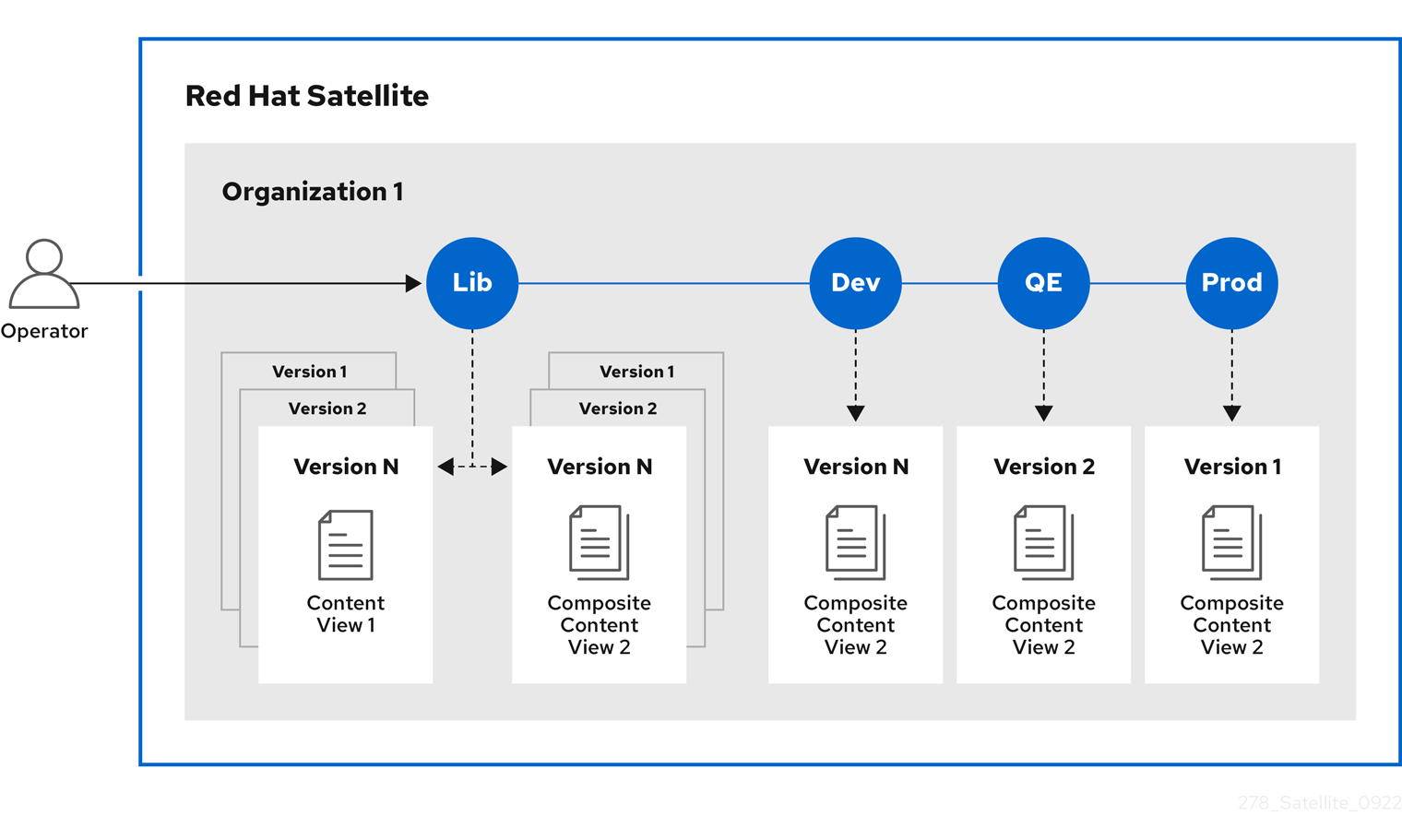
8.2. Content promotion across the application lifecycle
In the application lifecycle chain, moving content from one environment to the next is called promotion. Promotion updates repositories of the target environment so hosts registered to that environment can use the new versions.
Each environment contains a set of systems registered to Red Hat Satellite. These systems only have access to repositories relevant to their environment. When you promote packages from one environment to the next, the target environment’s repositories receive new package versions. As a result, each system in the target environment can update to the new package versions.
| Development | Testing | Production |
|---|---|---|
example_software-1.1-0.noarch.rpm |
example_software-1.0-0.noarch.rpm |
example_software-1.0-0.noarch.rpm |
After completing development on the patch, you promote the package to the Testing environment so the Quality Engineering team can review the patch. The application lifecycle then contains the following package versions in each environment:
| Development | Testing | Production |
|---|---|---|
example_software-1.1-0.noarch.rpm |
example_software-1.1-0.noarch.rpm |
example_software-1.0-0.noarch.rpm |
While the Quality Engineering team reviews the patch, the Development team starts work on example_software 2.0. This results in the following application lifecycle:
| Development | Testing | Production |
|---|---|---|
example_software-2.0-0.noarch.rpm |
example_software-1.1-0.noarch.rpm |
example_software-1.0-0.noarch.rpm |
The Quality Engineering team completes their review of the patch. Now example_software 1.1 is ready to release. You promote 1.1 to the Production environment:
| Development | Testing | Production |
|---|---|---|
example_software-2.0-0.noarch.rpm |
example_software-1.1-0.noarch.rpm |
example_software-1.1-0.noarch.rpm |
The Development team completes their work on example_software 2.0 and promotes it to the Testing environment:
| Development | Testing | Production |
|---|---|---|
example_software-2.0-0.noarch.rpm |
example_software-2.0-0.noarch.rpm |
example_software-1.1-0.noarch.rpm |
Finally, the Quality Engineering team reviews the package. After a successful review, promote the package to the Production environment:
| Development | Testing | Production |
|---|---|---|
example_software-2.0-0.noarch.rpm |
example_software-2.0-0.noarch.rpm |
example_software-2.0-0.noarch.rpm |
8.3. Best practices for lifecycle environments
Design lifecycle environment paths, plan promotions, and configure Capsule Server content synchronization for predictable staging from development to production.
-
Use multiple lifecycle environment paths to implement multiple sequential stages of content consumption. Each stage contains a defined set of content, for example in the Production lifecycle environment.
-
Automate the creation of lifecycle environments by using a Hammer script or an Ansible Playbook.
-
Default use case: Fixed stages in each lifecycle environment paths, for example Development, Test, and Production.
-
Promote content views to lifecycle environments, for example, from Test to Production. All hosts consuming this content view or composite content view are able to install packages from the Production lifecycle environment. Note that these packages are not installed or updated automatically.
-
If you encounter errors during patching hosts, attach the host to a previous version of the content view. This only affects the availability of packages but does not downgrade installed packages.
-
-
Alternative use case: Using stages in lifecycle environments for fixed content, for example, quarterly updates, and only publishing new minor versions with incremental updates from errata.
-
When patching hosts, change the lifecycle environment from
2023-Q4to2024-Q1using the Satellite web UI, Satellite API, Hammer CLI, or an activation key. -
Advantage: You can directly see which software packages a hosts receives by looking at its lifecycle environment.
-
Disadvantage: Promoting content is less dynamic without clearly defined stages such as Development, Test, and Production.
-
-
Use multiple lifecycle environment paths to define multiple stages for different environments, for example to decouple web server and database hosts.
-
Capsule Servers use lifecycle environments to synchronize content. They synchronize content more efficiently if you split content into multiple lifecycle environment paths. If a specific Capsule Server only serves content for one operating system in a single lifecycle environment path, it only synchronizes required content.
8.4. Creating a lifecycle environment path by using Satellite web UI
Create a lifecycle environment path starting from the Library environment to stage content from development through release. Optionally chain additional environments for testing, beta, or production stages.
-
In the Satellite web UI, navigate to Content > Lifecycle > Lifecycle Environments.
-
Click New Environment Path to start a new application lifecycle.
-
In the Name field, enter a name for your environment.
-
In the Description field, enter a description for your environment.
-
Click Save.
-
Optional: To add an environment to the environment path, click Add New Environment, complete the Name and Description fields, and select the prior environment from the Prior Environment list.
8.5. Creating a lifecycle environment path by using Hammer CLI
Create a lifecycle environment path starting from the Library environment to stage content from development through release. Optionally chain additional environments for testing, beta, or production stages.
-
Create a lifecycle environment path by tying your first environment to Library:
$ hammer lifecycle-environment create \
--name "My First Lifecycle Environment" \
--description "Environment Path Description" \
--prior "Library" \
--organization "My_Organization"
-
Optional: Add another environment to the environment path by tying it to the prior environment:
$ hammer lifecycle-environment create \
--name "My Second Lifecycle Environment" \
--description "Environment Description" \
--prior "My First Lifecycle Environment" \
--organization "My_Organization"
-
View the chain of the lifecycle environment path:
$ hammer lifecycle-environment paths --organization "My_Organization"
8.6. Adding lifecycle environments to Capsule Servers by using Satellite web UI
To distribute content through content-enabled Capsule Server, add lifecycle environments to your Capsule Server. Capsule Server synchronizes the right repositories from Satellite Server and provides that content to hosts.
Do not assign the Library lifecycle environment to your Capsule Server because it triggers an automated Capsule sync every time the CDN updates a repository. This might consume multiple system resources on Capsules, network bandwidth between Satellite and Capsules, and available disk space on Capsules.
You can add an environment from the Satellite web UI.
-
In the Satellite web UI, navigate to Infrastructure > Capsules.
-
Select your Capsule Server that you want to add a lifecycle to.
-
Click Edit and click the Lifecycle Environments tab.
-
From the left menu, select the lifecycle environments that you want to add to your Capsule Server and click Submit.
-
To synchronize the content to your Capsule Server, click the Overview tab and click Synchronize.
-
Select either Optimized Sync or Complete Sync.
For definitions of each synchronization type, see Advanced synchronization options.
8.7. Adding lifecycle environments to Capsule Servers by using Hammer CLI
To distribute content through content-enabled Capsule Server, add lifecycle environments to your Capsule Server. Capsule Server synchronizes the right repositories from Satellite Server and provides that content to hosts.
Do not assign the Library lifecycle environment to your Capsule Server because it triggers an automated Capsule sync every time the CDN updates a repository. This might consume multiple system resources on Capsules, network bandwidth between Satellite and Capsules, and available disk space on Capsules.
You can add an environment by using Hammer CLI.
-
To display a list of all Capsule Servers, on Satellite Server, enter the following command:
$ hammer capsule list
Note the Capsule ID of the Capsule to which you want to add a lifecycle.
-
Using the ID, verify the details of your Capsule:
$ hammer capsule info \
--id My_Capsule_ID
-
To view the lifecycle environments available for your Capsule Server, enter the following command and note the ID and the organization name:
$ hammer capsule content available-lifecycle-environments \
--id My_Capsule_ID
-
Add the lifecycle environment to your Capsule Server:
$ hammer capsule content add-lifecycle-environment \
--id My_Capsule_ID \
--lifecycle-environment-id My_Lifecycle_Environment_ID \
--organization "My_Organization"
Repeat for each lifecycle environment you want to add to Capsule Server.
-
Synchronize the content from Satellite to Capsule.
-
To synchronize all content from your Satellite Server environment to Capsule Server, enter the following command:
$ hammer capsule content synchronize \
--id My_Capsule_ID
-
To synchronize a specific lifecycle environment from your Satellite Server to Capsule Server, enter the following command:
$ hammer capsule content synchronize \
--id My_Capsule_ID \
--lifecycle-environment-id My_Lifecycle_Environment_ID
-
To synchronize all content from your Satellite Server to your Capsule Server without checking metadata:
$ hammer capsule content synchronize \
--id My_Capsule_ID \
--skip-metadata-check true
This equals selecting Complete Sync in the Satellite web UI.
-
8.8. Removing lifecycle environments from Satellite Server by using Satellite web UI
Remove a lifecycle environment from Satellite Server when it is empty and no longer needed so your content paths stay accurate and easier to manage.
-
In the Satellite web UI, navigate to Content > Lifecycle Environments.
-
Click the name of the lifecycle environment that you want to remove, and then click Remove Environment.
-
Click Remove to remove the environment.
8.9. Removing lifecycle environments from Satellite Server by using Hammer CLI
Remove a lifecycle environment from Satellite Server when it is empty and no longer needed so your content paths stay accurate and easier to manage.
-
List the lifecycle environments for your organization and note the name of the lifecycle environment you want to remove:
$ hammer lifecycle-environment list \
--organization "My_Organization"
-
Use the
hammer lifecycle-environment deletecommand to remove an environment:$ hammer lifecycle-environment delete \ --name "My_Environment" \ --organization "My_Organization"
8.10. Removing lifecycle environments from Capsule Server by using Satellite web UI
Remove lifecycle environments from Capsule Server when they are obsolete or were added incorrectly, then resynchronize. That way, your Capsule Server only stores content your hosts still need.
-
In the Satellite web UI, navigate to Infrastructure > Capsules.
-
Select the Capsule Server that you want to remove a lifecycle from.
-
Click Edit and click the Lifecycle Environments tab.
-
From the right menu, select the lifecycle environments that you want to remove from Capsule Server, and then click Submit.
-
To synchronize content to your Capsule Server, click the Overview tab, and then click Synchronize.
-
Select either Optimized Sync or Complete Sync.
8.11. Removing lifecycle environments from Capsule Server by using Hammer CLI
Remove lifecycle environments from Capsule Server when they are obsolete or were added incorrectly, then resynchronize. That way, your Capsule Server only stores content your hosts still need.
-
Get a list of Capsules:
# hammer capsule list
Note down the ID of your Capsule Server.
-
Optional: Verify the details of your Capsule Server:
# hammer capsule info \
--id My_Capsule_Server_ID
-
Optional: Verify the list of lifecycle environments currently attached to Capsule Server:
# hammer capsule content lifecycle-environments \
--id My_Capsule_Server_ID
Note down the Environment ID.
-
Remove the lifecycle environment from Capsule Server:
# hammer capsule content remove-lifecycle-environment \
--id My_Capsule_Server_ID \
--lifecycle-environment-id My_Lifecycle_Environment_ID
Repeat this step for every lifecycle environment that you want to remove from Capsule Server.
-
Synchronize the content from Satellite Server to Capsule Server:
# hammer capsule content synchronize \
--id My_Capsule_Server_ID
9. Managing content views
Red Hat Satellite uses content views to allow your hosts access to a deliberately curated subset of content. To do this, you must define which repositories to use and then apply certain filters to the content.
9.1. Workflow for creating content views
Follow this sequence to add repositories, optionally refine content with filters and dependency resolution, publish and promote the content view, and attach hosts.
The general workflow for creating content views for filtering and creating snapshots is as follows:
-
Create a content view.
-
Add one or more repositories that you want to the content view.
-
Optional: Create one or more filters to refine the content of the content view. For more information, see Content filter examples.
-
Optional: Resolve any package dependencies for a content view. For more information, see Resolving package dependencies.
-
Publish the content view.
-
Optional: Promote the content view to another environment. For more information, see Promoting a content view by using Satellite web UI.
-
Attach the host to the content view.
If a repository is not associated with the content view, the file
/etc/yum.repos.d/redhat.reporemains empty and hosts registered to it cannot receive updates.
Hosts can only be associated with a single content view. To associate a host with multiple content views, create a composite content view. For more information, see Creating a composite content view by using Satellite web UI.
9.2. Content views in Red Hat Satellite
A content view is a deliberately curated subset of content that your hosts can access. By creating a content view, you can define the software versions used by a particular environment or Capsule Server.
Each content view creates a set of repositories across each environment. Your Satellite Server stores and manages these repositories. For example, you can create content views in the following ways:
-
A content view with older package versions for a production environment and another content view with newer package versions for a Development environment.
-
A content view with a package repository required by an operating system and another content view with a package repository required by an application.
-
A composite content view for a modular approach to managing content views. For example, you can use one content view for content for managing an operating system and another content view for content for managing an application. By creating a composite content view that combines both content views, you create a new repository that merges the repositories from each of the content views. However, the repositories for the content views still exist and you can keep managing them separately as well.
- Default Organization View
-
A Default Organization View is an application-controlled content view for all content that is synchronized to Satellite. You can register a host to the Library environment on Satellite to consume the Default Organization View without configuring content views and lifecycle environments.
- Promoting a content view across environments
-
When you promote a content view from one environment to the next environment in the application lifecycle, Satellite updates the repository and publishes the packages.
The repositories for Testing and Production contain the my-software-1.0-0.noarch.rpm package:
| Development | Testing | Production | |
|---|---|---|---|
Version of the content view |
Version 2 |
Version 1 |
Version 1 |
Contents of the content view |
my-software-1.1-0.noarch.rpm |
my-software-1.0-0.noarch.rpm |
my-software-1.0-0.noarch.rpm |
If you promote Version 2 of the content view from Development to Testing, the repository for Testing updates to contain the my-software-1.1-0.noarch.rpm package:
| Development | Testing | Production | |
|---|---|---|---|
Version of the content view |
Version 2 |
Version 2 |
Version 1 |
Contents of the content view |
my-software-1.1-0.noarch.rpm |
my-software-1.1-0.noarch.rpm |
my-software-1.0-0.noarch.rpm |
This ensures hosts are designated to a specific environment but receive updates when that environment uses a new version of the content view.
9.3. Best practices for content views
Red Hat recommends you follow these practices for content views.
-
Content views that bundle content, such as Red Hat Enterprise Linux and additional software like
Apache-2.4orPostgreSQL-16.2, are easier to maintain. Content views that are too small require more maintenance. -
If you require daily updated content, use the content view
Default Organization View, which contains the latest synchronized content from all repositories and is available in the Library lifecycle environment. -
If you require daily updated content for hosts registered to a specific Capsule Server, use rolling content views and assign them to a lifecycle environment other than Library.
-
To give hosts access to content from multiple content views, such as when you update one content view weekly and another monthly, you have two options:
-
Assign multiple content view environments to hosts. For more information, see Assigning content view environments to hosts in bulk.
-
Assign composite content views to hosts.
For more information, see Comparison of content view environments and composite content views.
-
-
If you use composite content views, first publish the content views and then publish the composite content views. The more content views you bundle into composite content views, the more effort is needed to change or update content.
-
Setting a lifecycle environment for content views is unnecessary if they are solely bundled to a composite content view.
-
Automate creating and publishing composite content views and lifecycle environments by using a Hammer script or an Ansible Playbook. Use cron jobs, systemd timers, or recurring logics for more visibility.
-
Add the changes and date to the description of each published content view or composite content view version. The most recent activity, such as moving content to a new lifecycle environment, is displayed by date in the Satellite web UI, regardless of the latest changes to the content itself.
-
Publishing a new content view or composite content view creates a new major version. Incremental errata updates increment the minor version. Note that you cannot change or reset this counter.
9.4. Creating a content view by using Satellite web UI
Use this procedure to create a content view by using the Satellite web UI.
While you can stipulate whether you want to resolve any package dependencies on a content view by content view basis, you might want to change the default Satellite settings to enable or disable package resolution for all content views. For more information, see Resolving package dependencies.
-
In the Satellite web UI, navigate to Content > Lifecycle > Content Views.
-
Click Create content view.
-
In the Name field, enter a name for the view. Satellite automatically completes the Label field from the name you enter.
-
In the Description field, enter a description of the view.
-
In the Type field, select a Content view or a Composite content view.
-
Optional: If you want to solve dependencies automatically every time you publish this content view, select the Solve dependencies checkbox. Dependency solving slows the publishing time and might ignore any content view filters you use. This can also cause errors when resolving dependencies for errata.
-
Click Create content view.
-
On the Repositories tab, select the repository from the Type list that you want to add to your content view, select the checkbox next to the available repositories you want to add, then click Add repositories.
-
Click Publish new version and in the Description field, enter information about the version to log changes.
-
Optional: Enable a promotion path by clicking Promote and select one or more lifecycle environments to promote the new version to.
-
Click Next.
-
On the Review details page, review the environments you are trying to publish.
-
Click Finish.
-
To register a host to your content view, see Registering hosts by using global registration in Managing hosts.
9.5. Creating a content view by using Hammer CLI
Use this procedure to create a content view by using Hammer CLI.
While you can stipulate whether you want to resolve any package dependencies on a content view by content view basis, you might want to change the default Satellite settings to enable or disable package resolution for all content views. For more information, see Resolving package dependencies.
-
Obtain a list of repository IDs:
$ hammer repository list --organization "My_Organization"
-
Create the content view and add repositories:
$ hammer content-view create \
--description "My_Content_View" \
--name "My_Content_View" \
--organization "My_Organization" \
--repository-ids My_Repository_ID_1,My_Repository_ID_2
-
Optional: Add another repository to your content view:
$ hammer content-view add-repository \
--name "My_Content_View" \
--organization "My_Organization" \
--repository-id My_Repository_ID_3
-
Publish the content view:
$ hammer content-view publish \
--description "My_Content_View" \
--name "My_Content_View" \
--organization "My_Organization"
Satellite Server creates the new version of the view and publishes it to the Library environment.
9.6. Copying a content view by using Satellite web UI
You can copy an existing content view into a new content view by using Satellite web UI.
|
Note
|
A copied content view does not have the same history as the original content view. Version 1 of the copied content view begins at the last version of the original content view. As a result, you cannot promote an older version of a content view from the copied content view. |
-
In the Satellite web UI, navigate to Content > Lifecycle > Content Views.
-
Select the content view you want to copy.
-
Open the options menu and click Copy.
-
In the Name field, enter a name for the new content view and click Copy content view.
-
The copied content view appears on the Content views page.
9.7. Copying a content view by using Hammer CLI
You can copy an existing content view into a new content view by using Hammer CLI.
|
Note
|
A copied content view does not have the same history as the original content view. Version 1 of the copied content view begins at the last version of the original content view. As a result, you cannot promote an older version of a content view from the copied content view. |
-
Copy the content view by using Hammer:
$ hammer content-view copy \
--name My_original_CV_name \
--new-name My_new_CV_name
9.8. Synchronizing a content view to a Capsule Server
In the Satellite web UI, you can only synchronize all selected lifecycle environments simultaneously. If you need to synchronize smaller items, such as individual lifecycle environments, single content views, and single repositories, use the Hammer CLI.
-
Synchronize a content view to your Capsule Server:
$ hammer capsule content synchronize \
--content-view "My_Content_View_Name" \
--id My_Capsule_Server_ID
9.9. Viewing module streams by using Satellite web UI
You can view the module streams of the repositories in your content views by using Satellite web UI.
-
In the Satellite web UI, Content > Lifecycle > Content Views.
-
Select your content view.
-
Click on a published version.
-
Click Module Streams to view the module streams that are available for the Content Types.
-
Use the Search field to search for specific modules.
-
To view the information about the module, click the module and its corresponding tabs to include Details, Repositories, Profiles, and Artifacts.
9.10. Viewing module streams by using Hammer CLI
In Satellite, you can view the module streams of the repositories in your content views by using Hammer CLI.
-
List all organizations:
$ hammer organization list
-
View all module streams for your organization:
$ hammer module-stream list \
--organization-id My_Organization_ID
9.11. Promoting a content view by using Satellite web UI
Use this procedure to promote content views across different lifecycle environments by using Satellite web UI.
-
Your Satellite account has a role that grants the
promote_or_remove_content_viewsandpromote_or_remove_content_views_to_environmentpermissions.
-
In the Satellite web UI, navigate to Content > Lifecycle > Content Views.
-
Select the content view that you want to promote.
-
Select the version that you want to promote, click the options icon, and click Promote.
-
Select the environment where you want to promote the content view and click Promote.
-
To register a host to your content view, see Registering hosts by using global registration in Managing hosts.
9.12. Promoting a content view by using Hammer CLI
Use this procedure to promote content views across different lifecycle environments by using Hammer CLI.
-
Your Satellite account has a role that grants the
promote_or_remove_content_viewsandpromote_or_remove_content_views_to_environmentpermissions.
-
Promote the content view to a lifecycle environment:
$ hammer content-view version promote \
--content-view "My_Content_View_Name" \
--version 1 \
--to-lifecycle-environment "My_Lifecycle_Environment_Name" \
--organization "My_Organization"
Repeat the command for each lifecycle environment to promote the content view to.
-
Display information about your content view version to verify that it is promoted to the required lifecycle environment:
$ hammer content-view version info --id My_Content_View_Version_ID
-
To register a host to your content view, see Registering hosts by using global registration in Managing hosts.
9.13. Publishing and promoting a content view by using MCP
You can use your AI application to publish and promote content views across different lifecycle environments.
|
Warning
|
Review the output generated by AI before using it in production. |
|
Important
|
The MCP server for Satellite is a Technology Preview feature only. Technology Preview features are not supported with Red Hat production service level agreements (SLAs) and might not be functionally complete. Red Hat does not recommend using them in production. These features provide early access to upcoming product features, enabling customers to test functionality and provide feedback during the development process. For more information about the support scope of Red Hat Technology Preview features, see Technology Preview Features Support Scope. |
-
Allow the MCP server to trigger content view publish and promote actions:
$ podman run --interactive --tty --publish 127.0.0.1:8080:8080 \
  --volume Path_to_My_CA_Bundle:/app/ca.pem:ro,Z \
  registry.redhat.io/satellite/foreman-mcp-server-rhel9:6.18 \
  --foreman-url https://satellite.example.com \
  --allowed-cv-actions "publish,promote"
For more information, see Deploying the MCP server for Satellite in Managing hosts.
-
Type a prompt in your AI application to list content views:
Show a list of content views on my Satellite. -
The MCP server will return a list of content views to the AI application. Review the information.
-
Type a prompt in your AI application to publish a new version of the content view or to promote the content view to an environment. Review all the steps that the AI application performs.
9.14. Promoting a content view to all environments in an organization
You can promote content views across all lifecycle environments within an organization by using the following Bash script.
-
Your Satellite account has a role that grants the
promote_or_remove_content_viewsandpromote_or_remove_content_views_to_environmentpermissions.
-
Promote content views across all lifecycle environments within an organization:
ORG="My_Organization"
CVV_ID=My_Content_View_Version_ID

for i in $(hammer --no-headers --csv lifecycle-environment list --organization $ORG | awk -F, {'print $1'} | sort -n)
do
   hammer content-view version promote --organization $ORG --to-lifecycle-environment-id $i --id $CVV_ID
done
9.15. Rolling content views
A rolling content view is a curated subset of content that your hosts can access. It is a subset of the Library environment and contains the latest synchronized content from one or multiple repositories. You can use a rolling content view to provide a continuous stream of synchronized content to hosts.
When you synchronize repositories to Satellite, all rolling content views that contain them get automatically updated to include the latest changes. You do not have to publish and/or promote a rolling content view compared to content views or composite content views.
Instead, you can assign rolling content views to one or multiple lifecycle environments. By doing so, you can synchronize subsets of the Library content from Satellite Server to Capsule Servers that are configured to consume content from the assigned lifecycle environments.
9.16. Creating a rolling content view by using Satellite web UI
You can create a rolling content view by using Satellite web UI.
-
In the Satellite web UI, navigate to Content > Lifecycle > Content Views.
-
Click Create content view.
-
In the Create content view window, enter a name for the content view in the Name field. Satellite automatically completes the Label field from the name you enter.
-
Optional: In the Description field, enter a description of the content view.
-
On the Type tab, select Rolling content view.
-
Optional: In the Lifecycle Environments field, assign your rolling content view to your lifecycle environments.
-
Click Create content view.
-
Click Show repositories.
-
Select the repositories that you want to add to your rolling content view.
-
Click Add repositories to add all selected repositories to your rolling content view.
-
You cannot publish or promote your rolling content view. Instead, continue by adding it to your activation key. For more information, see Creating an activation key by using Satellite web UI.
-
To register a host to your rolling content view, see Registering hosts to Satellite in Managing hosts.
9.17. Creating a rolling content view by using Hammer CLI
You can create a rolling content view by using Hammer CLI.
-
List all available lifecycle environments:
$ hammer lifecycle-environment list \
--fields id,name \
--organization "My_Organization"
-
List all available repositories to identify IDs of repositories to add to your rolling content view:
$ hammer repository list \
--fields id,name,product \
--organization "My_Organization"
-
Create your rolling content view:
$ hammer content-view create \
--lifecycle-environment-ids My_List_Of_Lifecycle_Environment_IDs \
--name "My_Rolling_Content_View" \
--organization "My_Organization" \
--repository-ids My_List_Of_Repository_IDs \
--rolling
-
You cannot publish or promote your rolling content view. Instead, continue by adding it to your activation key. For more information, see Creating an activation key by using Hammer CLI.
-
To register a host to your rolling content view, see Registering hosts to Satellite in Managing hosts.
9.18. Assigning a rolling content view to lifecycle environments by using Satellite web UI
You can assign your rolling content view to lifecycle environments to limit Library content synchronized to Capsule Servers by using Satellite web UI.
To consume rolling content views, you must assign them to one or more lifecycle environments. By doing so, you expose a subset of Library content to those lifecycle environments. Red Hat does not recommend assigning a rolling content view to the Library environment itself because it creates duplicate content within Library. By using environments other than Library, you can synchronize your rolling content views from Satellite Server to any Capsule Servers that are configured to consume the relevant lifecycle environments without the need to synchronize all of Library to Capsule Servers.
-
In the Satellite web UI, navigate to Content > Lifecycle > Content Views.
-
Select your rolling content view.
-
Select the Details tab.
-
In the Lifecycle Environments field, assign your rolling content view to your lifecycle environments.
-
Click Save Environments to submit your changes to Satellite.
-
Synchronize lifecycle environments to Capsule Servers. For more information, see Synchronizing content from Satellite Server to Capsule Servers in Administering Red Hat Satellite.
9.19. Assigning a rolling content view to lifecycle environments by using Hammer CLI
You can assign your rolling content view to lifecycle environments to limit Library content synchronized to Capsule Servers by using Hammer CLI.
To consume rolling content views, you must assign them to one or more lifecycle environments. By doing so, you expose a subset of Library content to those lifecycle environments. Red Hat does not recommend assigning a rolling content view to the Library environment itself because it creates duplicate content within Library. By using environments other than Library, you can synchronize your rolling content views from Satellite Server to any Capsule Servers that are configured to consume the relevant lifecycle environments without the need to synchronize all of Library to Capsule Servers.
-
List all content views:
$ hammer content-view list \
--fields "content view id,name" \
--organization "My_Organization"
-
Assign your rolling content view to lifecycle environments:
$ hammer content-view update \
--id My_Rolling_Content_View_ID \
--lifecycle-environment-ids My_List_Of_Lifecycle_Environment_IDs \
--organization "My_Organization"
If you want to remove your rolling content view from all lifecycle environments, pass an empty list.
-
Synchronize lifecycle environments to Capsule Servers. For more information, see Synchronizing content from Satellite Server to Capsule Servers in Administering Red Hat Satellite.
9.20. Composite content views overview
A composite content view combines the content from several content views. For example, you might have separate content views to manage an operating system and an application individually. You can use a composite content view to merge the contents of both content views into a new repository. The repositories for the original content views still exist but a new repository also exists for the combined content.
You want to develop an application that supports different database servers. The example_application appears as:
| example_software |
|---|
Application |
Database |
Operating System |
Example of four separate content views:
-
Red Hat Enterprise Linux (Operating System)
-
PostgreSQL (Database)
-
MariaDB (Database)
-
example_software (Application)
From the previous content views, you can create two composite content views.
Example composite content view for a PostgreSQL database:
| Composite content view 1 – example_software on PostgreSQL |
|---|
example_software (Application) |
PostgreSQL (Database) |
Red Hat Enterprise Linux (Operating System) |
Example composite content view for a MariaDB:
| Composite content view 2 – example_software on MariaDB |
|---|
example_software (Application) |
MariaDB (Database) |
Red Hat Enterprise Linux (Operating System) |
Each content view is then managed and published separately. When you create a version of the application, you publish a new version of the composite content views. You can also select the Auto Publish option when creating a composite content view, and then the composite content view is automatically republished when a content view it includes is republished.
- Repository restrictions
-
Docker repositories cannot be included more than once in a composite content view. For example, if you attempt to include two content views that contain the same docker repository in a composite content view, Satellite Server reports an error.
9.21. Creating a composite content view by using Satellite web UI
Use this procedure to create a composite content view by using Satellite web UI.
-
In the Satellite web UI, navigate to Content > Lifecycle > Content Views.
-
Click Create content view.
-
In the Create content view window, enter a name for the view in the Name field. Red Hat Satellite automatically completes the Label field from the name you enter.
-
Optional: In the Description field, enter a description of the view.
-
On the Type tab, select Composite content view.
-
Optional: If you want to automatically publish a new version of the composite content view when a content view is republished, select the Auto publish checkbox.
-
Click Create content view.
-
On the Content views tab, select the content views that you want to add to the composite content view, and then click Add content views.
-
In the Add content views window, select the version of each content view.
-
Optional: If you want to automatically update the content view to the latest version, select the Always update to latest version checkbox.
-
Click Add, then click Publish new version.
-
Optional: In the Description field, enter a description of the content view.
-
In the Publish window, set the Promote switch, then select the lifecycle environment.
-
Click Next, then click Finish.
9.22. Creating a composite content view by using Hammer CLI
Use this procedure to create a composite content view by using Hammer CLI.
-
Before you create the composite content views, list the version IDs for your existing content views:
$ hammer content-view version list \
--organization "My_Organization"
-
Create a new composite content view. When the
--auto-publishoption is set toyes, the composite content view is automatically republished when a content view it includes is republished:$ hammer content-view create \ --composite \ --auto-publish yes \ --name "Example_Composite_Content_View" \ --description "Example composite content view" \ --organization "My_Organization"
-
Add a content view to the composite content view. You can identify content view, content view version, and Organization in the commands by either their ID or their name. To add multiple content views to the composite content view, repeat this step for every content view you want to include.
-
If you have the Always update to latest version option enabled for the content view:
$ hammer content-view component add \
--component-content-view-id Content_View_ID \
--composite-content-view "Example_Composite_Content_View" \
--latest \
--organization "My_Organization"
-
If you have the Always update to latest version option disabled for the content view:
$ hammer content-view component add \
--component-content-view-id Content_View_ID \
--composite-content-view "Example_Composite_Content_View" \
--component-content-view-version-id Content_View_Version_ID \
--organization "My_Organization"
-
-
Publish the composite content view:
$ hammer content-view publish \
--name "Example_Composite_Content_View" \
--description "Initial version of composite content view" \
--organization "My_Organization"
-
Promote the composite content view across all environments:
$ hammer content-view version promote \
--content-view "Example_Composite_Content_View" \
--version 1 \
--to-lifecycle-environment "Development" \
--organization "My_Organization"
$ hammer content-view version promote \
--content-view "Example_Composite_Content_View" \
--version 1 \
--to-lifecycle-environment "Testing" \
--organization "My_Organization"
$ hammer content-view version promote \
--content-view "Example_Composite_Content_View" \
--version 1 \
--to-lifecycle-environment "Production" \
--organization "My_Organization"
9.23. Content filter overview
Content views also use filters to include or restrict certain Yum content. Without these filters, a content view includes everything from the selected repositories.
- Filter types
-
There are two types of content filters:
Table 2. Filter types Filter Type Description Include
You start with no content, then select which content to add from the selected repositories. Use this filter to combine multiple content items.
Exclude
You start with all content from selected repositories, then select which content to remove. Use this filter when you want to use most of a particular content repository while excluding certain packages. The filter uses all content in the repository except for the content you select.
- Include and Exclude filter combinations
-
If using a combination of Include and Exclude filters, publishing a content view triggers the include filters first, then the exclude filters. In this situation, select which content to include, then which content to exclude from the inclusive subset.
- Content types
-
You can filter content based on the following content types:
Table 3. Content types Content Type Description RPM
Filter packages based on their name and version number. The RPM option filters non-modular RPM packages and errata. Source RPMs are not affected by this filter and will still be available in the content view.
Package Group
Filter packages based on package groups. The list of package groups is based on the repositories added to the content view.
Erratum (by ID)
Select which specific errata to add to the filter. The list of Errata is based on the repositories added to the content view.
Erratum (by Date and Type)
Select a issued or updated date range and errata type (Bugfix, Enhancement, or Security) to add to the filter.
Module Streams
Select whether to include or exclude specific module streams. The Module Streams option filters modular RPMs and errata, but does not filter non-modular content that is associated with the selected module stream.
Container Image Tag
Select whether to include or exclude specific container image tags.
9.24. Resolving package dependencies
Satellite can add dependencies of packages in a content view to the dependent repository when publishing the content view. To configure this, you can enable dependency solving.
For example, dependency solving is useful when you incrementally add a single package to a content view version. You might need to enable dependency solving to install that package.
However, dependency solving is unnecessary in most situations. For example:
-
When incrementally adding a security errata to a content view, dependency solving can cause significant delays to content view publication without major benefits.
-
Packages from a newer erratum might have dependencies that are incompatible with packages from an older content view version. Incrementally adding the erratum by solving dependencies might result in the inclusion of unwanted packages. As an alternative, consider updating the content view.
|
Note
|
Dependency solving only considers packages within the repositories of the content view. It does not consider packages installed on clients. For example, if a content view includes only AppStream, dependency solving does not include dependent BaseOS content at publish time. For more information, see Limitations to Repository Dependency Resolution in Managing content. |
Dependency solving can lead to the following problems:
- Significant delay in content view publication
-
Satellite examines every repository in a content view for dependencies. Therefore, publish time increases with more repositories.
To mitigate this problem, use multiple content views with fewer repositories and combine them into composite content views.
- Ignored content view filters on dependent packages
-
Satellite prioritizes resolving package dependencies over the rules in your filter.
For example, if you create a filter for security purposes but enable dependency solving, Satellite can add packages that you might consider insecure.
To mitigate this problem, carefully test filtering rules to determine the required dependencies. If dependency solving includes unwanted packages, manually identify the core basic dependencies that the extra packages and errata need.
For example, you can recreate Red Hat Enterprise Linux 9.3 by using content view filters and include selected errata from a later Red Hat Enterprise Linux 9 minor release. To achieve this, you create filters to exclude most of the errata after the Red Hat Enterprise Linux 9.3 release date, except a few that you need. Then, you enable dependency solving.
In this situation, dependency solving might include more packages than expected. As a result, the host diverges from Red Hat Enterprise Linux 9.3 machines.
If you do not need the extra errata and packages, do not configure content view filtering. Instead, enable and use the Red Hat Enterprise Linux 9.3 repository on the Content > Red Hat Repositories page in the Satellite web UI.
If you create Red Hat Enterprise Linux 9.3 repositories with a few excluded packages, dnf upgrade can sometimes fail.
Do not enable dependency solving to resolve the problem.
Instead, investigate the error from dnf and adjust the filters to stop excluding the missing dependency.
Else, dependency solving might cause the repository to diverge from Red Hat Enterprise Linux 9.3.
9.25. Enabling dependency solving for a content view
Use this procedure to enable dependency solving for a content view.
-
Dependency solving is useful only in limited contexts. Before enabling it, ensure you read and understand Resolving package dependencies
-
In the Satellite web UI, navigate to Content > Lifecycle > Content Views.
-
From the list of content views, select the required content view.
-
On the Details tab, toggle Solve dependencies.
9.26. Content filter examples
Use any of the following examples with the procedure that follows to build custom content filters.
|
Note
|
Filters can significantly increase the time to publish a content view. For example, if a content view publish task completes in a few minutes without filters, it can take 30 minutes after adding an exclude or include errata filter. |
Create a repository with the base Red Hat Enterprise Linux packages. This filter requires a Red Hat Enterprise Linux repository added to the content view.
Filter:
-
Inclusion Type: Include
-
Content Type: Package Group
-
Filter: Select only the Base package group
Create a repository that excludes all errata, except for security updates, after a certain date. This is useful if you want to perform system updates on a regular basis with the exception of critical security updates, which must be applied immediately. This filter requires a Red Hat Enterprise Linux repository added to the content view.
Filter:
-
Inclusion Type: Exclude
-
Content Type: Erratum (by Date and Type)
-
Filter: Select only the Bugfix and Enhancement errata types, and clear the Security errata type. Set the Date Type to Updated On. Set the Start Date to the date you want to restrict errata. Leave the End Date blank to ensure any new non-security errata is filtered.
A combination of Example 1 and Example 2 where you only require the operating system packages and want to exclude recent bug fix and enhancement errata. This requires two filters attached to the same content view. The content view processes the Include filter first, then the Exclude filter.
Filter 1:
-
Inclusion Type: Include
-
Content Type: Package Group
-
Filter: Select only the Base package group
Filter 2:
-
Inclusion Type: Exclude
-
Content Type: Erratum (by Date and Type)
-
Filter: Select only the Bugfix and Enhancement errata types, and clear the Security errata type. Set the Date Type to Updated On. Set the Start Date to the date you want to restrict errata. Leave the End Date blank to ensure any new non-security errata is filtered.
Filter a specific module stream in a content view.
Filter 1:
-
Inclusion Type: Include
-
Content Type: Module Stream
-
Filter: Select only the specific module stream that you want for the content view, for example ant, and click Add Module Stream.
Filter 2:
-
Inclusion Type: Exclude
-
Content Type: Package
-
Filter: Add a rule to filter any non-modular packages that you want to exclude from the content view. If you do not filter the packages, the content view filter includes all non-modular packages associated with the module stream ant. Add a rule to exclude all
*packages, or specify the package names that you want to exclude.
9.27. Creating a content view filter by using Satellite web UI
You can filter content views containing yum content to include or exclude specific packages or errata. Package filters are based on a combination of the name, version, and architecture. For examples of how to build a filter, see Content filter examples.
-
In the Satellite web UI, navigate to Content > Lifecycle > Content Views.
-
Select a content view.
-
On the Filters tab, click Create filter.
-
Enter a name.
-
From the Content type list, select a content type.
-
From the Inclusion Type list, select either Include filter or Exclude filter.
-
Optional: In the Description field, enter a description for the filter.
-
Click Create filter to create your content filter.
-
Click Add RPM rule.
-
Enter a name, architecture, and version.
-
Click Add rule.
-
Select if you want the filter to Apply to subset of repositories or Apply to all repositories in the CV.
-
Click Publish new version to publish the filtered content view.
-
Optional: In the Description field, enter a description of the changes.
-
Optional: Select Promote to promote your filtered content view to a lifecycle environment.
-
Click Finish to publish a new version of the content view.
9.28. Creating a content view filter by using CLI
You can use Hammer CLI to create content view filters to include or exclude specific content units like packages, errata, or container image tags.
-
Add a filter to the content view. Use the
--inclusion falseoption to set the filter to an Exclude filter:$ hammer content-view filter create \ --name "Errata Filter" \ --type erratum --content-view "Example_Content_View" \ --description "My latest filter" \ --inclusion false \ --organization "My_Organization"
-
Add a rule to the filter:
$ hammer content-view filter rule create \
--content-view "Example_Content_View" \
--content-view-filter "Errata Filter" \
--start-date "YYYY-MM-DD" \
--types enhancement,bugfix \
--date-type updated \
--organization "My_Organization"
-
Publish the content view:
$ hammer content-view publish \
--name "Example_Content_View" \
--description "Adding errata filter" \
--organization "My_Organization"
-
Promote the view across all environments:
$ hammer content-view version promote \
--content-view "Example_Content_View" \
--version 1 \
--to-lifecycle-environment "Development" \
--organization "My_Organization"
$ hammer content-view version promote \
--content-view "Example_Content_View" \
--version 1 \
--to-lifecycle-environment "Testing" \
--organization "My_Organization"
$ hammer content-view version promote \
--content-view "Example_Content_View" \
--version 1 \
--to-lifecycle-environment "Production" \
--organization "My_Organization"
9.29. Clearing the search filter
If you search for specific content types by using keywords in the Search text box and the search returns no results, click Clear search to clear all the search queries and reset the Search text box.
If you use a filter to search for specific repositories in the Type text box and the search returns no results, click Clear filters to clear all active filters and reset the Type text box.
9.30. Standardizing content view empty states
If there are no filters listed for a content view, click Create filter. A modal opens to show you the next steps to create a filter. Follow these steps to add a new filter to create new content types.
9.31. Comparing content view versions
Use this procedure to compare content view version functionality for Satellite.
-
In the Satellite web UI, navigate to Content > Lifecycle > Content Views.
-
Select a content view whose versions you want to compare.
-
On the Versions tab, select the checkbox next to any two versions you want to compare.
-
Click Compare.
The Compare screen has the pre-selected versions in the version dropdown menus and tabs for all content types found in either version. You can filter the results to show only the same, different, or all content types. You can compare different content view versions by selecting them from the dropdown menus.
9.32. Distributing archived content view versions
The setting Distribute archived content view versions enables hosting of non-promoted content view version repositories in the Satellite content web application along with other repositories. This is useful while debugging to see what content is present in your content view versions.
-
In the Satellite web UI, navigate to Administer > Settings.
-
Click the Content tab.
-
Set the Distribute archived content view versions parameter to Yes.
-
Click Submit.
This enables the repositories of content view versions without lifecycle environments to be distributed at
satellite.example.com/pulp/content/My_Organization/content_views/My_Content_View/My_Content_View_Version/.NoteOlder non-promoted content view versions are not distributed once the setting is enabled. Only new content view versions become distributed.
9.33. Deleting multiple content view versions by using Satellite web UI
You can delete multiple content view versions simultaneously by using Satellite web UI.
-
In the Satellite web UI, navigate to Content > Lifecycle > Content Views.
-
Select the content view you want to delete versions of.
-
On the Versions tab, select the checkbox of the version or versions you want to delete.
-
Open the options menu at the top of the list of content views.
-
Click Delete to open the deletion wizard that shows any affected environments.
-
If there are no affected environments, review the details and click Delete.
-
If there are any affected environments, reassign any hosts or activation keys before deletion.
-
Review the details of the actions.
-
Click Delete.
9.34. Deleting multiple content view versions by using Hammer CLI
You can delete multiple content view versions simultaneously by using Hammer CLI.
-
List versions of your content view:
$ hammer content-view info \
--name "My_Content_View_Name" \
--organization-id My_Organization_ID
-
Delete content view versions:
$ hammer content-view remove \
--content-view-version-ids My_Content_View_Version_ID_1,My_Content_View_Version_ID_2 \
--id My_Content_View_ID
-
Verify that Satellite deleted the content view versions:
$ hammer content-view info \
--name "My_Content_View_Name" \
--organization-id My_Organization_ID
9.35. Deleting multiple content view versions by using Ansible
You can delete multiple content view versions simultaneously by using Satellite Ansible collection.
-
Use the
redhat.satellite.content_view_versionmodule.For more information, see the Ansible module documentation with
ansible-doc redhat.satellite.content_view_version.
9.36. Purging content view versions by using Hammer CLI
You can purge excess numbers of content view versions on Satellite to limit disk space usage. By default, Satellite keeps every version of a content view. Removing content view versions is a tradeoff between disk space and possibly bandwidth during content synchronizations to Capsule Servers and the possibility to roll back to older content snapshots.
Satellite only considers deleting content view versions that are not part of any lifecycle environment.
-
Optional: View your content view versions:
$ hammer content-view info \
--name "My_Content_View_Name" \
--organization-id My_Organization_ID
-
Clean up content view versions:
$ hammer content-view purge \
--name "My_Content_View_Name" \
--organization-id My_Organization_ID \
--versions-to-keep My_Number_Of_Versions_To_Keep
-
Verify that Satellite deleted the content view versions:
$ hammer content-view info \
--name "My_Content_View_Name" \
--organization-id My_Organization_ID
10. Managing content view environments
A content view environment combines a specific lifecycle environment with a content view and describes which version of the content view to use. You can assign hosts and activation keys to one or more content view environments instead of assigning lifecycle environments and content views separately. When you assign a host to multiple content view environments, the host gains access to the combined repositories from all its associated content view environments.
10.1. Content view environments overview
By default, you can assign multiple content view environments to hosts and activation keys. This is controlled by the Allow multiple content views setting.
Hosts registered with multiple activation keys handle content view environment assignments based on the order of activation keys and content view environments.
When you disable Allow multiple content views, multi-environment hosts remain assigned to multiple content view environments and retain access to all their content. Existing multi-environment activation keys remain associated with multiple content view environments, and both multi-environment hosts and activation keys remain visible in the Satellite web UI and accessible through the Hammer CLI. However, registration fails if you attempt to assign a host to multiple content view environments or use a multi-environment activation key during host registration. Assigning multiple content view environments to a host or activation key results in an error.
When you disable Allow multiple content views, you can still reassign a multi-environment host to a single content view environment. You can also reassign a multi-environment activation key to a single content view environment or remove all content view environments from the key.
10.2. Content view environment categories
The content view environments available in your organization fall into the following categories:
- Library environment
-
Satellite assigns the Library environment to represent the Library lifecycle environment and the Default Organization View content view.
- Unpromoted content views
-
For each content view that you publish but do not promote to a lifecycle environment, Satellite creates a content view environment. Satellite labels these environments using the format:
Library/<content_view_label>. - Promoted content views
-
For each content view that you promote to a specific lifecycle environment, Satellite creates a corresponding content view environment. Satellite labels these environments using the format:
<lifecycle_environment_label>/<content_view_label>.
10.3. Content view environment ordering and priority
The order of content view environments assigned to a host or activation key determines content priority. During host registration, an activation key assigns content view environments in the order in which they are stored.
A host pulls content from the first assigned content view environment that contains the repository.
If Library is first in the list, it overrides other content view environments because it contains all repositories.
Content view environment order is critical when repository conflicts occur.
A repository conflict occurs when multiple content view environments contain a repository with the same label.
For example:
A host assigned to the content view environments Library/cv1, dev/cv1 uses the following configuration:
$ hammer host update \
--content-view-environments "Library/cv1,dev/cv1" \
--name "server.example.com" \
--organization-id My_Organization_ID
Both content view environments include the satellite-client-6-for-rhel-9-x86_64-rpms repository.
Log in as a root user, then run subscription-manager repos to inspect the available repositories on the host.
The output reflects the Library/cv1 content view environment:
# subscription-manager repos
This results in the following output:
+----------------------------------------------------------+
    Available Repositories in /etc/yum.repos.d/redhat.repo
+----------------------------------------------------------+
Repo ID:   satellite-client-6-for-rhel-9-x86_64-rpms
Repo Name: Red Hat Satellite Client 6 for RHEL 9 x86_64 (RPMs)
Repo URL:  https://satellite.example.com/pulp/content/My_Organization/Library/cv1/content/dist/layered/rhel9/x86_64/My_Product/My_Repository_ID/os
Enabled: 0|
Note
|
The |
To change priority, reorder the content view environments.
To prioritize dev/cv1 over Library/cv1, update the host settings:
$ hammer host update \
--content-view-environments "dev/cv1,Library/cv1" \
--name "server.example.com" \
--organization-id My_Organization_ID
After reordering, inspecting the repositories again shows the dev/cv1 content view environment:
# subscription-manager repos
This results in the following output:
+----------------------------------------------------------+
    Available Repositories in /etc/yum.repos.d/redhat.repo
+----------------------------------------------------------+
Repo ID:   satellite-client-6-for-rhel-9-x86_64-rpms
Repo Name: Red Hat Satellite Client 6 for RHEL 9 x86_64 (RPMs)
Repo URL:  https://satellite.example.com/pulp/content/My_Organization/dev/cv1/content/dist/layered/rhel9/x86_64/My_Product/My_Repository_ID/os
Enabled:   0
The Repo URL now reflects the dev/cv1 content view environment, meaning the system uses content from dev/cv1 and ignores Library/cv1.
10.4. Assigning content view environments to hosts in bulk
You can assign content view environments to hosts in bulk by using Satellite web UI. A host must always have at least one content view environment assigned.
-
If you want to assign multiple content view environments, the Allow multiple content views setting must be enabled. For more information, see Content view environments overview.
-
In the Satellite web UI, navigate to Hosts > All Hosts.
-
Select the hosts to which you want to assign content view environments.
-
Click the hosts table menu icon and select Manage content > Content view environments.
-
Edit the content view environments as needed.
-
Click Remove to remove a content view environment.
-
Click Add content view environment to assign an additional content view environment.
-
Drag and drop the content view environments to change their order.
-
-
Click Save.
10.5. Assigning content view environments to a host by using Satellite web UI
You can assign content view environments to a host by using Satellite web UI. A host must always have at least one content view environment assigned.
-
If you want to assign multiple content view environments, the Allow multiple content views setting must be enabled. For more information, see Content view environments overview.
-
In the Satellite web UI, navigate to Hosts > All Hosts.
-
Click the name of the host to which you want to assign content view environments.
-
On the the Content view environments card, click Assign content view environments.
-
Edit the content view environments as needed.
-
Click Remove to remove a content view environment.
-
Click Assign another content view environment to assign another content view environment.
-
Drag and drop the content view environments to change their order.
-
-
Optional: Select Update the host immediately via remote execution to update the host immediately.
-
Click Save.
10.6. Assigning content view environments to a host by using Hammer CLI
You can assign content view environments to a host by using Hammer CLI. A host must always have at least one content view environment assigned.
To assign content view environments to a host, specify the entire list in order. There is no interface in Hammer or the API to add, remove, or insert individual content view environments. The current content view environments on the host are replaced with the new list you provide.
-
If you want to assign multiple content view environments, the Allow multiple content views setting must be enabled. For more information, see Content view environments overview.
-
List available content view environments in your organization:
$ hammer content-view-environment list --organization "My_Organization"
Record the labels of the environments you want to assign to the host.
-
Assign the content view environments to the host:
$ hammer host update \
--content-view-environments="Library/along_cv,LCE_XYZ/CV1" \
--name "server.example.com" \
--organization-id My_Organization_ID
10.7. Assigning content view environments to a host by using Subscription Manager
You can assign content view environments to a host by running Subscription Manager on the host. A host must always have at least one content view environment assigned.
-
If you want to assign multiple content view environments, the Allow multiple content views setting must be enabled in Satellite. For more information, see Content view environments overview.
-
You have a Satellite username and password, which Subscription Manager requires to list available environments.
-
List available content view environments:
# subscription-manager environments --list
Record the names of the environments you want to assign to the host.
-
Assign the content view environments to the host:
# subscription-manager environments --set My_Content_View_Environment_1,My_Content_View_Environment_2
-
List the assigned content view environments:
# subscription-manager environments --list-enabled
10.8. Comparison of content view environments and composite content views
Composite content views provide an alternative method for granting hosts access to content from multiple content views. You can use composite content views, multiple content view environments, or a combination of both. The key differences between these methods include the following:
- Access timing
-
Hosts assigned to composite content views gain access to the combined content only after you publish the composite content view. Hosts assigned to multiple content view environments immediately access the combined content from all assigned environments.
- Conflict resolution
-
Composite content views resolve conflicts at the time of publishing by merging duplicate repositories. For hosts assigned to multiple content view environments, repository conflicts are resolved based on the order of content view environments.
- Version selection
-
Composite content views allow you to select specific versions of a content view, including older versions. With multiple content view environments, the host receives the version of the content view that is currently promoted to the selected lifecycle environment.
Choose the approach that best suits your requirements based on these differences.
11. Recovering corrupted content
Resynchronize corrupted repositories on Satellite Server, verify checksums on Capsule Servers, and republish repository or content view metadata when the repository metadata no longer matches stored content.
11.1. Recovering a corrupted repository by using Satellite web UI
Recover a corrupted repository with optimized or complete advanced sync, and optionally verify content checksums to confirm packages match upstream sources.
-
In the Satellite web UI, navigate to Content > Products.
-
Select the product containing the corrupted repository.
-
Select the name of a repository you want to synchronize.
-
To perform optimized sync or complete sync, select Advanced Sync from the Select Action menu.
-
Select the required option and click Sync.
-
Optional: To verify the checksum for a Yum repository, click Verify Content Checksum from the Select Action menu.
11.2. Recovering a corrupted repository by using Hammer CLI
Recover a corrupted repository by using optimized sync, complete sync, or validate-content synchronization when packages or metadata no longer match expected content.
-
Obtain a list of repository IDs:
$ hammer repository list \
--organization "My_Organization"
-
Synchronize a corrupted repository using the necessary option:
-
For the optimized synchronization:
$ hammer repository synchronize \
--id My_ID
-
For the complete synchronization:
$ hammer repository synchronize \
--id My_ID \
--skip-metadata-check true
-
For validating content of a Yum repository:
$ hammer repository synchronize \
--id My_ID \
--validate-contents true
-
11.3. Recovering corrupted content on a Capsule Server by using Satellite web UI
Verify checksums for a lifecycle environment or content view on your Capsule Server when hosts cannot consume content and you need to repair corrupted files on the Capsule Server.
-
In the Satellite web UI, navigate to Infrastructure > Capsules.
-
Select your Capsule Server.
-
Recover corrupted content on your Capsule Server.
-
To repair content in a lifecycle environment, click the options menu icon next to your lifecycle environment and select Verify Content Checksum.
-
To repair content in a content view, click the options menu icon next to your content view and select Verify Content Checksum.
-
-
In the Satellite web UI, navigate to Monitor > Satellite Tasks > Tasks.
-
Search for
Verify checksum for content. -
Verify that the task completed successfully.
11.4. Recovering corrupted content on a Capsule Server by using CLI
Verify checksums on your Capsule Server for a repository, content view, lifecycle environment, or all Capsule Server content when hosts cannot consume synchronized packages.
-
The lifecycle environment, content view, or repository that you want to repair is available on the Capsule Server.
-
Display a list of all Capsules:
$ hammer capsule list
Note the ID of your Capsule Server.
-
Recover corrupted content on your Capsule Server:
-
Repair content in a content view:
$ hammer capsule content verify-checksum \
--content-view-id My_Content_View_ID \
--id My_Capsule_Server_ID \
--organization-id My_Organization_ID
-
Repair content in a lifecycle environment:
$ hammer capsule content verify-checksum \
--id My_Capsule_Server_ID \
--lifecycle-environment-id My_Lifecycle_Environment_ID \
--organization-id My_Organization_ID
-
Repair content in a repository:
$ hammer capsule content verify-checksum \
--id My_Capsule_Server_ID \
--organization-id My_Organization_ID \
--repository-id My_Repository_ID
-
Repair all content on your Capsule Server:
$ hammer capsule content verify-checksum \
--id My_Capsule_Server_ID
-
-
Verify that the task completed successfully:
$ hammer task list --search "Verify checksum for content"
11.5. Republishing repository metadata by using Satellite web UI
Republish repository metadata when published metadata does not match repository contents.
|
Warning
|
Red Hat recommends a complete repository sync or publishing a new content view version to repair broken metadata instead. |
-
The mirroring policy of the repository is not set to Complete Mirroring. For more information, see Mirroring policies overview.
This action is not available for repositories that use the Complete Mirroring policy because the metadata is copied verbatim from the upstream source of the repository.
-
In the Satellite web UI, navigate to Content > Products.
-
Select the product that includes the repository for which you want to republish metadata.
-
On the Repositories tab, select a repository.
-
To republish metadata for the repository, click Republish Repository Metadata from the Select Action menu.
11.6. Republishing repository metadata by using CLI
Republish repository metadata when published metadata does not match repository contents.
|
Warning
|
Red Hat recommends a complete repository sync or publishing a new content view version to repair broken metadata in favor of republishing repository metadata. |
-
The mirroring policy of the repository is not set to Complete Mirroring. For more information, see Mirroring policies overview.
This action is not available for repositories that use the Complete Mirroring policy because the metadata is copied verbatim from the upstream source of the repository.
-
Republish metadata for your repository:
$ hammer repository verify-checksum \
--name "My_Repository_Name" \
--organization-id My_Organization_ID \
--product "My_Product_Name"
-
Verify that the task completed successfully:
$ hammer task list --search "Metadata generate repository"
11.7. Republishing content view metadata by using Satellite web UI
Republish content view version metadata when hosts report checksum mismatches. Satellite can regenerate metadata for repositories that do not use complete mirroring.
Republishing regenerates metadata for all repositories in the content view version that do not adhere to the Complete Mirroring policy.
-
The content view version includes repositories that do not use the Complete Mirroring policy.
-
In the Satellite web UI, navigate to Content > Lifecycle > Content Views.
-
Select a content view.
-
On the Versions tab, select a content view version.
-
To republish metadata for the content view version, click Republish repository metadata from the options icon.
11.8. Republishing content view metadata by using CLI
Republish content view version metadata when hosts report checksum mismatches. Satellite can regenerate metadata for repositories that do not use complete mirroring.
Republishing regenerates metadata for all repositories in the content view version that do not adhere to the Complete Mirroring policy.
-
The content view version includes repositories that do not use the Complete Mirroring policy.
-
Republish metadata for your content view version:
$ hammer content-view version verify-checksum --id My_Content_View_Version_ID
-
Verify that the task completed successfully:
$ hammer task list --search "Verify checksum of repositories in"
12. Synchronizing content between Satellite Servers
In a Satellite setup with multiple Satellite Servers, you can use Inter-Satellite Synchronization (ISS) to synchronize content from one upstream server to one or more downstream servers.
12.1. ISS configuration options for content synchronization
Satellite offers network sync and export sync, depending on whether your upstream and downstream servers can exchange data over a network.
There are two possible ISS configurations of Satellite, depending on how you deployed your infrastructure:
- ISS Network Sync
-
If your upstream server can communicate with the downstream server over a network, you can synchronize content over HTTPS.
Configure your Satellite to synchronize content over a network.
- ISS Export Sync
-
If your upstream and downstream servers are air gapped, you can synchronize content by using export and import.
Configure your Satellite to synchronize content by using export and import.
12.2. Content synchronization by using export and import
When synchronizing content by using export and import, you export content from one Satellite Server, which is the upstream server, and import it into another Satellite Server, which is the downstream server. Pick an approach that suits your environment depending on what content you want to synchronize.
|
Note
|
Synchronizing content by using export and import requires the same major version of Satellite on both the downstream and upstream Satellite Servers. When you are unable to match upstream and downstream Satellite versions, you can use:
|
12.2.1. Using an upstream Satellite Server as a content store
In this scenario, you use the upstream Satellite Server as a content store for updates rather than to manage content. You use the downstream Satellite Server to manage content for all infrastructure behind the isolated network. You export the Library content from the upstream Satellite Server and import it into the downstream Satellite Server.
-
On the upstream Satellite Server, perform the following steps:
-
Ensure that repositories are using the Immediate download policy in one of the following ways:
-
For existing repositories using On Demand, change their download policy on the repository details page to Immediate.
-
For new repositories, ensure that the Default Red Hat Repository download policy setting is set to Immediate before enabling Red Hat repositories, and that the Default download policy is set to Immediate for custom repositories.
-
For more information, see Download policies overview.
-
Enable the content that you want to synchronize. For more information, see Enabling Red Hat repositories by using Satellite web UI.
If you want to sync custom content, first create a custom product and then synchronize repositories.
-
Synchronize the enabled content:
-
On the first export, perform a
completeLibrary export so that all the synchronized content is exported. This generates content archives that you can later import into one or more downstream Satellite Servers. For more information on performing a complete Library export, see Exporting the Library environment. -
Export all future updates on the upstream Satellite Server incrementally. This generates leaner content archives that contain only a recent set of updates. For example, if you enable and synchronize a new repository, the next exported content archive contains content only from the newly enabled repository. For more information on performing an incremental Library export, see Exporting the Library environment incrementally.
-
-
-
On the downstream Satellite Server, perform the following steps:
-
Bring the content exported from the upstream Satellite Server over to the hard disk.
-
Place it inside a directory under
/var/lib/pulp/imports. -
Import the content to an organization using the procedure outlined in Importing into the Library environment.
You can then manage content using content views or lifecycle environments as you require.
-
12.2.2. Using an upstream Satellite Server to synchronize content view versions
In this scenario, you use the upstream Satellite Server not only as a content store, but also to synchronize content for all infrastructure behind the isolated network. You curate updates coming from the CDN into content views and lifecycle environments. Once you promote content to a designated lifecycle environment, you can export the content from the upstream Satellite Server and import it into the downstream Satellite Server.
-
On the upstream Satellite Server, perform the following steps:
-
Ensure that repositories are using the Immediate download policy in one of the following ways:
-
For existing repositories using On Demand, change their download policy on the repository details page to Immediate.
-
For new repositories, ensure that the Default Red Hat Repository download policy setting is set to Immediate before enabling Red Hat repositories, and that the Default download policy is set to Immediate for custom repositories.
-
For more information, see Download policies overview.
-
Enable the content that you want to synchronize. For more information, see Enabling Red Hat repositories by using Satellite web UI.
If you want to sync custom content, first create a custom product and then synchronize repositories.
-
Synchronize the enabled content:
-
For the first export, perform a
completeversion export on the content view version that you want to export. For more information see, Exporting a content view version. This generates content archives that you can import into one or more downstream Satellite Servers. -
Export all future updates in the connected Satellite Servers incrementally. This generates leaner content archives that contain changes only from the recent set of updates. For example, if your content view has a new repository, this exported content archive contains only the latest changes. For more information, see Exporting a content view version incrementally.
-
When you have new content, republish the content views that include this content before exporting the increment. For more information, see Managing content views. This creates a new content view version with the appropriate content to export.
-
-
-
On the downstream Satellite Server, perform the following steps:
-
Bring the content exported from the upstream Satellite Server over to the hard disk.
-
Place it inside a directory under
/var/lib/pulp/imports. -
Import the content to the organization that you want. For more information, see Importing a content view version. This will create a content view version from the exported content archives and then import content appropriately.
-
12.2.3. Synchronizing a single repository
In this scenario, you export and import a single repository.
-
On the upstream Satellite Server, perform the following steps:
-
Ensure that the repository is using the Immediate download policy in one of the following ways:
-
For existing repositories using On Demand, change their download policy on the repository details page to Immediate.
-
For new repositories, ensure that the Default Red Hat Repository download policy setting is set to Immediate before enabling Red Hat repositories, and that the Default download policy is set to Immediate for custom repositories.
-
For more information, see Download policies overview.
-
Enable the content that you want to synchronize. For more information, see Enabling Red Hat repositories by using Satellite web UI.
If you want to sync custom content, first create a custom product and then synchronize product repositories.
-
Synchronize the enabled content:
-
On the first export, perform a
completerepository export so that all the synchronized content is exported. This generates content archives that you can later import into one or more downstream Satellite Servers. For more information on performing a complete repository export, see Exporting a repository. -
Export all future updates on the upstream Satellite Server incrementally. This generates leaner content archives that contain only a recent set of updates. For more information on performing an incremental repository export, see Exporting a repository incrementally.
-
-
On the downstream Satellite Server, perform the following steps:
-
Bring the content exported from the upstream Satellite Server over to the hard disk.
-
Place it inside a directory under
/var/lib/pulp/imports. -
Import the content to an organization. See Importing a repository.
You can then manage content using content views or lifecycle environments as you require.
-
12.3. Synchronizing a custom repository
When using Inter-Satellite Synchronization Network Sync, Red Hat repositories are configured automatically, but custom repositories are not. To synchronize custom repositories through Inter-Satellite Synchronization Network Sync, configure the custom repository on the disconnected Satellite Server to synchronize from the published URL of the custom repository on the connected Satellite Server.
-
On the connected Satellite Server, perform the following steps:
-
In the Satellite web UI, navigate to Content > Products.
-
Click on the custom product.
-
Click on the custom repository.
-
Copy the Published At: URL.
-
-
On the disconnected Satellite Server, perform the following steps:
-
Download the
katello-server-ca.crtfile from the connected Satellite Server:# curl http://satellite.example.com/pub/katello-server-ca.crt
-
Create an SSL Content Credential with the contents of
katello-server-ca.crt. For more information on creating an SSL Content Credential, see Importing custom SSL certificates by using Satellite web UI. -
In the Satellite web UI, navigate to Content > Products.
-
Create your custom product with the following:
-
Upstream URL: Paste the link that you copied earlier.
-
SSL CA Cert: Select the SSL certificate that was transferred from your connected Satellite Server.
-
For more information on creating a custom product, see Creating a custom product by using Satellite web UI.
-
12.4. Exporting the Library environment
You can export content in the Library environment of an organization to an archive file from Satellite Server and use this archive file to create the same repositories in another Satellite Server or in another Satellite Server organization. The exported archive file contains the following data:
-
A JSON file containing content view version metadata.
-
An archive file containing all the repositories from the Library environment of the organization.
You can export the following content from Satellite Server:
-
Ansible collections
-
Docker content
-
Custom file type content
-
Kickstart repositories
-
Yum content
-
Ensure that the export directory has free storage space to accommodate the export.
-
Ensure that the
/var/lib/pulp/exportsdirectory has free storage space equivalent to the size of the repositories being exported for temporary files created during the export process. -
Ensure that you set download policy to Immediate for all repositories within the Library lifecycle environment you export. For more information, see Download policies overview.
-
Ensure that you synchronize products that you export to the required date.
-
Export the Library environment for your organization:
$ hammer content-export complete library --organization="My_Organization"
In many cases the exported archive might be several gigabytes in size. You might want to split it into chunks of a smaller size. You can use the
--chunk-size-gboption to split the export into smaller chunks, for example--chunk-size-gb=2to split the archive into 2 GB chunks. -
A new content view Export-Library is created in the organization. This content view contains all the repositories belonging to this organization. A new version of this content view is published and exported automatically.
-
Verify that the archive containing the exported version of a content view is located in the export directory:
# ls -lh /var/lib/pulp/exports/My_Organization/Export-Library/1.0/2021-03-02T03-35-24-00-00/
You need all three files, the
tar.gzarchive file, thetoc.jsonfile, and themetadata.jsonfile, to import the content successfully.
12.5. Exporting the Library environment in a syncable format
You can export content in the Library environment of an organization to a syncable format that you can use to create your custom CDN and synchronize the content from the custom CDN over HTTP/HTTPS.
You can then serve the generated content on a local web server and synchronize it on the importing Satellite Server or in another Satellite Server organization.
You can use the generated content to create the same repository in another Satellite Server or in another Satellite Server organization by using content import. On import of the exported archive, a regular content view is created or updated on your importing Satellite Server. For more information, see Importing a content view version.
You can export the following content types in the syncable format from Satellite Server:
-
Custom file type content
-
Kickstart repositories
-
Yum content
You cannot export Ansible collections or Docker content in the syncable format.
The export contains directories with the packages, listing files, and metadata of the repository in Yum format that can be used to synchronize in the importing Satellite Server.
-
Ensure that you set the download policy to Immediate for all repositories within the Library lifecycle environment you export. For more information, see Download policies overview.
-
Ensure that you synchronize products you export to the required date.
-
Ensure that the user exporting the content has the
Content Exporterrole.
-
Use the organization name or ID to export:
$ hammer content-export complete library \
--organization="My_Organization" \
--format=syncable
-
Optional: Verify that the exported content is located in the export directory:
# du -sh /var/lib/pulp/exports/My_Organization/Export-My_Repository/1.0/2021-03-02T03-35-24-00-00
12.6. Importing syncable exports
You can import syncable exports into the Library environment of an organization.
-
The syncable exports must be located in one of your
ALLOWED_IMPORT_PATHSas specified in/etc/pulp/settings.py. By default, this includes/var/lib/pulp/imports/. -
The importing organization must be configured to synchronize content through exports. For more information, see Configuring Satellite Server to synchronize content through exports by using Satellite web UI in Installing Satellite Server in a disconnected network environment.
-
Import the syncable exports into the Library environment of your organization:
$ hammer content-import library \
--organization="My_Organization" \
--path="My_Path_To_Syncable_Export"
12.7. Exporting the Library environment incrementally
Exporting Library content can be a very expensive operation in terms of system resources. Organizations that have multiple Red Hat Enterprise Linux trees can occupy several gigabytes of space on Satellite Server.
In such cases, you can create an incremental export which contains only pieces of content that have changed since the last export. Incremental exports typically result in smaller archive files than the full exports.
You can export the following content from Satellite Server:
-
Ansible collections
-
Docker content
-
Custom file type content
-
Kickstart repositories
-
Yum content
The example below shows incremental export of all repositories in the organization’s Library.
-
Create an incremental export:
$ hammer content-export incremental library \
--organization="My_Organization"
If you want to create a syncable export, add
--format=syncable. By default, Satellite creates an importable export.
-
Optional: View the exported data:
# find /var/lib/pulp/exports/My_Organization/Export-Library/
12.8. Exporting a content view version
You can export a version of a content view to an archive file from Satellite Server and use this archive file to create the same content view version on another Satellite Server or on another Satellite Server organization. Satellite exports composite content views as normal content views. The composite nature is not retained. On importing the exported archive, a regular content view is created or updated on your downstream Satellite Server. The exported archive file contains the following data:
-
A JSON file containing content view version metadata
-
An archive file containing all the repositories included into the content view version
You can export the following content from Satellite Server:
-
Ansible collections
-
Docker content
-
Custom file type content
-
Kickstart repositories
-
Yum content
Satellite does not export content view definitions and metadata such as package filters.
To export a content view, ensure that Satellite Server where you want to export meets the following conditions:
-
Ensure that the export directory has free storage space to accommodate the export.
-
Ensure that the
/var/lib/pulp/exportsdirectory has free storage space equivalent to the size of the repositories being exported for temporary files created during the export process. -
Ensure that you set download policy to Immediate for all repositories within the content view you export. For more information, see Download policies overview.
-
Ensure that you synchronize products that you export to the required date.
-
Ensure that the user exporting the content has the
Content Exporterrole.
-
List versions of the content view that are available for export:
$ hammer content-view version list \
--content-view="My_Content_View" \
--organization="My_Organization"
Note the version number that you want to export. In the following example, the version number is
1.0. -
Export the content view version:
$ hammer content-export complete version \
--content-view="Content_View_Name" \
--version=1.0 \
--organization="My_Organization"
In many cases, the exported archive might be several gigabytes in size. You might want to split it into smaller chunks of a smaller size. You can use the
--chunk-size-gboption to export the content view version into smaller chunks, for example--chunk-size-gb=2to split the archives into 2 GB chunks.
-
Verify that the archive containing the exported version of a content view is located in the export directory:
# ls -lh /var/lib/pulp/exports/My_Organization/Content_View_Name/1.0/2021-02-25T18-59-26-00-00/
You require all three files, the
tar.gzarchive file, thetoc.jsonfile, and themetadata.jsonfile, to import the content successfully.
12.9. Exporting a content view version in a syncable format
You can export a version of a content view to a syncable format that you can use to create your custom CDN. After you have exported the content view, you can do either of the following:
-
Synchronize the content from your custom CDN over HTTP/HTTPS.
-
Import the content using
hammer content-import. Note that this requires both the Export and Import servers to run Satellite 6.19.
You can import Syncable Format exports directly by using the hammer content-import command.
This is the recommended method for consuming syncable exports.
Alternatively, you can serve the generated content using a local web server on the importing Satellite Server or in another Satellite Server organization:
-
Copy the generated content to an HTTP/HTTPS web server that is accessible to importing Satellite Server.
-
Update your CDN configuration to Custom CDN.
-
Set the CDN URL to point to the web server.
-
Optional: Set an SSL/TLS CA Credential if the web server requires it.
-
Enable the repository.
-
Synchronize the repository.
The export contains directories with the packages, listing files, and metadata of the repository in Yum format that can be used to synchronize in the importing Satellite Server.
You can export the following content types in the syncable format from Satellite Server:
-
Custom file type content
-
Kickstart repositories
-
Yum content
You cannot export Ansible collections or Docker content in the syncable format.
-
Ensure that you set the download policy to Immediate for all repositories within the content view you export. For more information, see Download policies overview.
-
Ensure that you synchronize products you export to the required date.
-
Ensure that the user exporting the content has the
Content Exporterrole.
-
List versions of the content view that are available for export:
$ hammer content-view version list \
--content-view="My_Content_View_Name" \
--organization="My_Organization"
Note the version number that you want to export. In the following example, the version number is
1.0. -
Export the content view version in a syncable format:
$ hammer content-export complete version \
--content-view="My_Content_View_Name" \
--version=1.0 \
--organization="My_Organization" \
--format=syncable
-
Verify that the exported content is located in the export directory:
# ls -lh /var/lib/pulp/exports/My_Organization/My_Content_View_Name/1.0/2021-02-25T18-59-26-00-00/
12.10. Exporting a content view version incrementally
Exporting complete content view versions can be a very expensive operation in terms of system resources. Content view versions that have multiple Red Hat Enterprise Linux trees can occupy several gigabytes of space on Satellite Server.
In such cases, you can create an incremental export which contains only pieces of content that have changed since the last export. Incremental exports typically result in smaller archive files than the full exports.
You can export the following content from Satellite Server:
-
Ansible collections
-
Docker content
-
Custom file type content
-
Kickstart repositories
-
Yum content
-
Create an incremental export:
$ hammer content-export incremental version \
--content-view="My_Content_View" \
--organization="My_Organization" \
--version="My_Content_View_Version"
If you want to create a syncable export, add
--format=syncable. By default, Satellite creates an importable export.
-
Optional: View the exported content view:
# find /var/lib/pulp/exports/My_Organization/My_Exported_Content_View/My_Content_View_Version/
-
You can import your exported content view version into Satellite Server. For more information, see Importing a content view version.
12.11. Exporting a repository
You can export the content of a repository in the Library environment of an organization from Satellite Server. You can use this archive file to create the same repository in another Satellite Server or in another Satellite Server organization.
You can export the following content from Satellite Server:
-
Ansible collections
-
Docker content
-
Custom file type content
-
Kickstart repositories
-
Yum content
The export contains the following data:
-
Two JSON files containing repository metadata.
-
One or more archive files containing the contents of the repository from the Library environment of the organization.
You need all the files, tar.gz, toc.json and metadata.json, to be able to import.
-
Ensure that the export directory has enough free storage space to accommodate the export.
-
Ensure that the
/var/lib/pulp/exportsdirectory has enough free storage space equivalent to the size of all repositories that you want to export. -
Ensure that you set download policy to Immediate for the repository within the Library lifecycle environment you export. For more information, see Download policies overview.
-
Ensure that you synchronize products that you export to the required date.
-
Export a repository:
$ hammer content-export complete repository \
--name="My_Repository" \
--product="My_Product" \
--organization="My_Organization"
NoteThe size of the exported archive depends on the number and size of the packages within the repository. If you want to split the exported archive into chunks, export your repository using the
--chunk-size-gbargument to limit the size by an integer value in gigabytes, for example--chunk-size-gb=2. -
Optional: Verify that the exported archive is located in the export directory:
# ls -lh /var/lib/pulp/exports/My_Organization/Export-My_Repository/1.0/2022-09-02T03-35-24-00-00/
12.12. Exporting a repository in a syncable format
You can export the content of a repository in the Library environment of an organization to a syncable format that you can use to create your custom CDN and synchronize the content from the custom CDN over HTTP/HTTPS.
You can import Syncable Format exports directly by using the hammer content-import command.
This is the recommended method for consuming syncable exports.
Alternatively, you can serve the generated content using a local web server on the importing Satellite Server or in another Satellite Server organization:
-
Copy the generated content to an HTTP/HTTPS web server that is accessible to importing Satellite Server.
-
Update your CDN configuration to Custom CDN.
-
Set the CDN URL to point to the web server.
-
Optional: Set an SSL/TLS CA Credential if the web server requires it.
-
Enable the repository.
-
Synchronize the repository.
The export contains directories with the packages, listing files, and metadata of the repository in Yum format that can be used to synchronize in the importing Satellite Server.
You can export the following content types in the syncable format from Satellite Server:
-
Custom file type content
-
Kickstart repositories
-
Yum content
You cannot export Ansible collections or Docker content in the syncable format.
-
Ensure that you set the download policy to Immediate for the repository within the Library lifecycle environment you export. For more information, see Download policies overview.
-
Export a repository using the repository name or ID:
$ hammer content-export complete repository \
--organization="My_Organization" \
--product="My_Product" \
--name="My_Repository" \
--format=syncable
-
Optional: Verify that the exported content is located in the export directory:
# du -sh /var/lib/pulp/exports/My_Organization/Export-My_Repository/1.0/2021-03-02T03-35-24-00-00
12.13. Exporting a repository incrementally
Exporting a repository can be a very expensive operation in terms of system resources. A typical Red Hat Enterprise Linux tree may occupy several gigabytes of space on Satellite Server.
In such cases, you can use Incremental Export to export only pieces of content that changed since the previous export. Incremental exports typically result in smaller archive files than the full exports.
You can export the following content from Satellite Server:
-
Ansible collections
-
Docker content
-
Custom file type content
-
Kickstart repositories
-
Yum content
The example below shows incremental export of a repository in the Library lifecycle environment.
-
Create an incremental export:
$ hammer content-export incremental repository \
--name="My_Repository" \
--organization="My_Organization" \
--product="My_Product"
-
Optional: View the exported data:
# ls -lh /var/lib/pulp/exports/My_Organization/Export-My_Repository/3.0/2021-03-02T03-35-24-00-00/
total 172K
-rw-r--r--. 1 pulp pulp  20M Mar  2 04:22 export-436882d8-de5a-48e9-a30a-17169318f908-20210302_0422.tar.gz
-rw-r--r--. 1 pulp pulp  333 Mar  2 04:22 export-436882d8-de5a-48e9-a30a-17169318f908-20210302_0422-toc.json
-rw-r--r--. 1 root root  492 Mar  2 04:22 metadata.json
12.14. Exporting a repository incrementally in a syncable format
Exporting a repository can be a very expensive operation in terms of system resources. A typical Red Hat Enterprise Linux tree may occupy several gigabytes of space on Satellite Server.
In such cases, you can use Incremental Export to export only pieces of content that changed since the previous export. Incremental exports typically result in smaller archive files than full exports.
You can export the following content types in the syncable format from Satellite Server:
-
Custom file type content
-
Kickstart repositories
-
Yum content
You cannot export Ansible collections or Docker content in the syncable format.
The procedure below shows an incremental export of a repository in the Library lifecycle environment.
-
Create an incremental export:
$ hammer content-export incremental repository \
--format=syncable \
--name="My_Repository" \
--organization="My_Organization" \
--product="My_Product"
-
Optional: View the exported data:
# find /var/lib/pulp/exports/Default_Organization/My_Product/2.0/2023-03-09T10-55-48-05-00/ -name "*.rpm"
12.15. Keeping track of your exports
Satellite keeps records of all exports. Each time you export content on the upstream Satellite Server, the export is recorded and maintained for future querying. You can use the records to organize and manage your exports, which is useful especially when exporting incrementally.
When exporting content from the upstream Satellite Server for several downstream Satellite Servers, you can also keep track of content exported for specific servers. This helps you track which content was exported and to where.
-
Optional: Track the destinations of content exports. Use the
--destination-serverargument during export to indicate the target server. This option is available for allcontent-exportoperations.For example, specify the destination server when exporting a content view version:
$ hammer content-export complete version \
--content-view="My_Content_View_Name" \
--destination-server=My_Downstream_Server_1 \
--organization="My_Organization" \
--version=1.0
-
Query export records by listing the exports:
$ hammer content-export list \
--organization="My_Organization"
12.16. Importing into the Library environment
You can import exported Library content into the Library lifecycle environment of an organization on another Satellite Server. For more information about exporting contents from the Library environment, see Exporting the Library environment.
-
The exported files must be in a directory under
/var/lib/pulp/imports. -
The importing organization must be configured to synchronize content through exports. For more information, see Configuring Satellite Server to synchronize content through exports by using Satellite web UI in Installing Satellite Server in a disconnected network environment.
-
If there are any Red Hat repositories in the exported content, the importing organization’s manifest must contain subscriptions for the products contained within the export.
-
The user importing the content must have the Content Importer Role.
-
Copy the exported files to a subdirectory of
/var/lib/pulp/importson Satellite Server where you want to import. -
Set the ownership of the import directory and its contents to
pulp:pulp.# chown -R pulp:pulp /var/lib/pulp/imports/2021-03-02T03-35-24-00-00/
-
Verify that the ownership is set correctly:
# ls -lh /var/lib/pulp/imports/2021-03-02T03-35-24-00-00
total 68M
-rw-r--r--. 1 pulp pulp 68M Mar  2 04:29 export-1e25417c-6d09-49d4-b9a5-23df4db3d52a-20210302_0335.tar.gz
-rw-r--r--. 1 pulp pulp 333 Mar  2 04:29 export-1e25417c-6d09-49d4-b9a5-23df4db3d52a-20210302_0335-toc.json
-rw-r--r--. 1 pulp pulp 443 Mar  2 04:29 metadata.json
-
Identify the Organization that you want to import into.
-
Import the Library content to Satellite Server:
$ hammer content-import library \
--organization="My_Organization" \
--path=/var/lib/pulp/imports/2021-03-02T03-35-24-00-00/
You must specify the absolute path as in the example:
/var/lib/pulp/imports/2021-03-02T03-35-24-00-00/. Relative paths do not work. -
Verify that you imported the Library content by checking the contents of the product and repositories. A new content view called
Import-Libraryis created in the target organization. This content view is used to facilitate the Library content import.By default, this content view is not shown in the Satellite web UI.
Import-Libraryis not meant to be assigned directly to hosts. Instead, assign your hosts toDefault Organization Viewor another content view as you would normally.The importing Satellite Server extracts the
/var/lib/pulp/importsdirectory to/var/lib/pulp/. -
Delete the import files after a successful import:
# rm -fr /var/lib/pulp/imports/2021-03-02T03-35-24-00-00/
12.17. Importing into the Library environment from a web server
You can import exported Library content directly from a web server into the Library lifecycle environment of an organization on another Satellite Server. For more information about exporting contents from the Library environment, see Exporting the Library environment.
-
The exported files must be in a syncable format.
-
The exported files must be accessible through HTTP/HTTPS.
-
If there are any Red Hat repositories in the exported content, the importing organization’s manifest must contain subscriptions for the products contained within the export.
-
The user importing the content view version must have the Content Importer role.
-
Identify the Organization that you want to import into.
-
To import the Library content to Satellite Server, enter the following command:
$ hammer content-import library \
--organization="My_Organization" \
--path=http://server.example.com/pub/exports/2021-02-25T21-15-22-00-00/
A new content view called
Import-Libraryis created in the target organization. This content view is used to facilitate the Library content import.By default, this content view is not shown in the Satellite web UI.
Import-Libraryis not meant to be assigned directly to hosts. Instead, assign your hosts toDefault Organization Viewor another content view.
12.18. Importing a content view version
You can import an exported content view version to create a version with the same content in an organization on another Satellite Server. For more information about exporting a content view version, see Exporting a content view version.
When you import a content view version, it has the same major and minor version numbers and contains the same repositories with the same packages and errata. Custom repositories, products and content views are automatically created if they do not exist in the importing organization.
-
The exported files must be in a directory under
/var/lib/pulp/imports. -
The importing organization must be configured to synchronize content through exports. For more information, see Configuring Satellite Server to synchronize content through exports by using Satellite web UI in Installing Satellite Server in a disconnected network environment.
-
If there are any Red Hat repositories in the exported content, the importing organization’s manifest must contain subscriptions for the products contained within the export.
-
The user importing the content view version must have the Content Importer Role.
-
Copy the exported files to a subdirectory of
/var/lib/pulp/importson Satellite Server where you want to import. -
Set the ownership of the import directory and its contents to
pulp:pulp:# chown -R pulp:pulp /var/lib/pulp/imports/2021-02-25T21-15-22-00-00/
-
Verify that the ownership is set correctly:
# ls -lh /var/lib/pulp/imports/2021-02-25T21-15-22-00-00/
-
Import the content view version to Satellite Server:
$ hammer content-import version \
--organization=My_Organization \
--path=/var/lib/pulp/imports/2021-02-25T21-15-22-00-00/
You must specify the absolute path as in the example:
/var/lib/pulp/imports/2021-02-25T21-15-22-00-00/. Relative paths do not work. -
Verify that you imported the content view version successfully by listing the content view versions for your organization:
$ hammer content-view version list \
--organization-id=My_Organization_ID
The importing Satellite Server extracts the
/var/lib/pulp/importsdirectory to/var/lib/pulp/. -
Delete the import files after a successful import:
# rm -fr /var/lib/pulp/imports/2021-02-25T21-15-22-00-00/
12.19. Importing a content view version from a web server
You can import an exported content view version directly from a web server to create a version with the same content in an organization on another Satellite Server. For more information about exporting a content view version, see Exporting a content view version.
When you import a content view version, it has the same major and minor version numbers and contains the same repositories with the same packages and errata. Custom repositories, products, and content views are automatically created if they do not exist in the importing organization.
-
The exported files must be in a syncable format.
-
The exported files must be accessible through HTTP/HTTPS.
-
If there are any Red Hat repositories in the exported content, the importing organization’s manifest must contain subscriptions for the products contained within the export.
-
The user importing the content view version must have the Content Importer role.
-
Import the content view version into Satellite Server:
$ hammer content-import version \
--organization=My_Organization \
--path=http://server.example.com/pub/exports/2021-02-25T21-15-22-00-00/
12.20. Importing a repository
You can import an exported repository into an organization on another Satellite Server. For more information about exporting content of a repository, see Exporting a repository.
-
The export files must be in a directory under
/var/lib/pulp/imports. -
The importing organization must be configured to synchronize content through exports. For more information, see Configuring Satellite Server to synchronize content through exports by using Satellite web UI in Installing Satellite Server in a disconnected network environment.
-
If the export contains any Red Hat repositories, the manifest of the importing organization must contain subscriptions for the products contained within the export.
-
The user importing the content must have the Content Importer Role.
-
Copy the exported files to a subdirectory of
/var/lib/pulp/importson Satellite Server where you want to import. -
Set the ownership of the import directory and its contents to
pulp:pulp:# chown -R pulp:pulp /var/lib/pulp/imports/2021-03-02T03-35-24-00-00/
-
Verify that the ownership is set correctly:
# ls -lh /var/lib/pulp/imports/2021-03-02T03-35-24-00-00
total 68M
-rw-r--r--. 1 pulp pulp 68M Mar  2 04:29 export-1e25417c-6d09-49d4-b9a5-23df4db3d52a-20210302_0335.tar.gz
-rw-r--r--. 1 pulp pulp 333 Mar  2 04:29 export-1e25417c-6d09-49d4-b9a5-23df4db3d52a-20210302_0335-toc.json
-rw-r--r--. 1 pulp pulp 443 Mar  2 04:29 metadata.json
-
Identify the Organization that you want to import into.
-
Import the repository content into Satellite Server:
$ hammer content-import repository \
--organization="My_Organization" \
--path=/var/lib/pulp/imports/2021-03-02T03-35-24-00-00/
You must specify the absolute path as in the example:
/var/lib/pulp/imports/2021-03-02T03-35-24-00-00. Relative paths do not work. -
Verify that you imported the repository by checking the contents of the product and repository. The importing Satellite Server extracts the
/var/lib/pulp/importsdirectory to/var/lib/pulp/. -
Delete the import files after a successful import:
# rm -fr /var/lib/pulp/imports/2021-03-02T03-35-24-00-00/
12.21. Importing a repository from a web server
You can import an exported repository directly from a web server into an organization on another Satellite Server. For more information about exporting the content of a repository, see Exporting a repository.
-
The exported files must be in a syncable format.
-
The exported files must be accessible through HTTP/HTTPS.
-
If the export contains any Red Hat repositories, the manifest of the importing organization must contain subscriptions for the products contained within the export.
-
The user importing the content view version must have the Content Importer Role.
-
Select the organization into which you want to import.
-
Import the repository to Satellite Server:
$ hammer content-import repository \
--organization="My_Organization" \
--path=http://server.example.com/pub/exports/2021-02-25T21-15-22-00-00/
12.22. Exporting and importing content using Hammer CLI cheat sheet
You can use the following commands to export and import content by using Hammer CLI.
| Intent | Command |
|---|---|
Fully export an Organization’s Library |
|
Incrementally export an Organization’s Library (assuming you have exported something previously) |
|
Fully export a content view version |
|
Export a content view version promoted to the Dev Environment |
|
Export a content view in smaller chunks (2-GB slabs) |
|
Incrementally export a content view version (assuming you have exported something previously) |
|
Fully export a Repository |
|
Incrementally export a Repository (assuming you have exported something previously) |
|
List exports |
|
| Intent | Command |
|---|---|
Import into an Organization’s Library |
|
Import to a content view version |
|
Import a Repository |
|
13. Managing activation keys
Activation keys provide a method to automate system registration. You can create multiple keys and associate them with different environments and content views. For example, you might create a basic activation key that enables certain Red Hat repositories and associate it with the appropriate content view.
You can use activation keys during host registration to improve the speed, simplicity and consistency of the process. Note that activation keys are used only when hosts are registered. If changes are made to an activation key, it is applicable only to hosts that are registered with the amended activation key in the future. The changes are not made to existing hosts.
Activation keys can define the following properties for hosts:
-
Available products and repositories
-
Content view environments
-
Host collection membership
-
System purpose
- Content view conflicts between host creation and registration
-
When you provision a host, Satellite uses provisioning templates and other content from the content view that you set in the host group or host settings. When the host is registered, the content view environments from the activation key overwrite the original content view from the host group or host settings. Then Satellite uses the content view environments from the activation key for every future task, for example, rebuilding a host.
When you rebuild a host, ensure that you set the content view that you want to use in the activation key and not in the host group or host settings.
- Using multiple activation keys with a host
-
A host can be associated with multiple activation keys that are combined to define the host settings. In case of conflicting settings, the last specified activation key takes precedence. You can specify the order of precedence by setting a host group parameter as follows:
$ hammer hostgroup set-parameter \
--hostgroup "My_Host_Group" \
--name "My_Activation_Key" \
--value "name_of_first_key", "name_of_second_key", ...
13.1. Best practices for activation keys
Red Hat recommends following best practices for activation keys in Satellite.
-
Create an activation key for each use case. This structures, modularizes, and simplifies content management on hosts.
-
Use a naming convention for activation keys to indicate the content and lifecycle environment, for example,
red-hat-enterprise-linux-webserver. -
Automate activation key management by using a Hammer script or an Ansible Playbook.
13.2. Creating an activation key by using Satellite web UI
Create an activation key from the Satellite web UI to assign various attributes to hosts during registration.
-
In the Satellite web UI, navigate to Content > Lifecycle > Activation Keys.
-
Click Create Activation Key.
-
In the Name field, enter the name of the activation key.
-
If you want to set a limit, clear the Unlimited hosts checkbox, and in the Limit field, enter the maximum number of systems you can register with the activation key. If you want unlimited hosts to register with the activation key, ensure the Unlimited Hosts checkbox is selected.
-
Optional: In the Description field, enter a description for the activation key.
-
On the Content view environments card, click Assign content view environments.
-
Select a lifecycle environment.
-
Select a content view.
-
Optional: Click Assign another content view environment to assign additional content view environments to the activation key.
-
Optional: Drag and drop the content view environments to change the order of the content view environments.
-
Click Save to save the content view environments.
-
Click Save to save the activation key.
-
Optional: In the System Purpose section, you can configure the activation key to set system purpose attributes on hosts during registration. This helps determine which repositories are available on the host. It also helps with reporting in the Subscriptions service of the Red Hat Hybrid Cloud Console.
-
On the Repository Sets tab, override repositories to Enabled or Disabled as desired. For more information, see Enabling and disabling repositories on activation key.
13.3. Creating an activation key by using Hammer CLI
Create an activation key by using Hammer CLI to assign various attributes to hosts during registration.
-
Create the activation key:
$ hammer activation-key create \
--name "My_Activation_Key" \
--unlimited-hosts \
--description "Example Stack in the Development Environment" \
--content-view-environments "Development/Stack" \
--organization "My_Organization"
-
Optional: Configure the activation key with system purpose attributes to set on hosts during registration. This helps determine which repositories are available on the host. It also helps with reporting in the Subscriptions service of the Red Hat Hybrid Cloud Console.
$ hammer activation-key update \
--organization "My_Organization" \
--name "My_Activation_Key" \
--service-level "Standard" \
--purpose-usage "Development/Test" \
--purpose-role "Red Hat Enterprise Linux Server"
-
List the product content associated with the activation key:
$ hammer activation-key product-content \
--content-access-mode-all true \
--name "My_Activation_Key" \
--organization "My_Organization"
-
Override the default auto-enable status for the Red Hat Satellite Client 6 repository:
$ hammer activation-key content-override \
--name "My_Activation_Key" \
--content-label "My_Content_Label" \
--value 1 \
--organization "My_Organization"
For a custom repository, the content label consists of your organization label, product label, and repository label split by underscores. For example,
Example_Satellite_Client_Red_Hat_Enterprise_Linux_9. For content from Red Hat, the content label is taken from the Red Hat manifest. For example,rhel-10-for-x86_64-baseos-rpms.The default status is set to disabled.
13.4. Using activation keys for host registration
You can use activation keys to register new hosts during provisioning through Red Hat Satellite and register existing Red Hat Enterprise Linux hosts.
|
Note
|
The Kickstart provisioning templates in Red Hat Satellite contain commands to register the host using an activation key that is defined when creating a host. |
You can use multiple activation keys when registering a host. For example, you can use one activation key to enable specific repositories and another to assign content view environments.
If there are conflicting settings in activation keys, the rightmost key takes precedence.
-
Settings that conflict: Service Level, Release Version, Environment, Content View, and Product Content.
-
Settings that do not conflict and the host gets the union of them: Host Collections.
-
Settings that influence the behavior of the key itself and not the host configuration: Content Host Limit.
13.4.1. Registering a host to Satellite by using Satellite web UI
You can register hosts with Satellite using the host registration feature in the Satellite web UI. For more information, see Registering hosts to Satellite in Managing hosts.
-
In the Satellite web UI, navigate to Hosts > Register Host.
-
From the Activation Keys list, select the activation keys to assign to your host.
-
Click Generate to create the registration command.
-
Click on the files icon to copy the command to your clipboard.
-
Connect to your host using SSH and run the registration command.
-
Check the
/etc/yum.repos.d/redhat.repofile and ensure that the appropriate repositories have been enabled.
13.4.2. Registering a host to Satellite by using Hammer CLI
You can register hosts with Satellite using the host registration feature in Hammer CLI. For more information, see Registering hosts to Satellite in Managing hosts.
-
Generate the host registration command:
$ hammer host-registration generate-command \
--activation-keys "My_Activation_Key"
If your hosts do not trust the SSL certificate of Satellite Server, you can disable SSL validation by adding the
--insecureflag to the registration command.$ hammer host-registration generate-command \ --activation-keys "My_Activation_Key" \ --insecure true
-
Connect to your host using SSH and run the registration command.
-
Check the
/etc/yum.repos.d/redhat.repofile and ensure that the appropriate repositories have been enabled.
13.4.3. Registering a host to Satellite by using Satellite API
You can register hosts with Satellite using the host registration feature in the Satellite API. For more information, see Registering hosts to Satellite in Managing hosts.
-
Generate the host registration command using the Satellite API:
# curl -X POST https://satellite.example.com/api/registration_commands \
--user "My_User_Name" \
-H 'Content-Type: application/json' \
-d '{ "registration_command": { "activation_keys": ["My_Activation_Key_1, My_Activation_Key_2"] }}'
If your hosts do not trust the SSL certificate of Satellite Server, you can disable SSL validation by adding the
--insecureflag to the registration command.# curl -X POST https://satellite.example.com/api/registration_commands \ --user "My_User_Name" \ -H 'Content-Type: application/json' \ -d '{ "registration_command": { "activation_keys": ["My_Activation_Key_1, My_Activation_Key_2"], "insecure": true }}'Use an activation key to simplify specifying the environments. For more information, see Managing Activation Keys in Managing content.
To enter a password as a command line argument, use
username:passwordsyntax. Keep in mind this can save the password in the shell history. Alternatively, you can use a temporary personal access token instead of a password. To generate a token in the Satellite web UI, navigate to My Account > Personal Access Tokens. -
Connect to your host using SSH and run the registration command.
-
Check the
/etc/yum.repos.d/redhat.repofile and ensure that the appropriate repositories have been enabled.
13.5. Setting the service level by using Satellite web UI
You can configure an activation key from the Satellite web UI to define a default service level for the new host created with the activation key.
-
In the Satellite web UI, navigate to Content > Lifecycle > Activation Keys.
-
Click the activation key name you want to edit.
-
Click the edit icon next to Service Level.
-
Select the required service level from the list. The list only contains service levels available to the activation key.
-
Click Save.
13.6. Setting the service level by using Hammer CLI
You can configure an activation key by using Hammer CLI to define a default service level for the new host created with the activation key.
-
Set the service level to Premium on your activation key:
$ hammer activation-key update \
--name "My_Activation_Key" \
--organization "My_Organization" \
--service-level premium
13.7. Enabling and disabling repositories on activation key
You can enable or disable repositories on an activation key in the Satellite web UI.
-
In the Satellite web UI, navigate to Content > Lifecycle > Activation Keys.
-
Select an activation key.
-
Select the Repository Sets tab.
-
Optional: Clear the Limit to Environment checkbox to view repositories that are available in the lifecycle environment of the activation key.
-
Optional: Use the Repository type dropdown menu to filter repositories by type.
-
Optional: Use the Status dropdown menu to filter repositories by status.
-
Select the desired repositories or click the Select All checkbox to select all repositories.
-
From the Select Action list, select Override to Enabled, Override to Disabled, or Reset to Default.
13.8. Multiple activation keys and content view environments
Registering a host with multiple activation keys assigns different attributes from each key, and their combined settings determine the configuration of the host. Note that multiple activation keys and multiple content view environments are not the same. Activation keys assign specific attributes to hosts during registration. For instance, one activation key assigns system purpose attributes, another assigns repository set content overrides, and a third assigns the content view environments for the host. When you register a host with these three activation keys, it inherits the system purpose attributes, content overrides, and content view environments from all the keys combined.
When multiple activation keys assign the same attributes, Satellite decides how to resolve conflicts. In general, the host receives the union of non-conflicting settings and the setting from the last activation key for conflicting settings.
Conflicting settings, where the setting from the last activation key wins, include:
-
System purpose attributes
-
Release version
Non-conflicting settings, where the host receives the union of them, include:
-
Host collections
Activation key behavior regarding multiple content view environments depends on the Allow multiple content views setting. If you enable Allow multiple content views, content view environments are treated as non-conflicting. If you disable Allow multiple content views, content view environments are considered conflicting.
When you enable Allow multiple content views and register a host with multiple activation keys, the host receives all content view environments from each activation key, in the order they are passed.
Assuming that:
-
Activation key
ak_multiassigns content view environmentsdev/cv2,dev/cv3. -
Activation key
ak4assigns content view environmentsdev/cv4.
A host registered with activation keys ak_multi and ak4 receives content view environments dev/cv2, dev/cv3, and dev/cv4.
If the order is reversed, with ak4 followed by ak_multi, the host receives content view environments dev/cv4, dev/cv2, and dev/cv3.
When you disable Allow multiple content views and register a host with multiple activation keys, the host receives the content view environments from the last activation key with any content view environments. If any of the activation keys is a multi-environment activation key, registration fails with an error, regardless of the order.
Assuming that:
-
Activation key
ak_multiassigns content view environmentsdev/cv2,dev/cv3. -
Activation key
ak4assigns content view environmentdev/cv4. -
Activation key
ak5assigns content view environmentdev/cv5. -
Activation key
ak_noneassigns no content view environments.
If you attempt to register a host with activation keys ak_multi, ak4, registration fails because ak_multi is a multi-environment activation key.
If you register a host with activation keys ak4, ak5, the host receives dev/cv5, as ak5 is the last activation key with content view environments.
If you register a host with activation keys ak4, ak5, ak_none, the host receives dev/cv5 because ak5 is the last activation key with content view environments.
If you register a host with activation keys ak5, ak4, the host receives dev/cv4, as ak4 is the last activation key with content view environments.
13.9. Assigning content view environments to an activation key by using Satellite web UI
You can assign content view environments to an activation key to provide hosts with access to content from each assigned environment. Hosts registered with the activation key receive the environments in the order they are assigned. For more information, see Content view environment ordering and priority.
-
If you want to assign multiple content view environments, the Allow multiple content views setting must be enabled. For more information, see Content view environments overview.
-
You have created an activation key.
-
In the Satellite web UI, navigate to Content > Lifecycle > Activation Keys.
-
Click the name of the activation key to which you want to assign content view environments.
-
On the the Content view environments card, click Assign content view environments.
-
Select a lifecycle environment.
-
Select a content view.
-
Optional: Click Assign another content view environment to assign additional content view environments to the activation key.
-
Optional: Drag and drop the content view environments to change the order of the content view environments.
-
Click Save.
-
The Details tab of the activation key displays the assigned content view environments in order.
13.10. Assigning content view environments to an activation key by using Hammer CLI
You can assign content view environments to an activation key to provide hosts with access to content from each assigned environment. Hosts registered with the activation key receive the environments in the order they are assigned. For more information, see Content view environment ordering and priority.
-
If you want to assign multiple content view environments, the Allow multiple content views setting must be enabled. For more information, see Content view environments overview.
-
You have created an activation key.
-
Display the available content view environments to obtain their labels or IDs:
$ hammer content-view-environment list
-
Assign content view environments to an activation key:
-
By using their labels:
$ hammer activation-key update \
--id My_Activation_Key_ID \
--organization-id My_Organization_ID \
--content-view-environments "My_env1/My_cv1,My_env2/My_cv2"
-
By using their IDs:
$ hammer activation-key update \
--id My_Activation_Key_ID \
--organization-id My_Organization_ID \
--content-view-environment-ids [My_content_view_env_ID_1, My_content_view_env_ID_2]
-
13.11. Removing all content view environments from an activation key
You can remove all content view environments from an activation key by using Hammer CLI in two ways.
-
Remove all content view environments from the activation key by passing an empty array:
$ hammer activation-key update \
--content-view-environment-ids [] \
--name My_Activation_Key \
--organization-id My_Organization_ID
-
Remove all content view environments from an activation key by passing an empty string:
$ hammer activation-key update \
--content-view-environments "" \
--name My_Activation_Key \
--organization-id My_Organization_ID
14. Managing errata
As a part of Red Hat’s quality control and release process, we provide customers with updates for each release of official Red Hat RPMs. Red Hat compiles groups of related packages into an erratum along with an advisory that provides a description of the update.
There are three types of advisories (in order of importance):
- Security Advisory
-
Describes fixed security issues found in the package. The security impact of the issue can be Low, Moderate, Important, or Critical.
- Bug Fix Advisory
-
Describes bug fixes for the package.
- Product Enhancement Advisory
-
Describes enhancements and new features added to the package.
Red Hat Satellite imports this errata information when synchronizing repositories with Red Hat’s Content Delivery Network (CDN). Red Hat Satellite also provides tools to inspect and filter errata, allowing for precise update management. This way, you can select relevant updates and propagate them through content views to selected hosts.
Errata are labeled according to the most important advisory type they contain. Therefore, errata labeled as Product Enhancement Advisory can contain only enhancement updates, while Bug Fix Advisory errata can contain both bug fixes and enhancements, and Security Advisory can contain all three types.
In Red Hat Satellite, there are two keywords that describe an erratum’s relationship to the available hosts:
- Applicable
-
An erratum that applies to one or more hosts, which means it updates packages present on the host. Although these errata apply to hosts, until their state changes to Installable, the errata are not ready to be installed. Installable errata are automatically applicable.
- Installable
-
An erratum that applies to one or more hosts and is available to install on the host. Installable errata are available to a host from its associated content view environments, but are not yet installed.
This chapter shows how to manage errata and apply them to either a single host or multiple hosts.
14.1. Best practices for errata
Red Hat recommends you follow these practices for errata.
-
Use errata to add patches for security issues to a frozen set of content without unnecessarily updating other unaffected packages.
-
Automate errata management by using a Hammer script or an Ansible Playbook.
-
View errata on the host details page and compare the errata of the current content view environment to the Library lifecycle environment, which contains the latest synchronized packages.
You can only apply errata included in the content view version of the lifecycle of your host. You can view applicable errata as a recommendation to create an incremental content view to provide errata to hosts. For more information, see Adding errata to an incremental content view by using Satellite web UI.
14.2. Inspecting available errata by using Satellite web UI
The following procedure describes how to view and filter the available errata in Satellite web UI and how to display metadata of the selected advisory.
-
In the Satellite web UI, navigate to Content > Content Types > Errata to view the list of available errata.
-
Use the filtering tools at the top of the page to limit the number of displayed errata:
-
Select the repository to be inspected from the list. All Repositories is selected by default.
-
The Applicable checkbox is selected by default to view only applicable errata in the selected repository. Select the Installable checkbox to view only errata marked as installable.
-
To search the table of errata, type the query in the Search field in the form of:
parameter operator value
See Parameters available for errata search for the list of parameters available for search. Find the list of applicable operators in Supported Operators for Granular Search in Administering Red Hat Satellite. Automatic suggestion works as you type. You can also combine queries with the use of and and or operators. For example, to display only security advisories related to the kernel package, type:
type = security and package_name = kernel
Press Enter to start the search.
-
-
Click the Errata ID of the erratum you want to inspect:
-
The Details tab contains the description of the updated package as well as documentation of important fixes and enhancements provided by the update.
-
On the Content Hosts tab, you can apply the erratum to selected hosts as described in Applying errata to hosts.
-
The Repositories tab lists repositories that already contain the erratum. You can filter repositories by the environment and content view, and search for them by the repository name.
-
14.3. Inspecting available errata by using Hammer CLI
The following procedure describes how to view and filter the available errata by using Hammer CLI and how to display metadata of the selected advisory.
-
View errata that are available for all organizations:
$ hammer erratum list
-
View details of a specific erratum:
$ hammer erratum info --id erratum_ID
-
Search errata by entering the query with the
--searchoption. For example, search for applicable errata for the selected product that contains the specified bugs ordered so that the security errata are displayed on top:$ hammer erratum list \ --product-id 7 \ --search "bug = 1213000 or bug = 1207972" \ --errata-restrict-applicable 1 \ --order "type desc"
14.4. Parameters available for errata search
You can use the following parameters to search for errata.
| Parameter | Description | Example |
|---|---|---|
bug |
Search by the Bugzilla number. |
bug = 1172165 |
cve |
Search by the CVE number. |
cve = CVE-2015-0235 |
id |
Search by the errata ID. The auto-suggest system displays a list of available IDs as you type. |
id = RHBA-2014:2004 |
issued |
Search by the issue date. You can specify the exact date, like "Feb16,2015", or use keywords, for example "Yesterday", or "1 hour ago". The time range can be specified with the use of the "<" and ">" operators. |
issued < "Jan 12,2015" |
package |
Search by the full package build name. The auto-suggest system displays a list of available packages as you type. |
package = glib2-2.22.5-6.el6.i686 |
package_name |
Search by the package name. The auto-suggest system displays a list of available packages as you type. |
package_name = glib2 |
severity |
Search by the severity of the issue fixed by the security update. Specify Critical, Important, or Moderate. |
severity = Critical |
title |
Search by the advisory title. |
title ~ openssl |
type |
Search by the advisory type. Specify security, bugfix, or enhancement. |
type = bugfix |
updated |
Search by the date of the last update.
You can use the same formats as with the |
updated = "6 days ago" |
14.5. Running custom code while applying errata by using Satellite web UI
You can use custom snippets to run code before and/or after applying errata on hosts in Satellite web UI.
-
Check your job template to ensure that it supports the custom snippets you want to use.
You can view all job templates that are in use under Administer > Remote Execution Features.
The job template must conditionally include the custom snippets ending in
custom preorcustom post.
-
In the Satellite web UI, navigate to Hosts > Templates > Job Templates.
-
Click Create Template.
-
In the Name field, enter a name for your custom snippet. The name must start with the name of a template that supports custom snippets:
-
Append
custom preto the name of a template to run code before applying errata on hosts. -
Append
custom postto the name of a template to run code after applying errata on hosts.
For example, if your template is called
Install Errata - Katello Ansible Default, name your templateInstall Errata - Katello Ansible Default custom preorInstall Errata - Katello Ansible Default custom post. -
-
On the Type tab, select Snippet.
-
Click Submit to create your custom snippet.
14.6. Running custom code while applying errata by using Hammer CLI
You can use custom snippets to run code before and/or after applying errata on hosts by using Hammer CLI.
-
Check your job template to ensure that it supports the custom snippets you want to use.
You can view all job templates that are in use under Administer > Remote Execution Features.
The job template must conditionally include the custom snippets ending in
custom preorcustom post.
-
Create a plain text file that contains your custom snippet.
-
Upload the snippet file to Satellite Server:
$ hammer template create \
--file "~/My_Snippet" \
--locations "My_Location" \
--name "My_Template_Name_custom_pre" \
--organizations "_My_Organization" \
--type snippet
The name must start with the name of a template that supports custom snippets: Append
custom preto the name of a template to run code before applying errata on hosts. Appendcustom postto the name of a template to run code after applying errata on hosts.For example, if your template is called
Install Errata - Katello Ansible Default, name your snippetInstall Errata - Katello Ansible Default custom preorInstall Errata - Katello Ansible Default custom post.
14.7. Subscribing to errata notifications
You can configure email notifications for Satellite users. Users receive a summary of applicable and installable errata, notifications on content view promotion or after synchronizing a repository. For more information, see Configuring Email Notification Preferences in Administering Red Hat Satellite.
14.8. Limitations to repository dependency resolution
With Satellite, using incremental updates to your content views solves some repository dependency problems. However, dependency resolution at a repository level still remains problematic on occasion.
When a repository update becomes available with a new dependency, Satellite retrieves the newest version of the package to solve the dependency, even if there are older versions available in the existing repository package. This can create further dependency resolution problems when installing packages.
A repository on your client has the package example_repository-1.0 with the dependency example_repository-libs-1.0.
The repository also has another package example_tools-1.0.
A security erratum becomes available with the package example_tools-1.1.
The example_tools-1.1 package requires the example_repository-libs-1.1 package as a dependency.
After an incremental content view update, the example_tools-1.1, example_tools-1.0, and example_repository-libs-1.1 are now in the repository.
The repository also has the packages example_repository-1.0 and example_repository-libs-1.0.
Note that the incremental update to the content view did not add the package example_repository-1.1.
Because you can install all these packages by using dnf, no potential problem is detected.
However, when the client installs the example_tools-1.1 package, a dependency resolution problem occurs because both example_repository-libs-1.0 and example_repository-libs-1.1 cannot be installed.
There is currently no workaround for this problem. The larger the time frame, and minor Y releases between the base set of packages and the errata being applied, the higher the chance of a problem with dependency resolution.
14.9. Creating a content view filter for errata by using Satellite web UI
You can use content filters to limit errata. Such filters include:
-
ID – Select specific erratum to allow into your resulting repositories.
-
Date Range – Define a date range and include a set of errata released during that date range.
-
Type – Select the type of errata to include such as bug fixes, enhancements, and security updates.
Create a content filter to exclude errata after a certain date. This ensures your production systems in the application lifecycle are kept up to date to a certain point. Then you can modify the filter’s start date to introduce new errata into your testing environment to test the compatibility of new packages into your application lifecycle.
-
A content view with the repositories that contain required errata is created. For more information, see Creating a content view by using Satellite web UI.
-
In the Satellite web UI, navigate to Content > Lifecycle > Content Views.
-
Select a content view that you want to use for applying errata.
-
On the Filters tab, click Create Filter.
-
In the Name field, enter
Errata Filter. -
From the Content Type list, select Errata – by date range.
-
Select Exclude filter.
-
Optional: In the Description field, enter
Exclude errata items from YYYY-MM-DD. -
Click Create filter.
-
For Errata Type, select the checkboxes of errata types you want to exclude. For example, select the Enhancement and Bugfix checkboxes and clear the Security checkbox to exclude enhancement and bugfix errata after certain date, but include all the security errata.
-
For Date Type, select one of two checkboxes:
-
Updated from for the date of the last update of the erratum.
-
Issued from for the issued date of the erratum.
-
-
Select the Start Date to exclude all errata on or after the selected date.
-
Leave the End Date field blank.
-
Click Save.
-
Click Publish New Version to publish the resulting repository.
-
Enter
Adding errata filterin the Description field. -
Click Save.
When the content view completes publication, notice the Content column reports a reduced number of packages and errata from the initial repository. This means the filter successfully excluded the all non-security errata from the last year.
-
Click the Versions tab.
-
Click Promote to the right of the published version.
-
Select the environments you want to promote the content view version to.
-
In the Description field, enter the description for promoting.
-
Click Promote Version to promote this content view version across the required environments.
14.10. Creating a content view filter for errata by using CLI
You can use Hammer CLI to create content view filters to limit errata.
-
Create a filter for the errata:
$ hammer content-view filter create \
--content-view "My_Content_View" \
--description "Exclude errata items from the YYYY-MM-DD" \
--name "My_Filter_Name" \
--organization "My_Organization" \
--type "erratum"
-
Create a filter rule to exclude all errata on or after a Start Date:
$ hammer content-view filter rule create \
--content-view "My_Content_View" \
--content-view-filter="My_Content_View_Filter" \
--organization "My_Organization" \
--start-date "YYYY-MM-DD" \
--types=security,enhancement,bugfix
-
Publish the content view:
$ hammer content-view publish \
--name "My_Content_View" \
--organization "My_Organization"
-
Promote the content view to the lifecycle environment so that the included errata are available to that lifecycle environment:
$ hammer content-view version promote \
--content-view "My_Content_View" \
--organization "My_Organization" \
--to-lifecycle-environment "My_Lifecycle_Environment"
14.11. Adding errata to an incremental content view by using Satellite web UI
If errata are available but not installable, you can create an incremental content view version in Satellite web UI to add the errata to your content hosts. For example, if the content view is version 1.0, it becomes content view version 1.1, and when you publish, it becomes content view version 2.0.
|
Important
|
If your content view version is old, you might encounter incompatibilities when incrementally adding enhancement errata. This is because enhancements are typically designed for the most current software in a repository. |
-
In the Satellite web UI, navigate to Content > Content Types > Errata.
-
From the Errata list, click the name of the errata that you want to apply.
-
Select the content hosts that you want to apply the errata to, and click Apply to Hosts. This creates the incremental update to the content view.
-
If you want to apply the errata to the content host, select the Apply Errata to Content Hosts immediately after publishing checkbox.
-
Click Confirm to apply the errata.
14.12. Adding errata to an incremental content view by using Hammer CLI
If errata are available but not installable, you can create an incremental content view version by using Hammer CLI to add the errata to your hosts. For example, if the content view is version 1.0, it becomes content view version 1.1, and when you publish, it becomes content view version 2.0.
|
Important
|
If your content view version is old, you might encounter incompatibilities when incrementally adding enhancement errata. This is because enhancements are typically designed for the most current software in a repository. |
-
List the errata and its corresponding IDs:
$ hammer erratum list
-
List the different content-view versions and the corresponding IDs:
$ hammer content-view version list
-
Apply a single erratum to content-view version. You can add more IDs in a comma-separated list.
$ hammer content-view version incremental-update \
--content-view-version-id My_Content_View_Version_ID \
--errata-ids My_Erratum_ID_1,My_Erratum_ID_2
14.13. Adding errata to an incremental content view by using MCP
You can use your AI application to perform an incremental update of a content view to add errata to it.
|
Warning
|
Review the output generated by AI before using it in production. |
|
Important
|
The MCP server for Satellite is a Technology Preview feature only. Technology Preview features are not supported with Red Hat production service level agreements (SLAs) and might not be functionally complete. Red Hat does not recommend using them in production. These features provide early access to upcoming product features, enabling customers to test functionality and provide feedback during the development process. For more information about the support scope of Red Hat Technology Preview features, see Technology Preview Features Support Scope. |
-
Allow the MCP server to trigger content view actions:
$ podman run --interactive --tty --publish 127.0.0.1:8080:8080 \
  --volume Path_to_My_CA_Bundle:/app/ca.pem:ro,Z \
  registry.redhat.io/satellite/foreman-mcp-server-rhel9:6.18 \
  --foreman-url https://satellite.example.com \
  --allowed-cv-actions "incremental_update"
For more information, see Deploying the MCP server for Satellite in Managing hosts.
-
Type a prompt in your AI application to list applicable errata:
Show a list of applicable errata on my Satellite. -
The MCP server will return a list of applicable errata to the AI application. Review the information.
-
The Satellite MCP server provides a prompt named
Add Errata to Content Views, which you can use to perform an incremental update of a content view. Refer to the documentation of your AI application to find more about how to use MCP server prompts. Review all the steps that the AI application performs.
14.14. Applying errata to hosts
Use these procedures to review and apply errata to hosts.
14.14.1. Prerequisites for applying errata
Before you apply errata to hosts, ensure the following prerequisites are met.
-
Synchronize Red Hat Satellite repositories with the latest errata available from Red Hat. For more information, see Synchronizing repositories ad hoc.
-
Register the host to an environment and content view on Satellite Server. For more information, see Registering hosts by using global registration in Managing hosts.
-
Configure the host for remote execution. For more information about running remote execution jobs, see Configuring and setting up remote jobs in Managing hosts.
14.14.2. Applying errata to hosts by using Satellite web UI
You can use the Satellite web UI to review and apply errata to hosts so that security and bugfix updates are installed on selected hosts.
-
In the Satellite web UI, navigate to Content > Content Types > Errata.
-
Click the name of an erratum you want to apply.
-
On the to Content Hosts tab, select all hosts that you want to apply errata to.
-
Click Apply to Hosts and click Confirm.
-
In the Satellite web UI, navigate to Monitor > Jobs.
-
Select the most recent
Install erratajob. -
Verify that the remote execution to apply errata to all selected host succeeded.
14.14.3. Applying errata to hosts by using CLI
You can use Hammer CLI to review and apply errata to hosts so that security and bugfix updates are installed on selected hosts.
-
List all errata:
$ hammer erratum list --organization "My_Organization"
You can limit the output to applicable by adding
--errata-restrict-applicableor to installable errata by adding--errata-restrict-installable. -
Optional: View information of an erratum:
$ hammer erratum info --id My_Erratum_ID
-
Apply errata to your hosts.
You can use
Remote Execution:$ hammer job-invocation create \ --feature katello_errata_install \ --inputs errata=My_Erratum_ID_1,My_Erratum_ID_2 \ --search-query "name = host.example.com"
If you want to apply errata to all hosts in a host collection, use
"host_collection = My_Host_Collection_Name"as the search query. If you want to apply a specific erratum to all hosts, use"applicable_errata = My_Erratum_ID"as the search query.You can use a Bash script that applies an erratum to each host for which this erratum is available:
for HOST inhammer --csv --csv-separator "|" host list --search "applicable_errata = My_Erratum_ID" --organization "My_Organization" | tail -n+2 | awk -F "|" '{ print $2 }'; do echo "== Applying to $HOST ==" ; hammer job-invocation create --feature katello_errata_install --search-query "name = $HOST" --inputs errata=My_Erratum_ID_1,My_Erratum_ID_2 ; doneThis command identifies all hosts with My_Erratum_ID as an applicable erratum and then applies the erratum to each host.
-
Locate the task ID of your errata application in task listing:
$ hammer task list
-
Inspect the state of the selected task:
$ hammer task progress --id My_Task_ID
14.14.4. Applying errata to hosts by using MCP
You can prompt your AI application to create remote execution jobs in Satellite to apply errata to hosts. You can define the set of hosts through AI in natural language.
|
Warning
|
Review the output generated by AI before using it in production. |
|
Important
|
The MCP server for Satellite is a Technology Preview feature only. Technology Preview features are not supported with Red Hat production service level agreements (SLAs) and might not be functionally complete. Red Hat does not recommend using them in production. These features provide early access to upcoming product features, enabling customers to test functionality and provide feedback during the development process. For more information about the support scope of Red Hat Technology Preview features, see Technology Preview Features Support Scope. |
-
Allow the MCP server to trigger remote execution jobs for errata installation:
$ podman run --interactive --tty --publish 127.0.0.1:8080:8080 \
  --volume Path_to_My_CA_Bundle:/app/ca.pem:ro,Z \
  registry.redhat.io/satellite/foreman-mcp-server-rhel9:6.18 \
  --foreman-url https://satellite.example.com \
  --allowed-rex-features katello_errata_install,katello_errata_install_by_search
For more information, see Deploying the MCP server for Satellite in Managing hosts.
-
Type a prompt in your AI application to list any host with outstanding errata.
Show a list of hosts that require patching on my Satellite.Categorize the list into hosts that require security patches and hosts that require bug fix patches. -
The MCP server returns a list of hosts with installable errata to the AI application. Review the information.
-
The Satellite MCP server provides a prompt named
Apply Errata to Hosts, which you can use to apply errata to the hosts. Refer to the documentation of your AI application to find more about how to use MCP server prompts. Review all the steps that the AI application performs.
15. Managing container images
With Satellite, you can import container images from various sources and distribute them to external containers by using content views.
15.1. Importing container images
You can import container image repositories from Red Hat Registry or from other image registries.
15.1.1. Discovering container image repositories in a registry
You can discover container image repositories in a registry by using the Satellite web UI.
-
In the Satellite web UI, navigate to Content > Products and click Repo Discovery.
-
From the Repository Type list, select Container Images.
-
In the Registry to Discover field, enter the URL of the registry to import images from.
-
In the Registry Username field, enter the name that corresponds with your user name for the container image registry.
-
In the Registry Password field, enter the password that corresponds with the user name that you enter.
-
In the Registry Search Parameter field, enter any search criteria that you want to use to filter your search, and then click Discover.
-
Optional: To further refine the Discovered Repository list, in the Filter field, enter any additional search criteria that you want to use.
-
From the Discovered Repository list, select any repositories that you want to import, and then click Create Selected.
-
Optional: To change the download policy for this container repository to on demand, see Updating the download policy for a repository by using Satellite web UI.
-
Optional: If you want to create a product, from the Product list, select New Product.
-
In the Name field, enter a product name.
-
Optional: In the Repository Name and Repository Label columns, you can edit the repository names and labels.
-
Click Run Repository Creation.
-
When repository creation is complete, you can click each new repository to view more information.
-
Optional: To filter the content you import to a repository, click a repository, and then navigate to Limit Sync Tags. Click to edit, and add any tags that you want to limit the content that synchronizes to Satellite.
-
In the Satellite web UI, navigate to Content > Products and select the name of your product.
-
Select the new repositories and then click Sync Now to start the synchronization process.
-
To view the progress of the synchronization, navigate to Content > Sync Status and expand the repository tree.
-
When the synchronization completes, you can click Container Image Manifests to list the available manifests. From the list, you can also remove any manifests that you do not require.
15.1.2. Importing a container image repository manually by using Satellite web UI
You can import a container image repository manually by using the Satellite web UI.
-
In the Satellite web UI, navigate to Content > Products.
-
Click the name of the required product.
-
Click New repository.
-
From the Type list, select docker.
-
Enter the details for the repository, and click Save.
-
Select the new repository, and click Sync Now.
-
To view the progress of the synchronization, navigate to Content > Sync Status and expand the repository tree.
-
When the synchronization completes, you can click Container Image Manifests to list the available manifests. From the list, you can also remove any manifests that you do not require.
15.1.3. Importing a container image repository by using Hammer CLI
You can import a container image repository by using the Hammer CLI.
-
Create the custom
Red Hat Container Catalogproduct:$ hammer product create \ --description "My_Description" \ --name "Red Hat Container Catalog" \ --organization "My_Organization" \ --sync-plan "My_Sync_Plan"
-
Create the repository for the container images:
$ hammer repository create \
--content-type "docker" \
--docker-upstream-name "rhel7" \
--name "RHEL7" \
--organization "My_Organization" \
--product "Red Hat Container Catalog" \
--url "http://registry.access.redhat.com/"
-
Synchronize the repository:
$ hammer repository synchronize \
--name "RHEL7" \
--organization "My_Organization" \
--product "Red Hat Container Catalog"
15.2. Managing container name patterns
When you use Satellite to create and manage your containers, as the container moves through content view versions and different stages of the Satellite lifecycle environment, the container name changes at each stage.
For example, if you synchronize a container image with the name ssh from an upstream repository, when you add it to a Satellite product and organization and then publish as part of a content view, the container image can have the following name: my_organization_production-custom_spin-my_product-custom_ssh.
This can create problems when you want to pull a container image because container registries can contain only one instance of a container name.
To avoid problems with Satellite naming conventions, you can set a registry name pattern to override the default name to ensure that your container name is clear for future use.
|
Warning
|
Proceed with caution when defining registry naming patterns for your containers. If you use a registry name pattern to manage container naming conventions, because registry naming patterns must generate globally unique names, you might experience naming conflict problems. For example:
|
-
In the Satellite web UI, navigate to Content > Lifecycle > Lifecycle Environments.
-
Create a lifecycle environment or select an existing lifecycle environment to edit.
-
In the Container Image Registry area, click the edit icon to the right of Registry Name Pattern area.
-
Use the list of variables and examples to determine which registry name pattern you require.
-
In the Registry Name Pattern field, enter the registry name pattern that you want to use. For example, to use the
repository.docker_upstream_name:<%= repository.docker_upstream_name %>
-
Click Save.
15.3. Managing container registry authentication
You can manage the authentication settings for accessing containers images from Satellite. By default, users must authenticate to access containers images in Satellite.
You can specify whether you want users to authenticate to access container images in Satellite in a lifecycle environment.
For example, you might want to permit users to access container images from the Production lifecycle without any authentication requirement and restrict access the Development and QA environments to authenticated users.
-
In the Satellite web UI, navigate to Content > Lifecycle > Lifecycle Environments.
-
Select the lifecycle environment that you want to manage authentication for.
-
To permit unauthenticated access to the containers in this lifecycle environment, select the Unauthenticated Pull checkbox. To restrict unauthenticated access, clear the Unauthenticated Pull checkbox.
-
Click Save.
15.4. Configuring Podman to trust the certificate authority
Podman locates the CA file in the /etc/containers/certs.d/ path.
Copy the root CA file to that path, with the exact path determined by the server hostname, and naming the file ca.crt
In the following examples, replace hostname.example.com with satellite.example.com or capsule.example.com, depending on your use case.
-
Create the relevant directory:
# mkdir --parents /etc/containers/certs.d/hostname.example.com
-
Copy the CA file to the directory:
# cp My_Root_CA.pem /etc/containers/certs.d/hostname.example.com/ca.crt
-
Verify that you no longer need to use the
--tls-verify=falseoption when logging in to the registry:$ podman login hostname.example.com
15.5. Configuring Docker to trust the certificate authority
Docker locates the CA file in the /etc/docker/certs.d/ path.
Copy the root CA file to that path, with the exact path determined by the server hostname, and naming the file ca.crt
In the following examples, replace hostname.example.com with satellite.example.com or capsule.example.com, depending on your use case.
-
Create the relevant directory:
# mkdir --parents /etc/docker/certs.d/hostname.example.com
-
Copy the CA file to the directory:
# cp My_Root_CA.pem /etc/docker/certs.d/hostname.example.com/ca.crt
-
Verify that you no longer need to use the
--tls-verify=falseoption when logging in to the registry:$ podman login hostname.example.com
15.6. Using container registries
You can use Podman and Docker to fetch content from container registries and push the content to the Satellite container registry. The Satellite registry follows the Open Containers Initiative (OCI) specification, so you can push content to Satellite by using the same methods that apply to other registries. For more information about OCI, see Open Container Initiative Distribution Specification.
- Container registries on Capsules
-
On Capsules with content, the Container Gateway Capsule plugin acts as the container registry. It caches authentication information from Katello and proxies incoming requests to Pulp. The Container Gateway is available by default on Capsules with content.
- Considerations for pushing content to the Satellite container registry
-
-
You cannot push to repositories created by the general repositories endpoints, only to repositories created by the container push workflow.
-
You can only push content to the Satellite Server itself. If you need pushed content on Capsule Servers as well, use Capsule syncing.
-
The pushed container registry name must contain only lowercase characters.
-
Unless pushed repositories are published in a content view version, they do not follow the registry name pattern. For more information, see Managing container name patterns. This is to ensure that users can push and pull from the same path.
-
Users are required to push and pull from the same path. If you use the label-based schema, pull using labels. If you use the ID-based schema, pull using IDs.
-
-
To push content to Satellite, ensure your Satellite account has the
edit_productspermission. -
Ensure that a product exists before pushing a repository. For more information, see Creating a custom product by using Satellite web UI.
-
To pull content from Satellite, ensure that your Satellite account has the
view_lifecycle_environments,view_products, andview_content_viewspermissions, unless the lifecycle environment allows unauthenticated pull. -
Your Satellite account has a role that grants the
create_personal_access_tokenspermission to generate an access token for authentication. The token generates automatically when you runpodman login.
-
Logging in to the container registry:
# podman login satellite.example.com
-
Listing container images:
# podman search satellite.example.com/
-
Pulling container images:
# podman pull satellite.example.com/my-image:<optional_tag>
-
Pushing container images to the Satellite container registry:
-
To indicate which organization, product, and repository the container image belongs to, include the organization and product in the container registry name.
-
You can address the container destination by using one of the following schemas:
$ podman push My_Container_Image_Hash satellite.example.com/My_Organization_Label/My_Product_Label/My_Repository_Name[:_My_Tag_]
$ podman push My_Container_Image_Hash satellite.example.com/id/My_Organization_ID/My_Product_ID/My_Repository_Name[:_My_Tag_]
-
After the content push has completed, a repository is created in Satellite.
-
16. Managing Flatpak repositories in Satellite
Flatpak allows users to install, manage, and run portable applications on Satellite, primarily for desktop environments. In Satellite, you can integrate Flatpak repositories to distribute and control Flatpak applications across managed hosts. By configuring Flatpak repositories, you ensure that systems have access to the necessary application packages while maintaining centralized control over application deployment.
Flatpak repositories function similarly to other content repositories in Satellite. You can synchronize, manage access permissions, and assign repositories to specific lifecycle environments to control which applications are available to systems. You can also use Hammer CLI to manage Flatpak repositories.
For more information, see Installing applications using Flatpak.
16.1. Creating a Flatpak remote by using Satellite web UI
You can create a Flatpak remote to access and manage Flatpak repositories in Satellite web UI.
-
Your Satellite account has a role that grants the
create_flatpak_remotespermission.
-
In the Satellite web UI, navigate to Content > Flatpak Remotes.
-
Click Create new.
-
In the Name field, enter a name for the Flatpak remote.
-
In the URL field, enter the URL of the Flatpak remote. For example, to use the Red Hat Flatpak index, enter:
https://flatpaks.redhat.io/rhel/. -
If the Flatpak remote requires authentication, enter the required credentials. For example, synchronizing Red Hat Flatpaks from
registry.redhat.iorequires authentication. For more information, see Creating Registry Service Accounts. -
Click Create.
16.2. Creating a Flatpak remote by using Hammer CLI
You can create a Flatpak remote to access and manage Flatpak repositories by using Hammer CLI.
-
Your Satellite account has a role that grants the
create_flatpak_remotespermission.
-
Create your Flatpak remote:
$ hammer flatpak-remote create \
--name My_Flatpak_Remote_Name \
--organization-id My_Organization_ID \
--url My_Flatpak_Remote_URL
For example, to use the Red Hat Flatpak index, enter:
https://flatpaks.redhat.io/rhel/.If the Flatpak remote requires authentication, enter the required credentials. For example, synchronizing Red Hat Flatpaks from
registry.redhat.iorequires authentication. For more information, see Creating Registry Service Accounts.
16.3. Scanning a Flatpak remote by using Satellite web UI
You can scan a Flatpak remote to fetch metadata about the repositories it provides. Scanning a Flatpak remote creates remote repository artifacts for the repositories hosted by the Flatpak remote. If new repositories are added to the Flatpak remote, scan it again to pull in the changes.
-
Your Satellite account has a role that grants the
view_flatpak_remotesandedit_flatpak_remotespermissions.
-
In the Satellite web UI, navigate to Content > Flatpak Remotes.
-
Select the Flatpak remote that you want to scan.
-
Click Scan.
16.4. Scanning a Flatpak remote by using Hammer CLI
You can scan a Flatpak remote to fetch metadata about the repositories it provides. Scanning a Flatpak remote creates remote repository artifacts for the repositories hosted by the Flatpak remote. If new repositories are added to the Flatpak remote, scan it again to pull in the changes.
-
Your Satellite account has a role that grants the
view_flatpak_remotesandedit_flatpak_remotespermissions.
-
Scan your Flatpak remote:
$ hammer flatpak-remote scan --id My_Flatpak_Remote_ID
16.5. Viewing Flatpak remote details by using Satellite web UI
You can view a list of the repositories a scanned Flatpak remote provides.
-
Your Satellite account has a role that grants the
view_flatpak_remotespermission.
-
In the Satellite web UI, navigate to Content > Flatpak Remotes.
-
Click the name of the Flatpak remote you want to view.
-
The page displays a list of repositories available from the scanned Flatpak remote.
16.6. Viewing Flatpak remote details by using Hammer CLI
You can view a list of the repositories a scanned Flatpak remote provides.
-
Your Satellite account has a role that grants the
view_flatpak_remotespermission.
-
View details of your Flatpak remote:
$ hammer flatpak-remote info --id My_Flatpak_Remote_ID
16.7. Mirroring remote Flatpak repositories to Satellite products by using Satellite web UI
You can mirror a Flatpak repository from a Flatpak remote into an existing product in Satellite to make it available for content management and distribution.
This action creates a new repository inside the product you selected. You can now synchronize the repository to pull down its content. Flatpak repositories are container repositories and you can add them to content views like other container repositories.
Flatpak applications require a corresponding runtime environment, which the Flatpak remote also provides.
To make the Red Hat Enterprise Linux 10 Mozilla Firefox Flatpak available to a host, ensure that the host can access the matching rhel10/flatpak-runtime repository.
-
Your Satellite account has a role that grants the
view_flatpak_remotesandedit_flatpak_remotespermissions. -
Ensure that Flatpak runtime repositories are available to hosts alongside application repositories. Flatpak applications, such as
rhel9/firefox-flatpak, depend on the runtime for installation. -
You have created a custom product on Satellite.
-
In the Satellite web UI, navigate to Content > Flatpak Remotes.
-
In the list of Flatpak Remotes, click the name of the remote you want to mirror.
-
In the list of remote repositories, locate the repository you want to mirror.
-
Select the Mirror Action menu on the row of the repository.
-
In the Mirror window, select the existing product where you want to create the new repository.
-
Click Mirror.
16.8. Mirroring remote Flatpak repositories to Satellite products by using Hammer CLI
You can mirror a Flatpak repository from a Flatpak remote into an existing product in Satellite to make it available for content management and distribution.
This action creates a new repository inside the product you selected. You can now synchronize the repository to pull down its content. Flatpak repositories are container repositories and you can add them to content views like other container repositories.
Flatpak applications require a corresponding runtime environment, which the Flatpak remote also provides.
To make the Red Hat Enterprise Linux 10 Mozilla Firefox Flatpak available to a host, ensure that the host can access the matching rhel10/flatpak-runtime repository.
-
Your Satellite account has a role that grants the
view_flatpak_remotesandedit_flatpak_remotespermissions. -
Ensure that Flatpak runtime repositories are available to hosts alongside application repositories. Flatpak applications, such as
rhel9/firefox-flatpak, depend on the runtime for installation. -
You have created a custom product on Satellite.
-
Mirror a Flatpak repository into your product:
$ hammer flatpak-remote remote-repository mirror \
--flatpak-remote-id My_Flatpak_Remote_ID \
--id My_Flatpak_Repository_ID \
--product-id My_Product_ID
16.9. Enabling the Flatpak remote by using Hammer CLI
This procedure configures and manages Flatpak repositories by using Hammer CLI.
-
Your Satellite account has a role that grants the permissions
view_flatpak_remotes,create_flatpak_remotes,edit_flatpak_remotes, anddestroy_flatpak_remotes. -
Set up Flatpak. For more information, see Setting up Flatpak.
-
Flatpak applications rely on Flatpak runtimes. For example,
rhel9/firefox-flatpakdepends onrhel9/flatpak-runtime. -
Ensure that runtime repositories are available to clients alongside application repositories for installations to work.
-
Enable a Flatpak remote on the Satellite Server by using standalone Red Hat Enterprise Linux systems or Red Hat Satellite:
$ hammer flatpak-remote create \
--name=My_Flatpak_Remote_Name \
--organization=My_Organization \
--url=My_Flatpak_Remote_URL
You can include authentication details by using the options
--username=My_User_Name --token=My_Token.You can generate a Red Hat official token at Registry Service Accounts.
-
Update the Flatpak remote with authentication credentials:
$ hammer flatpak-remote update \
--id My_Flatpak_Remote_ID \
--token=My_Token \
--username=My_User_Name
-
Optional: List and view information about the Flatpak remote:
$ hammer flatpak-remote list --organization-id My_Organization_ID
$ hammer flatpak-remote info --id My_Flatpak_Remote_ID
-
Scan the Flatpak remote:
$ hammer flatpak-remote scan --id=My_ID
-
List repositories in the Flatpak remote:
$ hammer flatpak-remote remote-repository list --flatpak-remote-id=My_ID
-
Mirror a Flatpak remote repository to a Satellite product:
$ hammer flatpak-remote remote-repository mirror \
--id=My_Remote_Repo_ID \
--product-id=Satellite_Product_ID
The
--idin this command refers to the Flatpak remote repository ID, not the standard Satellite repository ID.You can view the repository under the selected product in Satellite web UI. Set the Include Tags field to latest.
-
Synchronize the Satellite repository:
$ hammer repository sync --id=My_Repo_ID
The
--idin this command refers to the standard Satellite repository ID, not the Flatpak remote repository ID.
16.10. Installing Flatpak applications on Satellite hosts
Use the command line to install selected applications from the enabled Flatpak remotes.
-
Flatpak is installed on the host.
-
Set up Flatpak on the host that consumes applications from Satellite Server. For more information, see Setting up Flatpak.
-
Ensure that Flatpak runtime repositories are available to hosts alongside application repositories. Flatpak applications, such as
rhel9/firefox-flatpak, depend on the runtime for installation. -
The Red Hat Flatpak remote is enabled.
-
Ensure that Podman is installed on the host.
-
To install Flatpak applications from Satellite, ensure that your Satellite account has the
view_lifecycle_environments,view_products, andview_content_viewspermissions, unless the lifecycle environment allows unauthenticated pull. -
Your Satellite account has a role that grants the
create_personal_access_tokenspermission to generate an access token for authentication. The token generates automatically when you runpodman login.
-
On the managed host, add your Satellite Server as a Flatpak remote:
$ flatpak remote-add --authenticator-name=org.flatpak.Authenticator.Oci katello oci+https://satellite.example.com/
-
Log in the host to the container registry using one of the following methods:
-
Certificate authentication
-
When registering a host to Satellite or Capsule, select the Set up container registry certs checkbox.
-
If the host is already registered, run the Flatpak - Login to registry via podman job template on the host. Set Set up certificate authentication to
trueand enter the URL of your Capsule as the registry URL.
-
-
Using Podman
-
Log in using Podman:
$ podman login satellite.example.com
-
-
-
Install your application. For example, to install the Mozilla Firefox Flatpak:
$ flatpak install firefox
16.11. Setting up Flatpak remote for Capsule
Configure Capsule Servers to synchronize and distribute Flatpak repositories to managed hosts.
|
Note
|
Capsules synchronize Flatpaks and make them available to all hosts, but not organizations, content views, or lifecycle environments. Clients receive the latest Flatpaks synchronized on the Capsule globally. |
-
Synchronize Flatpak repositories to the Capsule. For more information, see Synchronizing repositories ad hoc.
-
On the managed host, add the Capsule as a Flatpak remote:
$ flatpak remote-add --authenticator-name=org.flatpak.Authenticator.Oci katello oci+https://capsule.example.com/
-
Log in the host to the container registry using one of the following methods:
-
Certificate authentication
-
When registering a host to Capsule, select the Set up container registry certs checkbox.
-
If the host is already registered, run the Flatpak - Login to registry via podman job template on the host. Set Set up certificate authentication to
trueand enter the URL of your Capsule as the registry URL.
-
-
Using Podman
-
Log in using Podman:
$ podman login capsule.example.com
For more information about logging in using Podman, see Configuring Podman to trust the certificate authority.
You might need to log in to the registry again if you have not saved your credentials.
-
-
-
Optional: Save your credentials permanently using one of the following options:
-
To save the credentials for the current user:
$ cp $XDG_RUNTIME_DIR/containers/auth.json $HOME/.config/flatpak/oci-auth.json
-
To save the credentials system-wide:
$ cp $XDG_RUNTIME_DIR/containers/auth.json /etc/flatpak/oci-auth.json
-
-
Install your application. For example, to install the Mozilla Firefox Flatpak:
$ flatpak install firefox
16.12. Importing and exporting content to Satellite Server for Flatpak
Use Hammer CLI to transfer Flatpak content to Satellite Server in environments with disconnected Satellite Server instances.
-
Enable the Flatpak remote. For more information about enabling the Flatpak remote, see Enabling the Flatpak remote by using Hammer CLI.
-
Use download policy Immediate to synchronize Flatpak content to Satellite Server. For more information, see Updating the download policy for a repository by using Satellite web UI.
-
On your connected Satellite Server, export your Flatpak repository:
$ hammer content-export complete repository \
--id My_Repository_ID
-
Transfer the Flatpak repository from your connected Satellite Server to your disconnected Satellite Server. Ensure that the
pulpuser can read and write the directory and place it under/var/lib/pulp/imports/.For more information, see Synchronizing content between Satellite Servers.
-
On your disconnected Satellite Server, import your Flatpak repository:
$ hammer content-import repository \
--organization-id My_Organization_ID \
--path /var/lib/pulp/imports/My_Exported_Flatpak_Repository/
-
On your host, add the disconnected Satellite Server as a Flatpak remote:
$ flatpak remote-add --authenticator-name=org.flatpak.Authenticator.Oci katello oci+https://satellite.example.com/
-
Log in using Podman:
$ podman login satellite.example.com
-
Install your application. For example, to install the Mozilla Firefox Flatpak:
$ flatpak install firefox
17. Managing ISO images
You can use Satellite to store ISO images, either from Red Hat’s Content Delivery Network or other sources. You can also upload other files, such as virtual machine images, and publish them in repositories.
17.1. Importing ISO images from Red Hat by using Satellite web UI
The Red Hat Content Delivery Network provides ISO images for certain products. The procedure for importing this content is similar to the procedure for enabling repositories for RPM content.
-
In the Satellite web UI, navigate to Content > Red Hat Repositories.
-
In the Search field, enter an image name, for example,
Red Hat Enterprise Linux 7 Server (ISOs). -
In the Available Repositories window, expand Red Hat Enterprise Linux 7 Server (ISOs).
-
For the x86_64 7.2 entry, click the Enable icon to enable the repositories for the image.
-
In the Satellite web UI, navigate to Content > Products and click Red Hat Enterprise Linux Server.
-
Click the Repositories tab of the Red Hat Enterprise Linux Server window, and click Red Hat Enterprise Linux 7 Server ISOs x86_64 7.2.
-
In the upper right of the Red Hat Enterprise Linux 7 Server ISOs x86_64 7.2 window, click Select Action and select Sync Now.
-
To view the synchronization status, navigate to Content > Sync Status and expand Red Hat Enterprise Linux Server.
17.2. Importing ISO images from Red Hat by using Hammer CLI
The Red Hat Content Delivery Network provides ISO images for certain products. The procedure for importing this content is similar to the procedure for enabling repositories for RPM content.
-
Locate the Red Hat Enterprise Linux Server product for
filerepositories:$ hammer repository-set list \ --product "Red Hat Enterprise Linux Server" \ --organization "My_Organization" | grep "file"
-
Enable the
filerepository for Red Hat Enterprise Linux 7.2 Server ISO:$ hammer repository-set enable \ --product "Red Hat Enterprise Linux Server" \ --name "Red Hat Enterprise Linux 7 Server (ISOs)" \ --releasever 7.2 \ --basearch x86_64 \ --organization "My_Organization"
-
Locate the repository in the product:
$ hammer repository list \
--product "Red Hat Enterprise Linux Server" \
--organization "My_Organization"
-
Synchronize the repository in the product:
$ hammer repository synchronize \
--name "Red Hat Enterprise Linux 7 Server ISOs x86_64 7.2" \
--product "Red Hat Enterprise Linux Server" \
--organization "My_Organization"
17.3. Importing an ISO image by using Satellite web UI
Use this procedure to manually import an ISO image to Satellite Server by using Satellite web UI. However, if the size of the file that you want to upload is larger than 15 MB, you must use the Hammer CLI to upload it to a repository.
-
In the Satellite web UI, navigate to Content > Products and click Create Product.
-
In the Name field, enter a name to identify the product. This name populates the Label field.
-
Optional: In the GPG Key field, enter a GPG Key for the product.
-
Optional: From the Sync Plan list, select a synchronization plan for the product.
-
Optional: In the Description field, enter a description of the product.
-
Click Save.
-
In the Products window, click the new product and then click Create Repository.
-
In the Name field, enter a name for the repository. This automatically populates the Label field.
-
From the Type list, select file.
-
In the Upstream URL field, enter the URL of the registry to use as a source. Add a corresponding user name and password in the Upstream Username and Upstream Password fields.
-
Click Save.
-
Select the new repository.
-
Navigate to Upload File and click Browse.
-
Select the
.isofile and click Upload.
17.4. Importing an ISO image by using Hammer CLI
Use this procedure to manually import an ISO image to Satellite Server by using Hammer CLI. You must use the Hammer CLI to upload files larger than 15 MB to a repository.
-
Create the custom product:
$ hammer product create \
--name "My_ISOs" \
--sync-plan "Example Plan" \
--description "My_Product" \
--organization "My_Organization"
-
Create the repository:
$ hammer repository create \
--name "My_ISOs" \
--content-type "file" \
--product "My_Product" \
--organization "My_Organization"
-
Upload the ISO file to the repository:
$ hammer repository upload-content \
--path ~/bootdisk.iso \
--id repo_ID \
--organization "My_Organization"
18. Managing Ansible content
You can import Ansible collections from several sources to Satellite Server.
For more information about Ansible integration in Satellite, see Managing configurations by using Ansible integration.
18.1. Synchronizing Ansible Collections
On Satellite, you can synchronize your Ansible Collections from Private Automation Hub, console.redhat.com, and other Satellite instances.
Ansible Collections will appear on Satellite as a new repository type in the Satellite web UI menu under Content after the sync.
-
To sync Ansible collections from Red Hat Private Automation Hub, you need to provide Satellite with an authentication token. To obtain it, go to Connect to Hub, and click Load token.
-
To sync Ansible collections from
console.redhat.com, you need an authentication token and SSO URL. To obtain them, go to Connect to Hub. Click Load token to obtain the token. Locate the SSO URL section to obtain the SSO URL.
-
In the Satellite web UI, navigate to Content > Products.
-
Select the required product name.
-
In the Products window, select the name of a product that you want to create a repository for.
-
Click the Repositories tab, and then click New Repository.
-
In the Name field, enter a name for the repository.
The Label field is populated automatically based on the name.
-
From the Type list, select ansible collection.
-
In the Upstream URL field, enter the URL for the upstream collections repository.
The URL can be any Ansible Galaxy endpoint. For example,
https://console.redhat.com/api/automation-hub/. -
Optional: In the Requirements.yml field, you can specify the list of collections you want to sync from the endpoint, as well as their versions.
If you do not specify the list of collections, everything from the endpoint will be synced.
---
collections:
- name: my_namespace.my_collection
  version: 1.2.3
For more information, see Installing roles and collections from the same requirements.yml file in the Galaxy User Guide.
-
Optional: Deselect Sync Dependencies if you do not want Satellite to resolve and synchronize dependencies. By default, Satellite synchronizes all required dependencies.
-
Authenticate:
-
To sync Ansible collections from Private Automation Hub, enter your token in the Auth Token field.
-
To sync Ansible collections from
console.redhat.com, enter your token in the Auth Token field and enter your SSO URL in the Auth URL field. -
To sync Ansible collections from Satellite, leave both authentication fields blank.
-
-
Click Save.
-
Navigate to the Ansible Collections repository.
-
From the Select Action menu, select Sync Now.
18.2. Consuming content from an Ansible Collection repository
Your hosts can consume content from an Ansible Collection repository on Satellite Server or Capsule Server. Configure the Ansible Galaxy client to use your Satellite Server or Capsule Server as a Galaxy server.
-
You have synchronized an Ansible Collection to a Satellite repository.
-
The
ansible-corepackage is installed on the host. This package is available in AppStream repositories.
-
On the host, configure the
ansible-galaxyclient to use Satellite Server or Capsule Server as the Galaxy server. Add the required sections to anansible.cfgfile, for example:[galaxy] server_list = My_Library_Server, My_Promoted_CV_Server [galaxy_server.My_Library_Server] url = https://server.example.com/pulp_ansible/galaxy/My_Organization_Label/Library/custom/My_Product_Label/My_Repository_Label/api/ [galaxy_server.My_Promoted_CV_Server] url = https://server.example.com/pulp_ansible/galaxy/My_Organization_Label/My_Lifecycle_Environment_Label/My_Content_View_Label/custom/My_Product_Label/My_Repository_Label/api/
Replace
server.example.comwith the fully qualified domain name of your Satellite Server or Capsule Server. -
Install an Ansible Collection from your Galaxy server. For example:
# ansible-galaxy collection install My_Namespace.My_Collection \
--server My_Library_Server
19. Managing custom file type content
In Satellite, you might require methods of managing and distributing SSH keys and source code files or larger files such as virtual machine images and ISO files. To achieve this, custom products in Red Hat Satellite include repositories for custom file types. This provides a generic method to incorporate arbitrary files in a product.
You can upload files to the repository and synchronize files from an upstream Satellite Server.
When you add files to a custom file type repository, you can use the normal Satellite management functions such as adding a specific version to a content view to provide version control and making the repository of files available on various Capsule Servers.
You must download the files on clients over HTTP or HTTPS by using curl -O.
You can create a file type repository in Satellite Server only in a custom product, but there is flexibility in how you create the repository source. You can create an independent repository source in a directory on Satellite Server, or on a remote HTTP server, and then synchronize the contents of that directory into Satellite. This method is useful when you have multiple files to add to a Satellite repository.
19.1. Creating a local source for a custom file type repository
You can create a custom file type repository source, from a directory of files, on the base system where Satellite is installed using Pulp Manifest. You can then synchronize the files into a repository and manage the custom file type content like any other content type.
Use this procedure to configure a repository in a directory on the base system where Satellite is installed. To create a file type repository in a directory on a remote server, see Creating a remote source for a custom file type repository.
-
On your Satellite Server, install the Pulp Manifest package:
# satellite-maintain packages install pulp-manifest
Note that this command stops the Satellite service and re-runs
satellite-installer. Alternatively, to prevent downtime caused by stopping the service, you can use the following:# satellite-maintain packages unlock # satellite-maintain packages install pulp-manifest # satellite-maintain packages lock
-
Create a directory that you want to use as the file type repository, such as:
# mkdir -p /var/lib/pulp/local_repos/my_file_repo
-
Add the parent folder into allowed import paths:
# satellite-installer --foreman-proxy-content-pulpcore-additional-import-paths /var/lib/pulp/local_repos
-
Add files to the directory or create a test file:
# touch /var/lib/pulp/local_repos/my_file_repo/test.txt
-
Create the Pulp Manifest:
# pulp-manifest /var/lib/pulp/local_repos/my_file_repo
-
Verify the manifest was created:
# ls /var/lib/pulp/local_repos/my_file_repo
PULP_MANIFEST test.txt
-
You can import your local source as a custom file type repository. Use the
file://URL scheme and the name of the directory to specify an Upstream URL, such asfile:///var/lib/pulp/local_repos/my_file_repo. For more information, see Creating a custom file type repository by using Satellite web UI. -
If you update the contents of your directory, re-run Pulp Manifest and sync the repository in Satellite. For more information, see Synchronizing repositories ad hoc.
19.2. Creating a remote source for a custom file type repository
You can create a custom file type repository source from a directory of files that is external to Satellite Server using Pulp Manifest. You can then synchronize the files into a repository on Satellite Server over HTTP or HTTPS and manage the custom file type content like any other content type.
Use this procedure to configure a repository in a directory on a remote server. To create a file type repository in a directory on the base system where Satellite Server is installed, see Creating a local source for a custom file type repository.
-
You have a server running Red Hat Enterprise Linux 9 registered to your Satellite or the Red Hat CDN.
-
Your server has an entitlement to the Red Hat Enterprise Linux Server and Red Hat Satellite repositories.
-
You have installed an HTTP server. For more information about configuring a web server, see Setting up the Apache HTTP web server in Red Hat Enterprise Linux 9 Deploying web servers and reverse proxies.
-
On your HTTP server, enable the required repositories:
# subscription-manager repos \
--enable=rhel-9-for-x86_64-appstream-rpms \
--enable=rhel-9-for-x86_64-baseos-rpms \
--enable=satellite-6.19-for-rhel-9-x86_64-rpms
-
Install the Pulp Manifest package:
# dnf install pulp-manifest
-
Create a directory that you want to use as the file type repository in the HTTP server’s public folder:
# mkdir /var/www/html/pub/my_file_repo
-
Add files to the directory or create a test file:
# touch /var/www/html/pub/my_file_repo/test.txt
-
Create the Pulp Manifest:
# pulp-manifest /var/www/html/pub/my_file_repo
-
Verify the manifest was created:
# ls /var/www/html/pub/my_file_repo
PULP_MANIFEST test.txt
-
You can import your remote source as a custom file type repository. Use the path to the directory to specify an Upstream URL, such as
http://server.example.com/my_file_repo. For more information, see Creating a custom file type repository by using Satellite web UI. -
If you update the contents of your directory, re-run Pulp Manifest and sync the repository in Satellite. For more information, see Synchronizing repositories ad hoc.
19.3. Creating a custom file type repository by using Satellite web UI
The procedure for creating a custom file type repository is the same as the procedure for creating any custom content, except that when you create the repository, you select the file type. You must create a product and then add a custom repository.
-
In the Satellite web UI, navigate to Content > Products.
-
Select a product that you want to create a repository for.
-
On the Repositories tab, click New Repository.
-
In the Name field, enter a name for the repository. Satellite automatically completes the Label field based on the name.
-
Optional: In the Description field, enter a description for the repository.
-
From the Type list, select
fileas type of repository. -
Optional: In the Upstream URL field, enter the URL of the upstream repository to use as a source. If you do not enter an upstream URL, you can manually upload packages. For more information, see Uploading files to a custom file type repository by using Satellite web UI.
-
Select Verify SSL to verify that the SSL certificates of the repository are signed by a trusted CA.
-
Optional: In the Upstream Username field, enter the user name for the upstream repository if required for authentication. Clear this field if the repository does not require authentication.
-
Optional: In the Upstream Password field, enter the corresponding password for the upstream repository. Clear this field if the repository does not require authentication.
-
Optional: In the Upstream Authentication Token field, provide the token of the upstream repository user for authentication. Leave this field empty if the repository does not require authentication.
-
From the Download Policy list, select the type of synchronization Satellite Server performs. For more information, see Download policies overview.
-
From the Mirroring Policy list, select the type of content synchronization Satellite Server performs. For more information, see Mirroring policies overview.
-
Optional: In the HTTP Proxy Policy field, select an HTTP proxy. By default, it uses the
Global DefaultHTTP proxy. -
Optional: You can clear the Unprotected checkbox to require a subscription entitlement certificate for accessing this repository. By default, the repository is published through HTTP.
-
Optional: In the SSL CA Cert field, select the SSL CA Certificate for the repository.
-
Optional: In the SSL Client Cert field, select the SSL Client Certificate for the repository.
-
Optional: In the SSL Client Key field, select the SSL Client Key for the repository.
-
Click Save to create the repository.
19.4. Creating a custom file type repository by using Hammer CLI
The procedure for creating a custom file type repository is the same as the procedure for creating any custom content, except that when you create the repository, you select the file type. You must create a product and then add a custom repository.
-
Create a custom product:
$ hammer product create \
--name "My_File_Product" \
--organization-id My_Organization_ID \
--sync-plan "My_Sync_Plan"
Table 6. Optional parameters for the hammer product createcommandOption Description --gpg-key-idgpg_key_idGPG key numeric identifier
--sync-plan-idsync_plan_idSync plan numeric identifier
--sync-plansync_plan_nameSync plan name to search by
-
Create a
filetype repository:$ hammer repository create \ --content-type file \ --name "My_Files" \ --organization-id My_Organization_ID \ --product "My_File_Product"
Table 7. Optional parameters for the hammer repository createcommandOption Description --checksum-typesha_versionRepository checksum (either
sha256,sha384, orsha512)--download-policypolicy_nameDownload policy for repositories (either
immediateoron_demand)--gpg-key-idgpg_key_idGPG key numeric identifier
--gpg-keygpg_key_nameKey name to search by
--mirror-on-syncbooleanMust this repo be mirrored from the source, and stale packages removed, when synced? Set to
trueorfalse,yesorno,1or0.--publish-via-httpbooleanMust this also be published using HTTP? Set to
trueorfalse,yesorno,1or0.--upstream-passwordrepository_passwordPassword for the upstream repository user
--upstream-usernamerepository_usernameUpstream repository user, if required for authentication
--urlMy_Repository_URLURL of the remote repository
--verify-ssl-on-syncbooleanVerify that the upstream SSL certificates of the remote repository are signed by a trusted CA? Set to
trueorfalse,yesorno,1or0.
19.5. Uploading files to a custom file type repository by using Satellite web UI
Use this procedure to upload files to a custom file type repository by using Satellite web UI.
-
In the Satellite web UI, navigate to Content > Products.
-
Select a custom product by name.
-
Select a file type repository by name.
-
Click Browse to search and select the file you want to upload.
-
Click Upload to upload the selected file to Satellite Server.
-
Visit the URL where the repository is published to see the file.
19.6. Uploading files to a custom file type repository by using Hammer CLI
Use this procedure to upload files to a custom file type repository by using Hammer CLI.
-
Upload files to your custom file type repository:
$ hammer repository upload-content \
--id My_Repository_ID \
--organization-id My_Organization_ID \
--path My_Example_file
The
--pathoption can indicate a file, a directory of files, or a glob expression of files. Globs must be escaped by single or double quotes.
19.7. Downloading files to a host from a custom file type repository by using Satellite web UI
You can download files to a client over HTTPS using curl -O, and optionally over HTTP if the Unprotected option for repositories is selected.
-
You have a custom file type repository. For more information, see Creating a custom file type repository by using Satellite web UI.
-
You know the name of the file you want to download to clients from the file type repository.
-
To use HTTPS you require the following certificates on the client:
-
The
katello-server-ca.crt. For more information, see Importing the Katello root CA certificate by using browser in Configuring authentication for Red Hat Satellite users. -
An Organization Debug Certificate. For more information, see Creating an Organization Debug Certificate in Administering Red Hat Satellite.
-
-
In the Satellite web UI, navigate to Content > Products.
-
Select a custom product by name.
-
Select a file type repository by name.
-
Ensure to select the Unprotected checkbox to access the repository published through HTTP.
-
Copy the Published At URL.
-
On your client, download the file from Satellite Server:
-
For HTTPS:
# curl \
--cacert ./_katello-server-ca.crt \
--cert ./_My_Organization_key-cert.pem \
--remote-name \
https://satellite.example.com/pulp/content/My_Organization_Label/Library/custom/My_Product_Label/My_Repository_Label/My_File
-
For HTTP:
# curl \
--remote-name \
http://satellite.example.com/pulp/content/My_Organization_Label/Library/custom/My_Product_Label/My_Repository_Label/My_File
-
19.8. Downloading files to a host from a custom file type repository by using Hammer CLI
You can download files to a client over HTTPS using curl -O, and optionally over HTTP if the Unprotected option for repositories is selected.
-
You have a custom file type repository. For more information, see Creating a custom file type repository by using Hammer CLI.
-
You know the name of the file you want to download to clients from the file type repository.
-
To use HTTPS you require the following certificates on the client:
-
The
katello-server-ca.crt. For more information, see Importing the Katello root CA certificate by using command line in Configuring authentication for Red Hat Satellite users. -
An Organization Debug Certificate. For more information, see Creating an Organization Debug Certificate in Administering Red Hat Satellite.
-
-
List the file type repositories:
$ hammer repository list --content-type file
-
Display the repository information.
$ hammer repository info \
--name "My_Files" \
--organization-id My_Organization_ID \
--product "My_File_Product"
If Unprotected is enabled, the output is similar to this:
Publish Via HTTP:   yes
Published At:       https://satellite.example.com/pulp/content/My_Organization_Label/Library/custom/My_File_Product_Label/My_Files_Label/
If Unprotected is not enabled, the output is similar to this:
Publish Via HTTP:   no
Published At:       https://satellite.example.com/pulp/content/My_Organization_Label/Library/custom/My_File_Product_Label/My_Files_Label/
-
On your client, download the file from Satellite Server:
-
For HTTPS:
# curl \
--cacert ./_katello-server-ca.crt \
--cert ./_My_Organization_key-cert.pem \
--remote-name \
https://satellite.example.com/pulp/content/My_Organization_Label/Library/custom/My_Product_Label/My_Repository_Label/My_File
-
For HTTP:
# curl \
--remote-name \
http://satellite.example.com/pulp/content/My_Organization_Label/Library/custom/My_Product_Label/My_Repository_Label/My_File
-
Appendix A: Required Red Hat repositories
You need the following repositories to manage hosts with Red Hat Enterprise Linux.
- For Red Hat Enterprise Linux 10 hosts
-
-
Red Hat Enterprise Linux 10 for x86_64 - BaseOS (RPMs)
-
Red Hat Enterprise Linux 10 for x86_64 - AppStream (RPMs)
-
- For Red Hat Enterprise Linux 9 hosts
-
-
Red Hat Enterprise Linux 9 for x86_64 - BaseOS (RPMs)
-
Red Hat Enterprise Linux 9 for x86_64 - AppStream (RPMs)
-
- For Red Hat Enterprise Linux 8 hosts
-
-
Red Hat Enterprise Linux 8 for x86_64 - BaseOS (RPMs)
-
Red Hat Enterprise Linux 8 for x86_64 - AppStream (RPMs)
-
- For Red Hat Enterprise Linux 7 hosts
-
-
Red Hat Enterprise Linux 7 Server (RPMs)
-
To provision hosts by using the Anaconda installer with Kickstart, you additionally need the following repositories.
- For Red Hat Enterprise Linux 10 hosts
-
-
Red Hat Enterprise Linux 10 for x86_64 - BaseOS (Kickstart)
-
Red Hat Enterprise Linux 10 for x86_64 - AppStream (Kickstart)
-
- For Red Hat Enterprise Linux 9 hosts
-
-
Red Hat Enterprise Linux 9 for x86_64 - BaseOS (Kickstart)
-
Red Hat Enterprise Linux 9 for x86_64 - AppStream (Kickstart)
-
- For Red Hat Enterprise Linux 8 hosts
-
-
Red Hat Enterprise Linux 8 for x86_64 - BaseOS (Kickstart)
-
Red Hat Enterprise Linux 8 for x86_64 - AppStream (Kickstart)
-
- For Red Hat Enterprise Linux 7 hosts
-
-
Red Hat Enterprise Linux 7 Server (Kickstart)
-
Appendix B: Using an NFS share for content storage
Your environment requires adequate hard disk space to fulfill content storage. In some situations, it is useful to use an NFS share to store this content. This appendix shows how to mount the NFS share on your Satellite Server’s content management component.
|
Important
|
Use high-bandwidth, low-latency storage for the /var/lib/pulp file system.
Red Hat Satellite has many I/O-intensive operations; therefore, high-latency, low-bandwidth storage might have issues with performance degradation.
|
-
Create the NFS share. This example uses a share at
nfs.example.com:/Satellite/pulp. Ensure this share provides the appropriate permissions to Satellite Server and itsapacheuser. -
Stop Satellite services on your Satellite Server:
# satellite-maintain service stop
-
Ensure Satellite Server has the
nfs-utilspackage installed:# satellite-maintain packages install nfs-utils
-
You need to copy the existing contents of
/var/lib/pulpto the NFS share. First, mount the NFS share to a temporary location:# mkdir /mnt/temp # mount -o rw nfs.example.com:/Satellite/pulp /mnt/temp
Copy the existing contents of
/var/lib/pulpto the temporary location:# cp -r /var/lib/pulp/* /mnt/temp/.
-
Set the permissions for all files on the share to use the
pulpuser. -
Unmount the temporary storage location:
# umount /mnt/temp
-
Remove the existing contents of
/var/lib/pulp:# rm -rf /var/lib/pulp/*
-
Edit the
/etc/fstabfile and add the following line:nfs.example.com:/Satellite/pulp /var/lib/pulp nfs rw,hard,intr,context="system_u:object_r:pulpcore_var_lib_t:s0"
This makes the mount persistent across system reboots. Ensure to include the SELinux context.
-
Enable the mount:
# mount -a
-
Confirm the NFS share mounts to
var/lib/pulp:# df Filesystem 1K-blocks Used Available Use% Mounted on ... nfs.example.com:/Satellite/pulp 309506048 58632800 235128224 20% /var/lib/pulp ...
Also confirm that the existing content exists at the mount on
var/lib/pulp:# ls /var/lib/pulp
-
Start Satellite services on your Satellite Server:
# satellite-maintain service start
-
Run content synchronization to ensure the NFS share works as expected. For more information, see Synchronizing repositories ad hoc.